How to Remove Paper Jam from Canon Printer? A Step-by-Step Guide

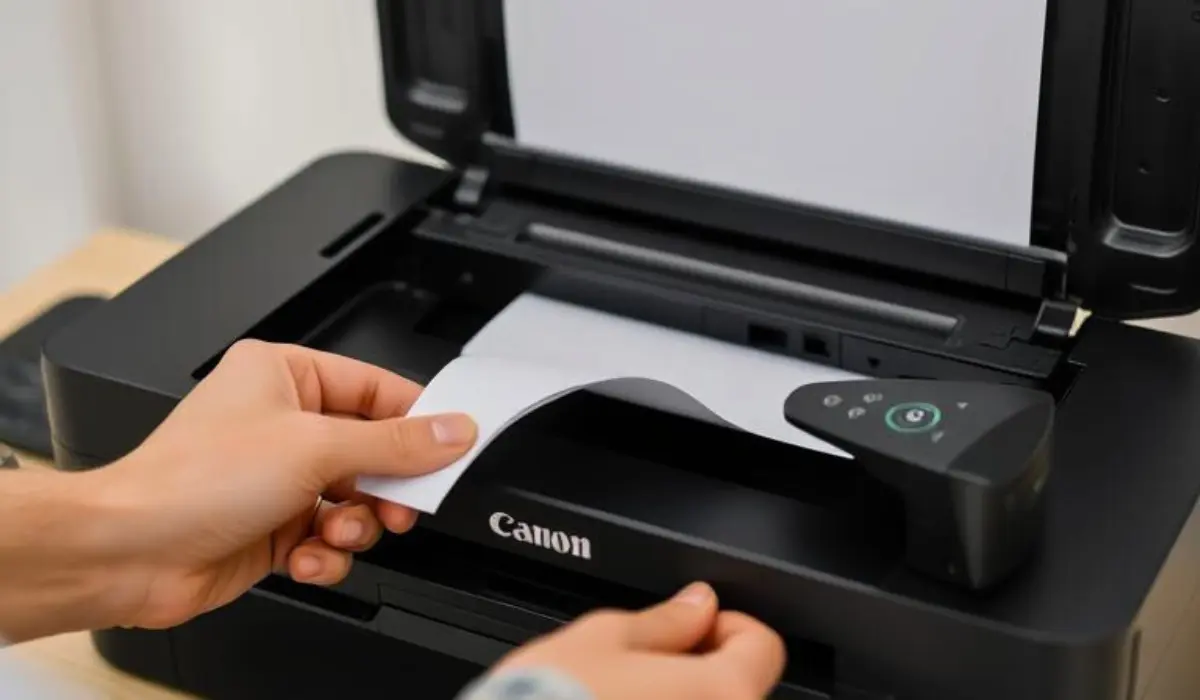
Experiencing a paper jam while using your Canon printer can be frustrating, especially when you’re in the middle of an important print job. This common issue can happen for several reasons, including misaligned paper, debris inside the printer, or using incompatible paper types. While it may seem like a serious problem, the good news is that most paper jams can be resolved quickly with a little patience and the right approach.
If you’re unsure where to start, this guide will walk you through everything you need to know about how to remove paper jam from Canon printer in a safe and effective way. Whether you own a Canon PIXMA, imageCLASS, or imagePROGRAF model, these troubleshooting steps will help you resolve the issue and get back to printing without damage to your machine or documents.
Understanding What Causes Paper Jams
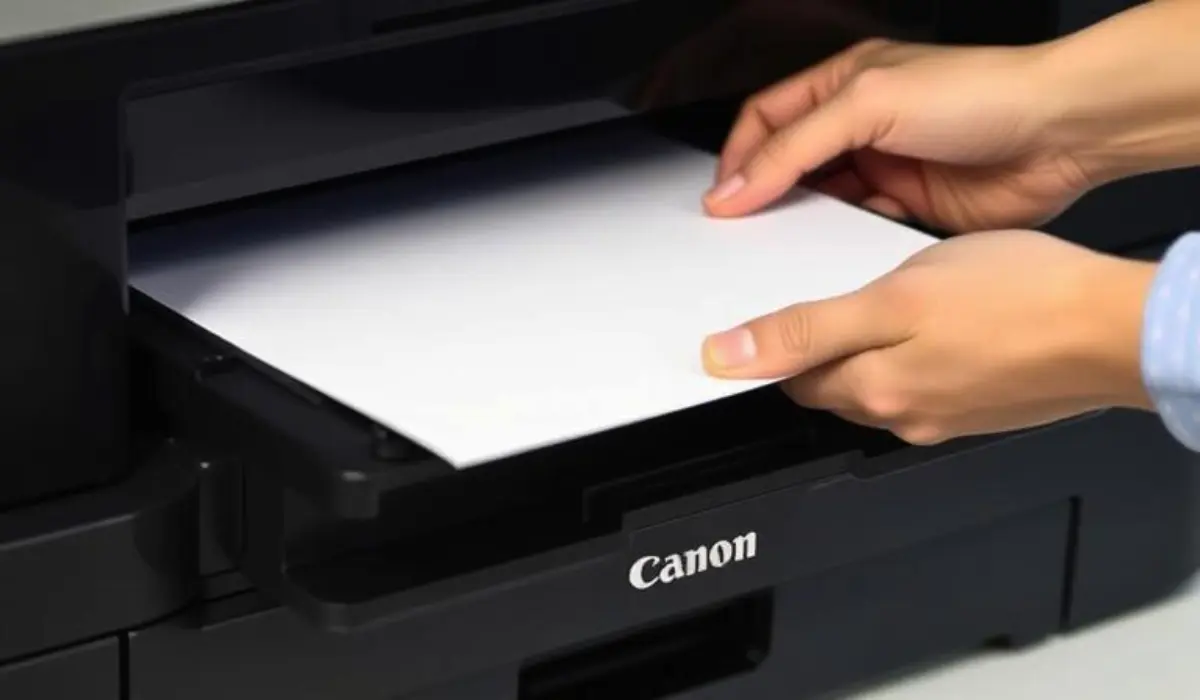
Before you attempt to fix a paper jam, it helps to understand why it happens in the first place. Canon printers are designed with sensors and rollers that guide the paper smoothly through the print path. However, jams can occur when:
-
The paper is loaded incorrectly or skewed
-
You use wrinkled, torn, or damp paper
-
The paper tray is overloaded
-
Foreign objects or leftover bits of paper are stuck inside
-
The rollers are dirty or worn out
Knowing these causes helps you prevent future issues and maintain your printer’s performance over time.
Step-by-Step Instructions to Clear a Paper Jam
1. Turn Off the Printer
The first thing you should always do is switch off your Canon printer and unplug it from the power source. This prevents further damage and ensures your safety while handling the internal components.
2. Open the Printer Access Panels
Most Canon printers have a top or rear access panel that allows you to reach the paper path. Open the printer cover slowly and check for any jammed paper. In some models, you may also need to open the rear tray or cassette feed to access the jam.
3. Remove the Jammed Paper Gently
Use both hands to carefully pull the jammed paper out. Avoid yanking or tearing it, as this can leave bits of paper inside that will cause future jams. Pull in the direction that the paper normally moves to prevent damage to the rollers or internal parts.
4. Check for Additional Paper Pieces
Even after removing the visible paper, small pieces might still be lodged inside. Use a flashlight to inspect the rollers, rear tray, and cassette. If your Canon printer has a paper output slot, check there as well. Remove any debris or scraps using tweezers if necessary.
5. Clean the Rollers if Needed
If your printer experiences frequent jams, the rollers may be dirty. Gently clean them using a lint-free cloth lightly dampened with water. Rotate the rollers manually and wipe off dust, ink, or paper residue. Let them dry completely before using the printer again.
6. Reload Paper Properly
Once everything is cleared, reload fresh, undamaged paper into the tray. Make sure the guides are snug but not too tight, and avoid overfilling the tray. Use only recommended paper types and sizes compatible with your Canon printer model.
7. Plug In and Run a Test Print
Reconnect the power cord, turn the printer back on, and run a test print. If the paper feeds smoothly and prints correctly, the issue has been resolved. If not, check again for hidden paper or consult your printer’s manual for model-specific troubleshooting.
When to Contact Support
If you’ve followed all the steps on how to remove paper jam from Canon printer and the issue still persists, it may be time to contact Canon support. Some advanced printers have internal sensors or components that require professional maintenance. In such cases, forcing the paper out or opening more parts than instructed may cause further damage. Reach out to Canon’s customer service or authorized repair centers for help.
Tips to Prevent Future Paper Jams
Preventing paper jams is much easier than fixing them repeatedly. Here are a few tips to help you keep your Canon printer running smoothly:
-
Always fan and align the paper before loading it into the tray.
-
Avoid mixing different types or sizes of paper in one tray.
-
Store your paper in a dry, clean place to prevent moisture.
-
Clean your printer’s rollers periodically.
-
Do not exceed the tray’s paper capacity.
-
Follow the recommended media types listed in your Canon printer manual.
Common Mistakes to Avoid
When removing a jam, many users unknowingly make mistakes that can worsen the situation. Here’s what to avoid:
-
Pulling the paper out too forcefully.
-
Using sharp tools to dislodge paper.
-
Ignoring tiny paper scraps left behind.
-
Skipping cleaning or regular maintenance.
-
Loading paper improperly after a jam.
Avoiding these errors ensures that your Canon printer remains functional and has a longer lifespan.
Dealing with Specific Canon Models
While the steps above are generally applicable, some Canon printer models have unique layouts and components. For example:
-
Canon PIXMA printers often jam in the rear tray, so always inspect that area.
-
Canon imageCLASS models may have more internal compartments, especially in multifunction units.
-
Canon imagePROGRAF printers might require additional steps if the jam occurs in the roll feed section.
Always refer to your user manual or Canon’s support website for model-specific advice if standard steps don’t resolve the issue.
Conclusion
Clearing a paper jam doesn’t have to be a stressful experience. Once you understand the causes and know how to handle it properly, you can fix the problem quickly and safely without damaging your printer. This guide has covered everything you need to know about how to remove paper jam from Canon printer, including step-by-step instructions, preventive tips, and advice on when to seek professional help. By staying patient, being gentle with the printer parts, and taking preventive measures, you can avoid recurring jams and enjoy a smooth printing experience every time. Keeping your Canon printer in good condition is just a matter of proper care and knowing what to do when things go wrong.