Blog
Why Canon Printer Not Working? Here’s What Might Be Wrong


Canon printers are known for their high-quality printing, user-friendly features, and reliable performance. However, like any electronic device, they can occasionally run into problems that leave users asking, “why Canon printer not working?” Whether you’re dealing with connectivity issues, paper jams, or print quality concerns, the frustration is real—especially when you need to get something printed urgently. The good news is that most Canon printer issues can be resolved with simple troubleshooting steps at home.
This article will guide you through the most common causes and practical solutions to get your Canon printer up and running again. Read on to find out how to troubleshoot effectively, save time, and avoid unnecessary stress when your Canon printer stops working.
Most Common Reasons Why Your Canon Printer Is Not Working
Before contacting technical support, it helps to check a few key areas that are often responsible for printer malfunctions. Below are some of the most common reasons that could explain why your Canon printer is not working.
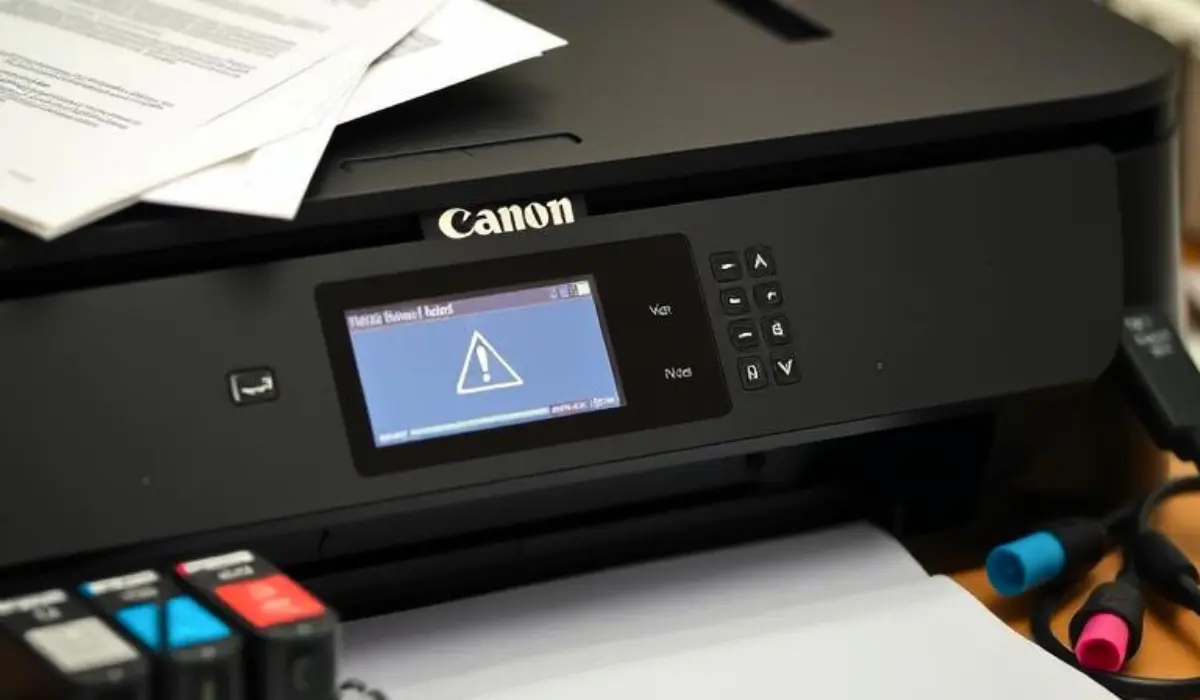
1. Check the Basics First
Before diving into technical solutions, it’s important to rule out basic problems:
-
Power and Cable Connections: Ensure your printer is plugged in properly, switched on, and that all cables are securely connected.
-
Paper Tray and Ink Levels: Make sure there is enough paper in the tray and that your ink or toner cartridges aren’t empty or improperly installed.
-
Restart the Printer: A simple restart can reset minor glitches in the system.
Sometimes, it’s the most obvious things that get overlooked. Starting with these basic checks can often save you a lot of time.
2. Connection Issues: Wired and Wireless
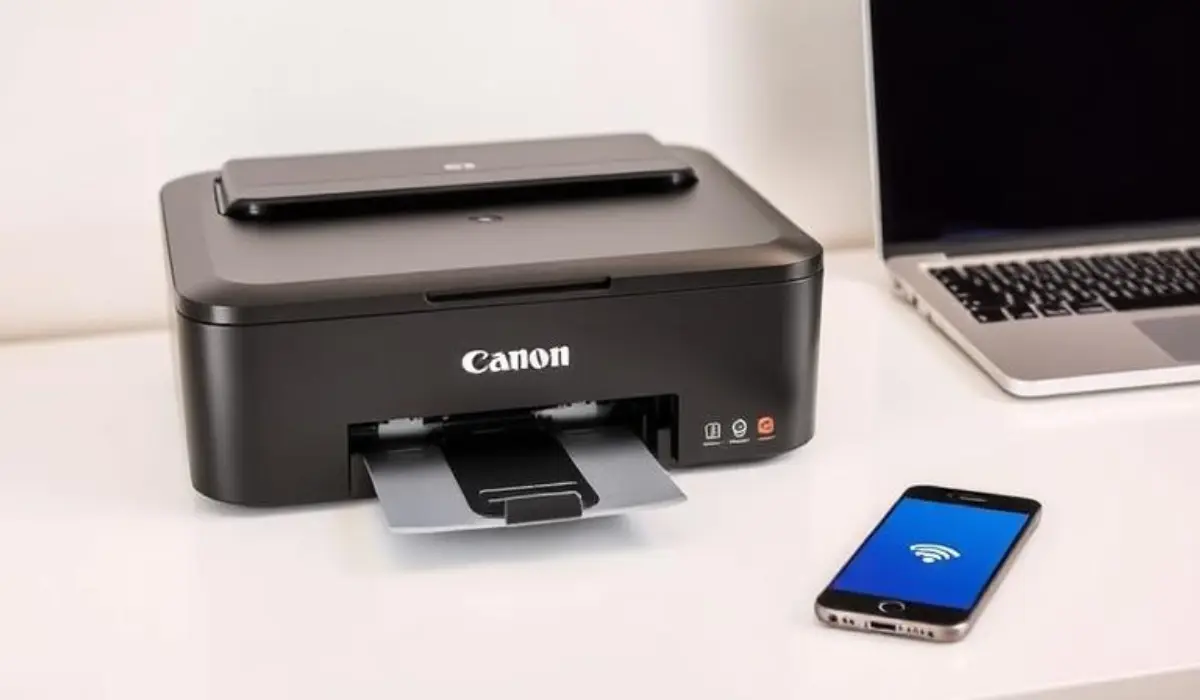
One of the most frequent problems that leads users to ask why Canon printer not working is a faulty connection between the printer and the device.
For Wired Connections:
-
Check if the USB cable is in good condition and properly connected to both the printer and your computer.
-
Try switching to a different USB port or replacing the cable to rule out hardware issues.
For Wireless Connections:
-
Make sure the printer is connected to the correct Wi-Fi network.
-
Restart your router and printer to refresh the network.
-
Reconnect the printer using the Wi-Fi setup menu on the printer’s control panel.
If your printer is not being detected, go to your computer’s printer settings and try adding the printer manually.
3. Driver or Software Problems
Outdated or corrupted printer drivers are another common cause behind a non-working Canon printer.
Solutions:
-
Visit Canon’s official website to download and install the latest drivers for your printer model.
-
Uninstall the current driver from your system and reinstall it with the updated version.
-
Use Canon’s utility software to diagnose and fix driver-related issues automatically.
Always keep your printer software updated to ensure compatibility with your operating system, especially after system updates.
4. Print Queue Errors and Job Stuck
Sometimes, print jobs get stuck in the queue, preventing new documents from being printed.
How to Fix:
-
Go to “Devices and Printers” on your PC.
-
Right-click your Canon printer and select “See what’s printing.”
-
Cancel all print jobs or clear the print queue.
-
Restart the printer spooler service if necessary.
This simple trick often solves the issue and gets your printer back to normal operation.
5. Paper Jam or Internal Obstruction
Paper jams are an obvious but common issue. Even a small piece of torn paper can halt printing.
Steps to Clear Paper Jams:
-
Turn off your printer and unplug it.
-
Open all accessible doors and gently remove any stuck paper.
-
Check for small scraps or debris using a flashlight.
-
Avoid pulling paper forcefully, which may damage internal components.
After clearing the jam, restart the printer and try a test print.
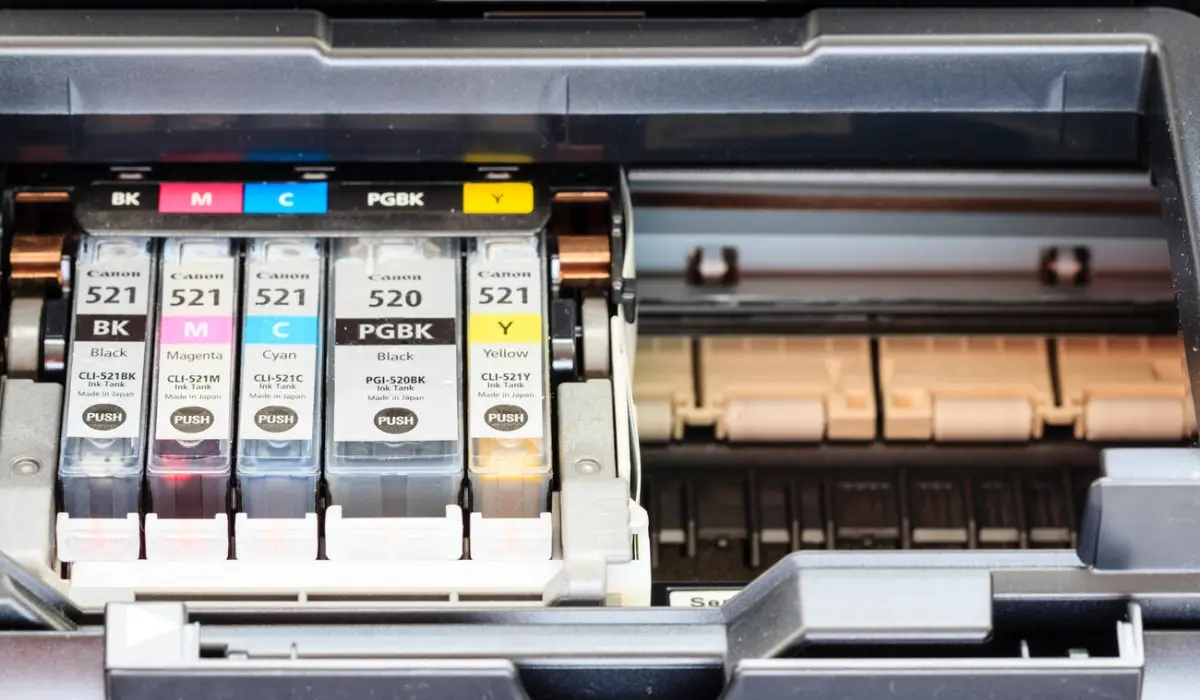
6. Ink Cartridge Recognition Issues
Canon printers sometimes fail to recognize new or refilled cartridges.
Tips to Resolve:
-
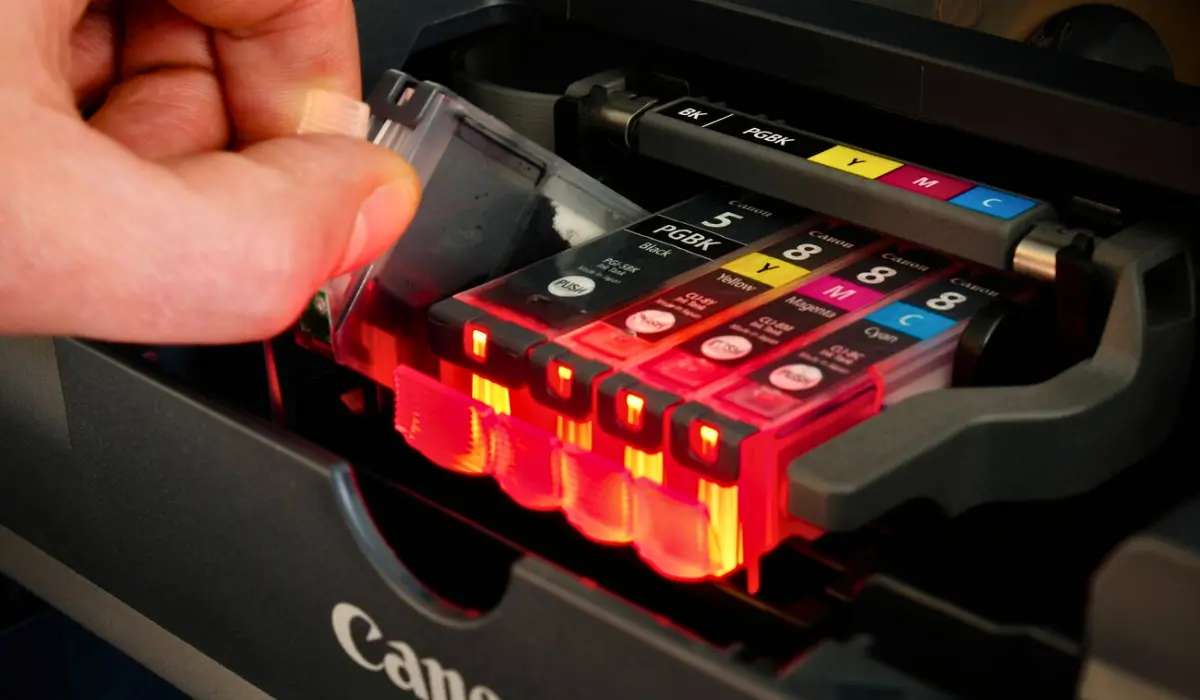
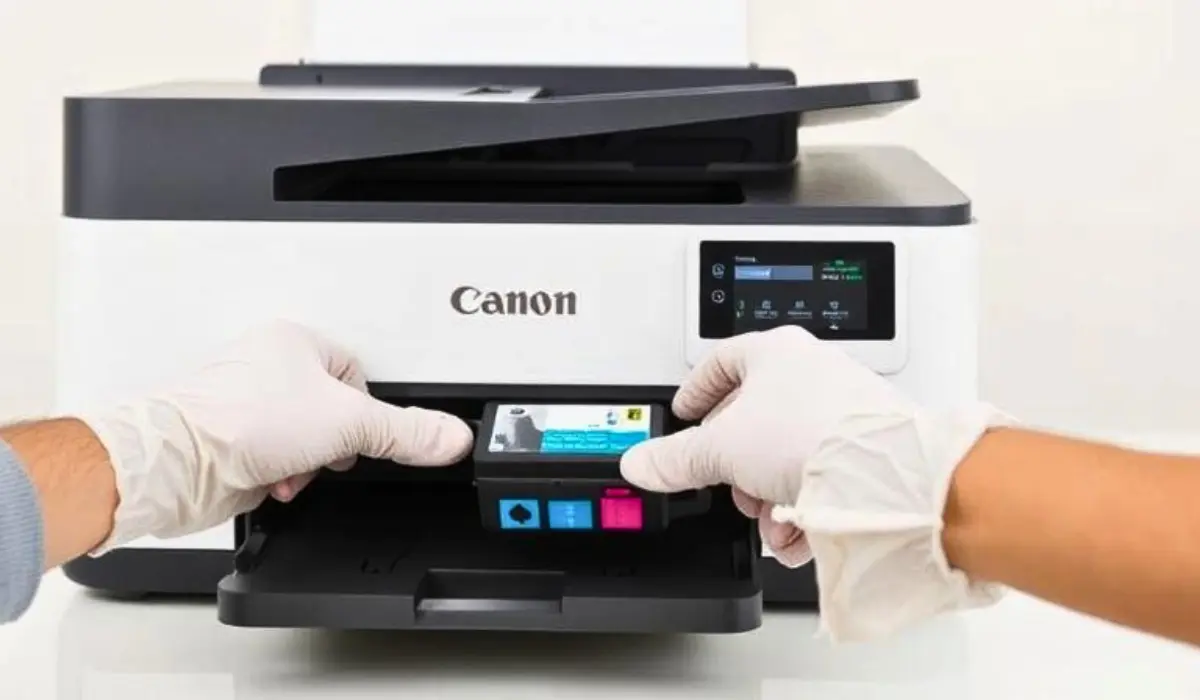
Remove the cartridge and reinsert it firmly.
-
Make sure you’re using genuine Canon cartridges or compatible ones approved for your model.
-
Clean the gold contacts on the cartridge gently with a soft cloth.
-
If the issue persists, reset the printer’s ink system via the settings.
Also, check for any firmware updates that may resolve cartridge recognition errors.
7. Poor Print Quality or No Output
If your printer is printing blank pages or the print quality is poor, the problem might be with the ink delivery system.
Troubleshooting Steps:
-
Run a nozzle check and cleaning cycle from the printer’s maintenance menu.
-
Ensure ink levels are adequate and cartridges are not dried out.
-
Align the print head if prints are misaligned or blurry.
Running regular maintenance can help prevent print quality issues over time.
8. Printer in Error State or Offline
Sometimes, the printer appears offline or displays an error message with no clear reason.
Quick Fixes:
-
Restart both your printer and computer.
-
Set your Canon printer as the default printer.
-
Disable “Use Printer Offline” mode in the printer settings.
-
Run the Windows Troubleshooter or Canon’s diagnostic tool for additional help.
If these don’t help, checking for firmware updates might solve hidden bugs that are causing the error.
Conclusion
When your Canon printer stops working, it can be incredibly disruptive—but most issues can be fixed with some basic troubleshooting. Whether it’s a simple connectivity error, outdated drivers, or a stubborn paper jam, understanding the root of the problem is the first step to fixing it. If you’ve ever wondered why Canon printer not working, now you have a clear guide to follow. Keep your printer software updated, use genuine ink, and perform routine maintenance to reduce the chances of future issues. And if all else fails, Canon’s customer support and authorized service centers are always available to help. With the right steps, your Canon printer will be back in action in no time.