Blog
Why Is My Epson Printer Printing Blank Pages? 10 Easy Fixes That Work (2026 Guide)

Why Is My Epson Printer Printing Blank Pages? 10 Easy Fixes That Work (2026 Guide)
Nothing is more frustrating than sending a document to print only to receive a completely blank page. If you’ve been asking, “Why is my Epson printer printing blank pages?”, you’re not alone.
This is one of the most common Epson printer problems reported by home users, offices, schools, and businesses. Fortunately, in most cases, the issue can be fixed without replacing the printer or calling technical support.
Blank page printing is usually caused by:
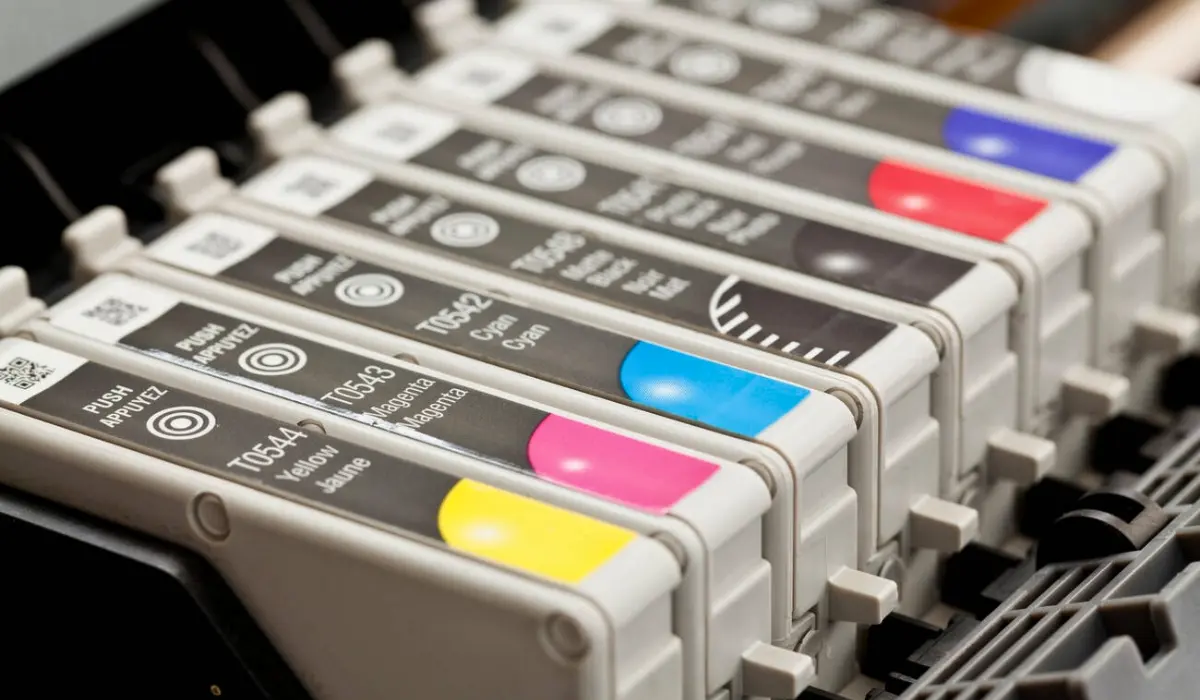
- Low or empty ink levels
- Clogged printhead nozzles
- Incorrect printer settings
- Driver problems
- Air trapped in ink lines
- Firmware issues
- Paper feed problems
In this updated 2026 troubleshooting guide, we’ll explain the most common causes and show you exactly how to fix them.
Quick Answer
If your Epson printer is printing blank pages, first check your ink levels and run a nozzle check. Most blank page problems are caused by clogged printheads, empty ink tanks, incorrect print settings, or outdated printer drivers.
Running a printhead cleaning cycle often solves the issue within minutes.
Why Is My Epson Printer Printing Blank Pages?
Several factors can prevent ink from reaching the paper properly.
Let’s look at the most common causes.
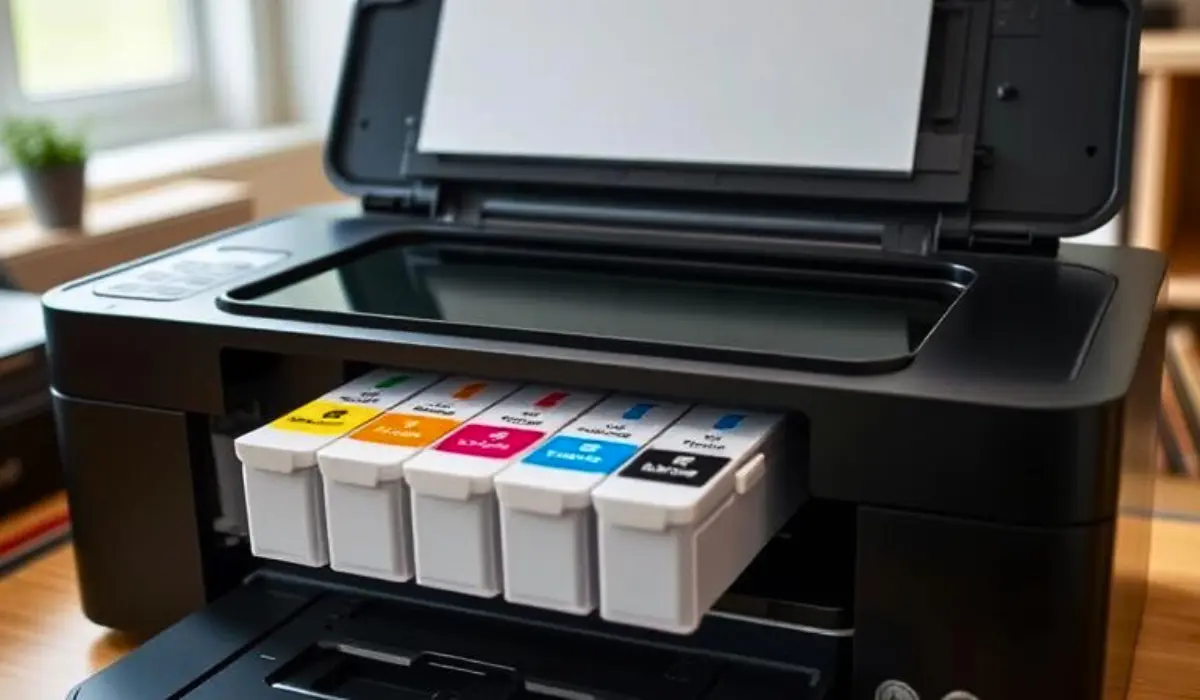
1. Low or Empty Ink Levels
The most obvious reason for blank pages is insufficient ink.
Even if your printer appears to be operating normally, it cannot print without adequate ink supply.
Signs of Low Ink
- Faded printing
- Missing colors
- Blank pages
- Streaks on documents
How to Fix It
- Open Epson printer software.
- Check current ink levels.
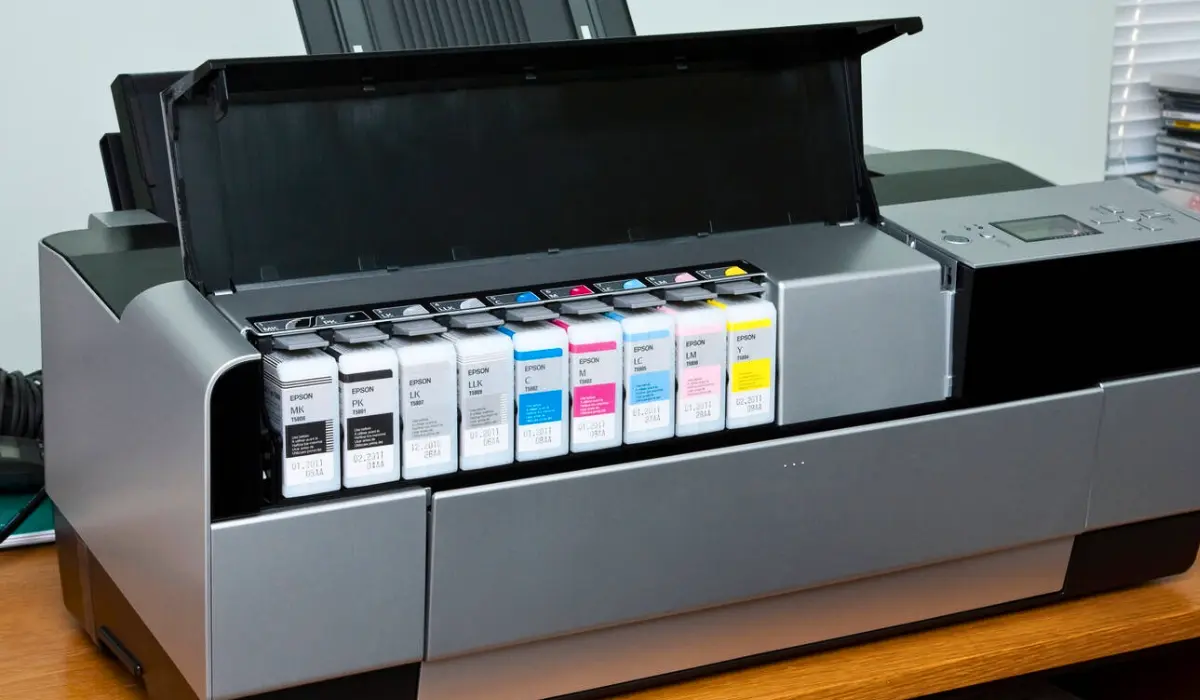
- Refill EcoTank reservoirs or replace empty cartridges.
- Print a test page.
For best results, use genuine Epson ink.
2. Clogged Printhead Nozzles
A clogged printhead is one of the most common causes of blank page printing.
When printers remain unused for extended periods, ink can dry inside the printhead nozzles.
Common Symptoms
- Blank pages
- Missing text
- Missing colors
- Streaked output
How to Fix It
Run a Nozzle Check
- Open Epson Printer Utility.
- Select Maintenance.
- Click Nozzle Check.
- Print the test pattern.
If lines are missing, continue with printhead cleaning.
Run Head Cleaning
- Open Maintenance.
- Select Head Cleaning.
- Follow on-screen instructions.
- Wait for completion.
- Print another nozzle check.
Most minor clogs are resolved after one or two cleaning cycles.
3. Epson EcoTank Ink Not Reaching the Printhead
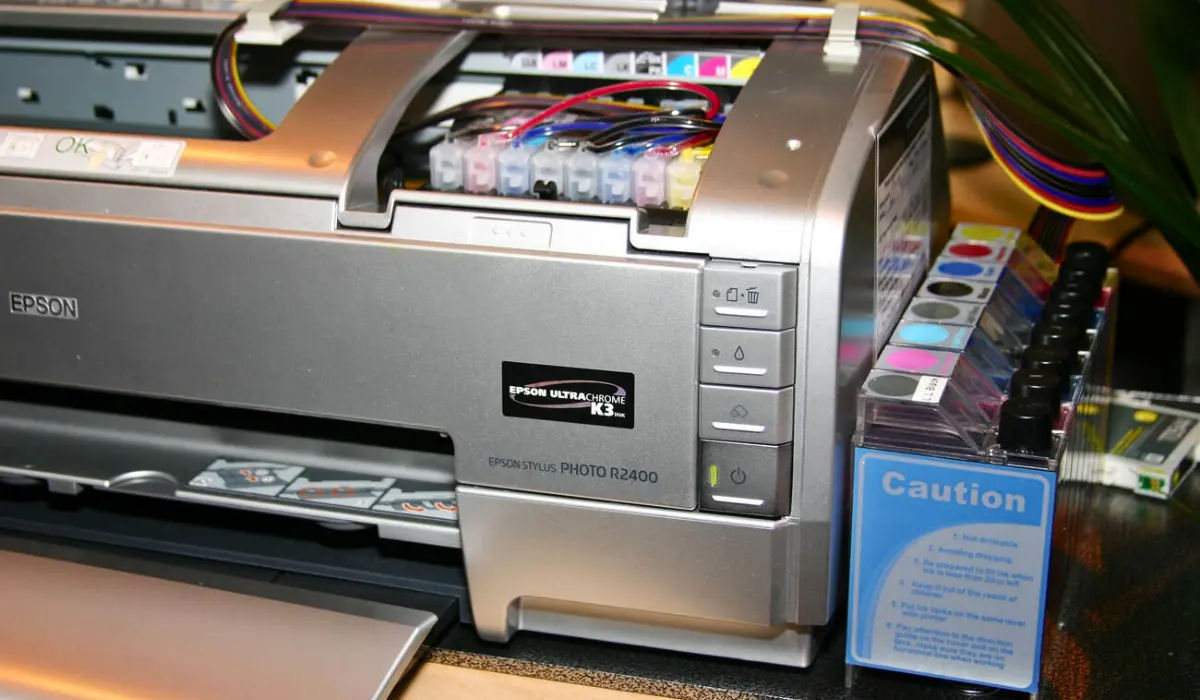
If you recently refilled your Epson EcoTank printer, air bubbles may be trapped inside the ink delivery system.
This can prevent ink from reaching the printhead.
How to Fix It
- Verify ink tanks contain sufficient ink.
- Check all tank caps are secure.
- Run a Power Cleaning cycle if available.
- Print several test pages.
Power Cleaning is especially useful for EcoTank models experiencing severe ink flow issues.
4. Incorrect Print Settings
Sometimes the printer isn’t the problem at all.
Incorrect software settings can produce blank pages even when the printer is functioning correctly.
Check These Settings
- Paper size
- Paper type
- Print quality
- Grayscale mode
- Draft mode
- Blank page separator settings
Also ensure your document doesn’t contain:
- Hidden content
- White text on white backgrounds
- Empty pages
5. Air Trapped in New Ink Cartridges
Have you recently replaced an ink cartridge?
New cartridges occasionally introduce air into the ink system.
How to Fix It
- Remove the cartridge.
- Reinstall it securely.
- Verify it clicks into place.
- Run a nozzle check.
- Perform head cleaning if necessary.
This often restores normal ink flow.
6. Outdated or Corrupted Printer Drivers
Printer drivers allow your computer and printer to communicate.
If drivers become outdated or corrupted, unexpected printing issues can occur.
Symptoms
- Blank pages
- Missing content
- Printer errors
- Communication failures
How to Fix It
- Download the latest Epson printer driver.
- Uninstall the old driver.
- Install the updated version.
- Restart your computer and printer.
Updated drivers often resolve compatibility problems immediately.
7. Epson Firmware Problems
Modern Epson printers rely on firmware to manage printing operations.
Occasionally, bugs or software conflicts can cause printing issues.
Solution
- Check for firmware updates.
- Install available updates.
- Restart the printer.
Firmware updates improve:
- Performance
- Security
- Stability
- Print quality
8. Incorrect Paper Feed or Tray Selection
Many Epson printers support multiple paper trays.
If the wrong tray is selected, printing behavior may become inconsistent.
Verify
- Correct tray selection
- Proper paper type
- Correct paper size
- Proper paper alignment
Incorrect paper settings sometimes trigger blank page output.
9. Physical Obstructions Inside the Printer
Paper scraps, dust, or foreign objects can interfere with the printing process.
Inspection Checklist
- Remove jammed paper
- Check rear access panels
- Clean dust buildup
- Verify paper guides
Regular maintenance helps prevent these issues.
10. Printer Needs a Restart or Reset
Temporary software glitches can occasionally affect Epson printers.
Quick Fix
- Turn off the printer.
- Disconnect power for 60 seconds.
- Restart the printer.
- Print a test page.
If problems continue, perform a factory reset through the printer settings menu.
How to Prevent Epson Printers from Printing Blank Pages
The best solution is prevention.
Print Regularly
Printing once every week helps prevent nozzle clogs.
Use Genuine Epson Ink
Original Epson ink is designed specifically for Epson printheads.
Keep Firmware Updated
Regular updates improve reliability and performance.
Store the Printer Properly
Avoid:
- Direct sunlight
- Excessive heat
- Extremely dry environments
Run Maintenance Checks
Perform:
- Nozzle checks
- Printhead cleaning
- Firmware updates
when necessary.
Epson EcoTank Printing Blank Pages?
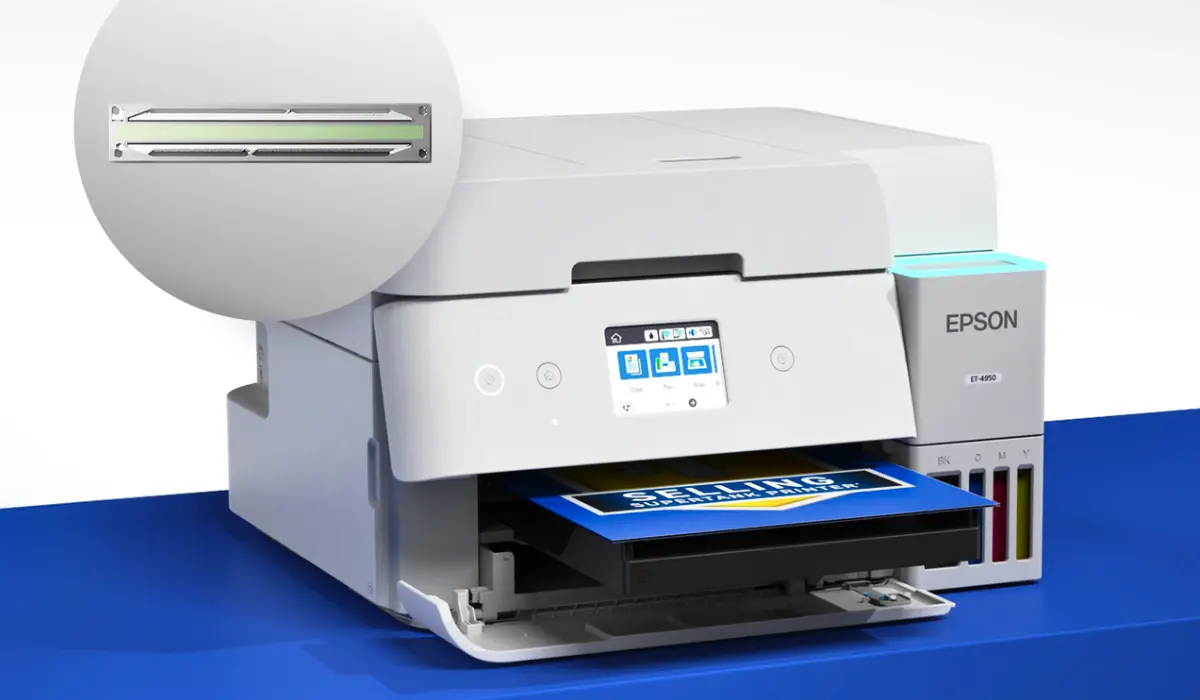
Many users specifically experience this issue with EcoTank printers.
Common EcoTank causes include:
- Air in ink tubes
- Incomplete ink charging
- Empty tanks
- Clogged printheads
For EcoTank models:
- Check ink tank levels.
- Run Power Cleaning.
- Perform a nozzle check.
- Print several color pages.
This solves most EcoTank blank page problems.
Frequently Asked Questions
Why is my Epson printer printing blank pages with full ink?
The most common cause is a clogged printhead or blocked nozzles preventing ink from reaching the paper.
How do I fix my Epson printer printing blank pages?
Check ink levels, run a nozzle check, perform printhead cleaning, and update printer drivers.
Why is my Epson EcoTank printer printing blank pages?
Air bubbles, clogged printheads, or incomplete ink charging are the most common causes.
Can outdated drivers cause blank pages?
Yes. Corrupted or outdated printer drivers can interfere with communication between your computer and printer.
How often should I clean my Epson printhead?
Only when print quality issues appear. Excessive cleaning can waste ink unnecessarily.
Final Thoughts
If your Epson printer is printing blank pages, don’t panic. In most cases, the problem is related to ink flow, printhead maintenance, software settings, or outdated drivers rather than a serious hardware failure.
Start by checking your ink levels, running a nozzle check, and performing a printhead cleaning cycle. These simple steps resolve the majority of blank page issues for Epson EcoTank, WorkForce, and SureColor printers.
With regular maintenance, genuine Epson supplies, and updated software, your printer can continue delivering reliable, high-quality prints throughout 2026 and beyond.