Blog
How to Remove a Paper Jam from a Canon Printer? Step-by-Step Fix Guide (2026)

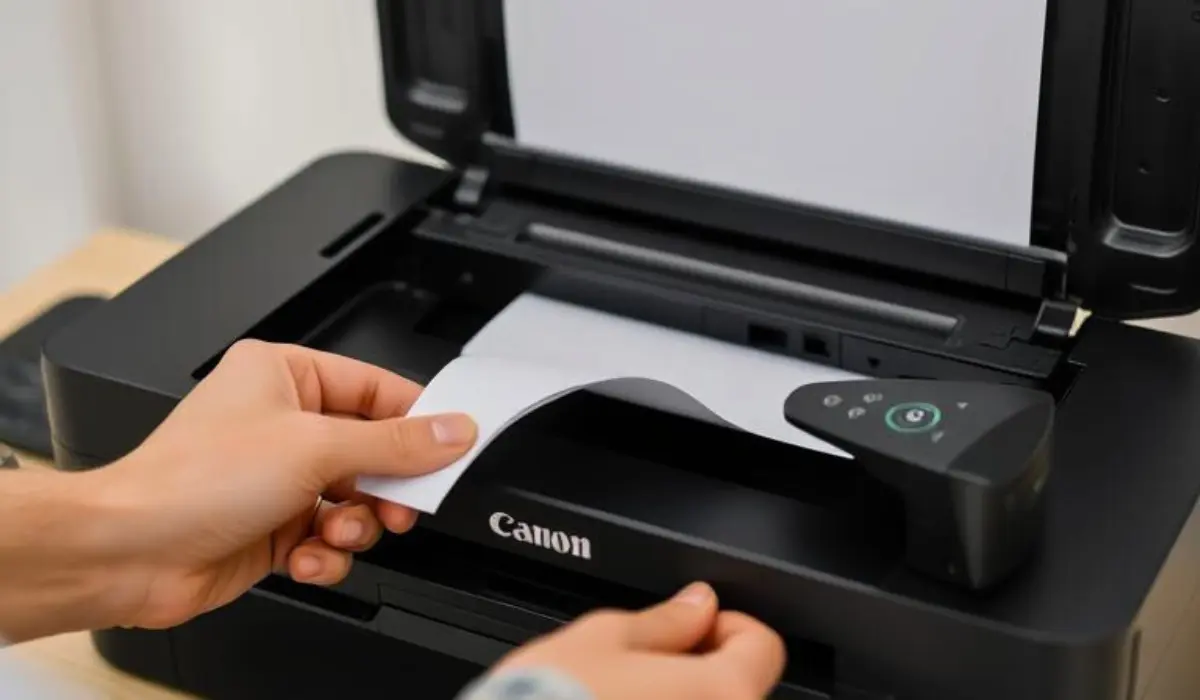
How to Remove a Paper Jam from a Canon Printer? Step-by-Step Fix Guide (2026)
A paper jam is one of the most common printer problems, and it always seems to happen at the worst possible time. Whether you’re printing important business documents, school assignments, invoices, or photos, a stuck sheet of paper can bring your workflow to a complete stop.
If you’re wondering how to remove a paper jam from a Canon printer, the good news is that most paper jams can be fixed within a few minutes using simple troubleshooting steps.
Paper jams can occur in Canon PIXMA, imageCLASS, MAXIFY, and imagePROGRAF printers due to incorrect paper loading, damaged paper, dirty rollers, or debris inside the printer.
In this updated 2026 guide, you’ll learn:
- Why Canon printers get paper jams
- How to remove stuck paper safely
- How to fix recurring paper feed issues
- How to prevent future paper jams
- When to contact Canon support
Let’s get your Canon printer working again.
Quick Answer
To remove a paper jam from a Canon printer:
- Turn off the printer.
- Unplug the power cable.
- Open all access panels.
- Carefully remove the jammed paper.
- Check for torn paper pieces.
- Inspect and clean rollers.
- Reload paper correctly.
- Restart the printer and print a test page.
Most Canon paper jams are caused by improper paper loading, worn rollers, or small pieces of paper stuck inside the printer.
Why Does My Canon Printer Keep Jamming?
Before fixing the issue, it’s important to understand what causes paper jams.
Common reasons include:
- Overloaded paper tray
- Misaligned paper stack
- Wrinkled or damaged paper
- Moist paper
- Incorrect paper size
- Dirty paper rollers
- Foreign objects inside the printer
- Worn feed rollers
Understanding the cause helps prevent the problem from returning.
Step 1: Turn Off Your Canon Printer
Before touching any internal components:
- Turn off the printer.
- Disconnect the power cable.
- Allow the printer to stop completely.
This prevents damage to moving parts and protects you while troubleshooting.
Step 2: Locate the Paper Jam
Most Canon printers display an error message when a jam occurs.
Common messages include:
- Paper Jam
- Rear Tray Jam
- Cassette Jam
- Paper Feed Error
- Remove Jammed Paper
Check:
- Paper input tray
- Rear paper feed
- Output tray
- Rear access door
- Internal paper path
Identifying the jam location makes removal much easier.
Step 3: Open All Accessible Covers
Carefully open the appropriate access panels.
Depending on your printer model, this may include:
Canon PIXMA
- Front cover
- Rear tray
- Output slot
Canon imageCLASS
- Front access panel
- Toner compartment
- Rear access door
Canon imagePROGRAF
- Roll feed compartment
- Media path access panel
Use your printer manual if you’re unsure which panels to open.
Step 4: Remove the Jammed Paper Carefully
Once you locate the paper:
Important
Never pull paper forcefully.
Instead:
- Use both hands
- Pull slowly
- Follow the natural paper path
- Keep the paper flat while removing
Sudden force can damage:
- Rollers
- Feed mechanisms
- Sensors
- Internal gears
Step 5: Check for Torn Paper Fragments
One of the most common reasons for repeated paper jams is leftover paper scraps.
Even tiny pieces can trigger printer sensors.
Inspect Carefully
Check:
- Feed rollers
- Rear tray
- Output slot
- Internal paper path
- Paper cassette
Use a flashlight if necessary.
Remove any remaining fragments before continuing.
Step 6: Inspect the Paper Feed Rollers
Dirty rollers often cause recurring paper jams.
Rollers collect:
- Dust
- Ink residue
- Paper fibers
Over time, they lose grip and struggle to feed paper correctly.
How to Clean Rollers
- Use a lint-free cloth.
- Slightly dampen with water.
- Rotate rollers manually.
- Wipe thoroughly.
- Allow to dry completely.
Clean rollers improve paper feeding performance significantly.
Step 7: Reload Paper Correctly
Improper loading is one of the biggest causes of paper jams.
Best Practices
✔ Use clean, flat paper
✔ Align the stack properly
✔ Adjust paper guides
✔ Avoid overfilling the tray
✔ Use supported media types
Avoid
✘ Curled paper
✘ Damp paper
✘ Torn sheets
✘ Mixed paper sizes
Step 8: Restart the Printer
After clearing the jam:
- Reconnect power.
- Turn on the printer.
- Allow initialization to complete.
- Print a test page.
If printing resumes normally, the issue has been successfully resolved.
Canon Printer Still Showing Paper Jam?
Sometimes the printer continues displaying a paper jam error even after the paper is removed.
Possible causes include:
Hidden Paper Fragments
Small scraps may still be blocking sensors.
Dirty Sensors
Dust can trigger false paper jam warnings.
Faulty Rollers
Worn rollers may fail to feed paper correctly.
Firmware Issues
Outdated firmware occasionally causes sensor errors.
Restarting and updating firmware often resolves these issues.
Canon PIXMA Paper Jam Fix
Canon PIXMA printers commonly experience jams in:
- Rear tray
- Output slot
- Paper feed rollers
If your PIXMA printer jams frequently:
- Clean rollers regularly
- Use high-quality paper
- Avoid overloading the tray
PIXMA printers are especially sensitive to damp or curled paper.
Canon imageCLASS Paper Jam Fix
For imageCLASS laser printers:
Check:
- Toner compartment
- Rear access door
- Duplex unit
- Paper cassette
Laser printers often experience jams during duplex printing when paper paths become obstructed.
Canon imagePROGRAF Paper Jam Fix
Large-format printers may experience jams in:
- Roll feed systems
- Media loading mechanisms
- Output catch baskets
Always follow Canon’s recommended media handling procedures for wide-format printing.
How to Prevent Future Canon Printer Paper Jams
Preventive maintenance is easier than repeated troubleshooting.
Use High-Quality Paper
Cheap paper sheds fibers that accumulate inside the printer.
Store Paper Properly
Keep paper:
- Dry
- Flat
- Dust-free
Moisture causes paper curling and feeding problems.
Clean Rollers Regularly
Periodic cleaning improves paper handling performance.
Don’t Overload the Tray
Too much paper increases friction and misfeeds.
Update Printer Firmware
Firmware updates improve printer performance and error handling.
Common Mistakes to Avoid
Many users accidentally worsen paper jam problems.
Avoid:
❌ Pulling paper aggressively
❌ Using sharp tools
❌ Ignoring small paper scraps
❌ Loading damaged paper
❌ Skipping roller maintenance
❌ Forcing covers closed
Proper handling protects your Canon printer from costly repairs.
Frequently Asked Questions
How do I remove a paper jam from a Canon printer?
Turn off the printer, open access panels, carefully remove the jammed paper, inspect for scraps, clean rollers, and restart the printer.
Why does my Canon printer keep getting paper jams?
Common causes include overloaded trays, dirty rollers, damaged paper, incorrect paper loading, or worn feed mechanisms.
Can I pull paper out of a Canon printer?
Yes, but always pull slowly in the direction of the paper path to avoid damaging internal components.
Why does my Canon printer say paper jam when there is no paper?
Small paper fragments, dirty sensors, or firmware issues can trigger false paper jam errors.
How do I prevent Canon paper jams?
Use quality paper, clean rollers regularly, avoid overloading trays, and store paper in a dry environment.
Final Thoughts
Learning how to remove a paper jam from a Canon printer can save time, reduce frustration, and prevent unnecessary service calls. Most paper jams are caused by simple issues such as misaligned paper, dirty rollers, overloaded trays, or small paper fragments left inside the printer.
By following the troubleshooting steps in this guide and maintaining your printer regularly, you can resolve most Canon paper jam issues quickly and keep your printer operating smoothly throughout 2026 and beyond.
Whether you use a Canon PIXMA, imageCLASS, MAXIFY, or imagePROGRAF printer, proper paper handling and routine maintenance are the keys to reliable printing performance.