How to Download the Epson Printer and Scanner Driver?


If you’ve recently purchased a new Epson printer or are setting up a used one, one of the first and most important steps is downloading the correct Epson printer and scanner driver. Without the driver, your printer won’t be able to communicate properly with your computer, and your scanner functions won’t work either. Whether you’re a student needing to scan assignments or a business user handling high-volume print jobs, having the correct driver is essential. The good news is that downloading and installing this driver is straightforward if you follow the right steps. In this guide, we’ll walk you through everything you need to know—from where to find the driver to how to install and update it effectively. Let’s make sure your Epson device works exactly how it should.
Why Drivers Matter for Epson Printers and Scanners?
A driver is essentially the translator between your computer and your Epson printer or scanner. Without it, your system cannot send print or scan commands to the device. Epson offers different drivers based on the model and operating system you’re using—whether it’s Windows, macOS, or even Linux. Some drivers support only basic printing, while others are bundled with Epson’s scanning software, utility tools, or network configuration packages. Downloading the right driver ensures all features of your Epson device, including scanning and wireless printing, function as expected. Not only does it improve performance, but it also enhances compatibility and reduces errors like failed print jobs or scanner issues.
Step-by-Step: How to Download the Epson Printer and Scanner Driver?
1. Identify Your Printer Model
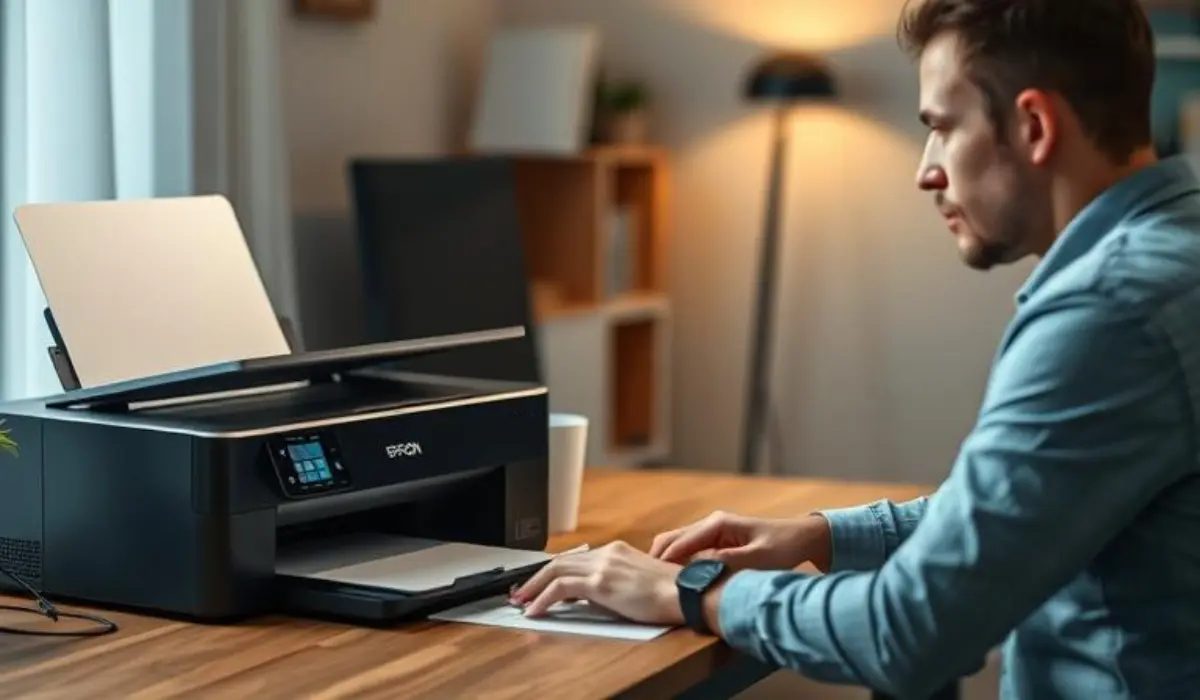
Before downloading any driver, it’s important to know your exact Epson printer or all-in-one device model. You can usually find this on the front panel of the printer or on the label at the back or bottom of the device. Write down the model number accurately (e.g., Epson EcoTank L3110, Epson WorkForce WF-2830).
2. Visit the Official Epson Website
Go to Epson’s official support website. This is the safest and most reliable place to get the correct Epson printer and scanner driver for your device.
3. Use the Support Search Function
Once on the site, locate the support or driver section. Use the search bar to enter your printer model. For example, if you’re using the Epson L3150, type “L3150” and click on the appropriate suggestion from the dropdown list.
4. Select Your Operating System
After selecting your printer model, the website will usually auto-detect your operating system. However, if it doesn’t or you need drivers for a different system, you can manually select it from a dropdown menu (Windows 10, macOS 12, etc.).
5. Download the Recommended Driver Package
The site will offer different downloads, including full driver and software packages, basic drivers, firmware updates, and utilities. For most users, the recommended full-feature driver package is the best option, as it includes both printer and scanner drivers as well as additional utilities.
Click the “Download” button and wait for the file to finish downloading to your computer.
How to Install the Driver on Your Computer?
For Windows Users:
-
Locate the downloaded
.exefile and double-click it. -
Follow the on-screen instructions in the installer.
-
When prompted, connect your printer via USB or set up the wireless connection.
-
The installer will automatically detect your device and complete the installation.
For macOS Users:
-
Open the
.dmgfile from your Downloads folder. -
Double-click the Epson installer package.
-
Accept the terms and follow the prompts.
-
Connect your printer or configure it on your network when asked.
Once the installation is complete, you may need to restart your computer to apply all changes.
Updating an Existing Epson Driver
If your printer or scanner isn’t functioning as expected or you’ve recently updated your operating system, it’s wise to check if an updated Epson printer and scanner driver is available. Follow the same steps to search for your device on the Epson website. If a newer version of the driver is listed under the “Drivers & Downloads” tab, download and install it using the same method. This can fix bugs, improve device compatibility, and add new features.
Troubleshooting Common Installation Issues
Sometimes things don’t go as smoothly as expected. Here are a few tips:
-
Driver Not Found: Make sure you’re searching for the correct model number on the right regional Epson site.
-
Driver Not Installing: Check your internet connection, restart your device, or try running the installer as an administrator.
-
Scanner Not Working After Install: Confirm that you downloaded the full-feature package and not just the basic printer driver. Also, check that the Epson Scan 2 utility is installed.
-
USB Not Detected: Try a different USB port or cable. Ensure the printer is powered on.
If none of these work, Epson provides diagnostic tools and customer support that can help you resolve the issue quickly.
Benefits of Getting the Official Epson Driver
-
Full functionality of both printing and scanning features
-
Compatibility with your operating system
-
Security from malware or corrupted third-party software
-
Automatic updates and alerts for new versions
-
Better troubleshooting through official support
Conclusion
Downloading and installing the correct Epson printer and scanner driver is essential for ensuring your device performs at its best. Whether you’re printing documents, scanning photos, or working on creative projects, the right driver makes everything run smoothly. Epson has made the process relatively simple through its official support website, and as long as you know your model number and operating system, you’ll be set up in just a few minutes. Remember to check for updates regularly and always download from official sources to avoid complications. With the right setup, your Epson device will be ready to deliver consistent, high-quality results for years to come.