Blog
Why Is My Epson Printer Not Printing Color? Easy Fixes That Work (2026 Guide)

Epson printers are widely trusted for producing vibrant colors, sharp documents, and high-quality photo prints. However, one of the most frustrating issues users encounter is when their Epson printer suddenly stops printing color correctly or prints only in black and white.
Whether you’re printing business documents, marketing materials, school projects, or photographs, color printing problems can affect productivity and print quality. The good news is that most Epson color printing issues can be diagnosed and fixed without professional repair.
In this guide, you’ll learn why your Epson printer is not printing color and the step-by-step solutions to restore vibrant color printing quickly.
Why Is Your Epson Printer Not Printing Color?
If your Epson printer is not printing color, the most common causes include clogged printhead nozzles, low or empty color ink cartridges, incorrect printer settings, outdated drivers, air trapped in ink lines, or non-genuine ink cartridges.
The Solution: Check color ink levels, make sure color printing is enabled, run a nozzle check, clean the printhead, update printer drivers, and inspect the cartridges. In most cases, these steps restore normal color printing within a few minutes.
Why Is My Epson Printer Not Printing Color?
Color printing issues usually occur when the printer cannot properly deliver color ink onto the paper.
This can happen because of:
- Clogged printhead nozzles
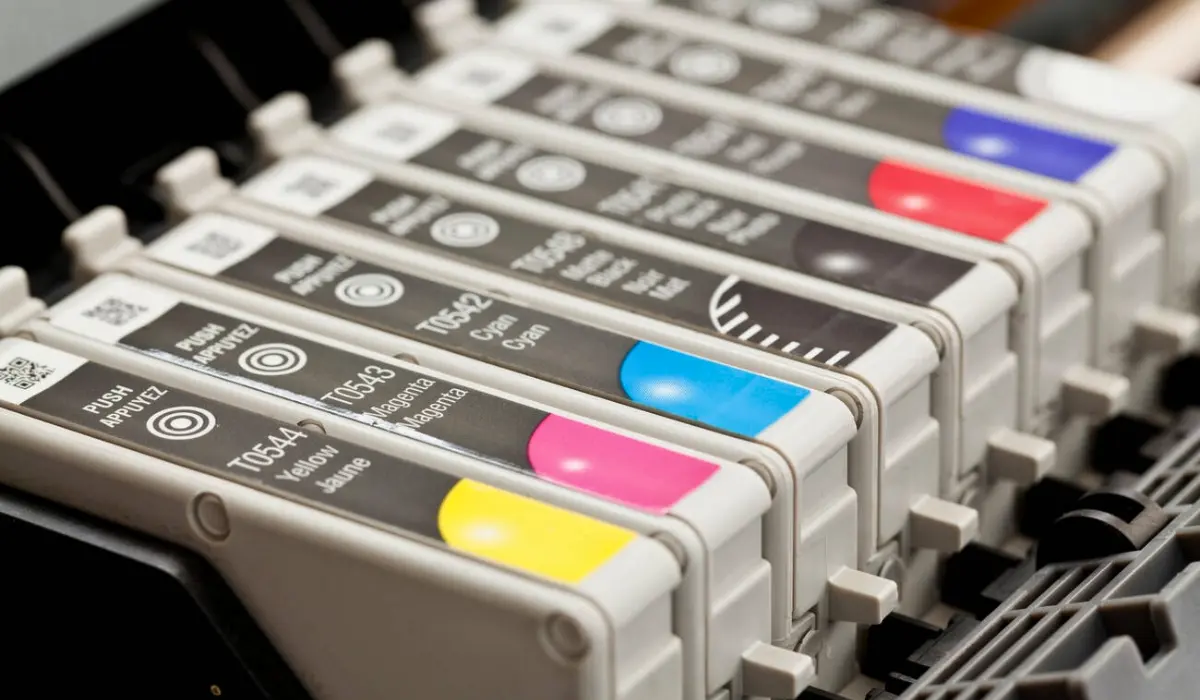
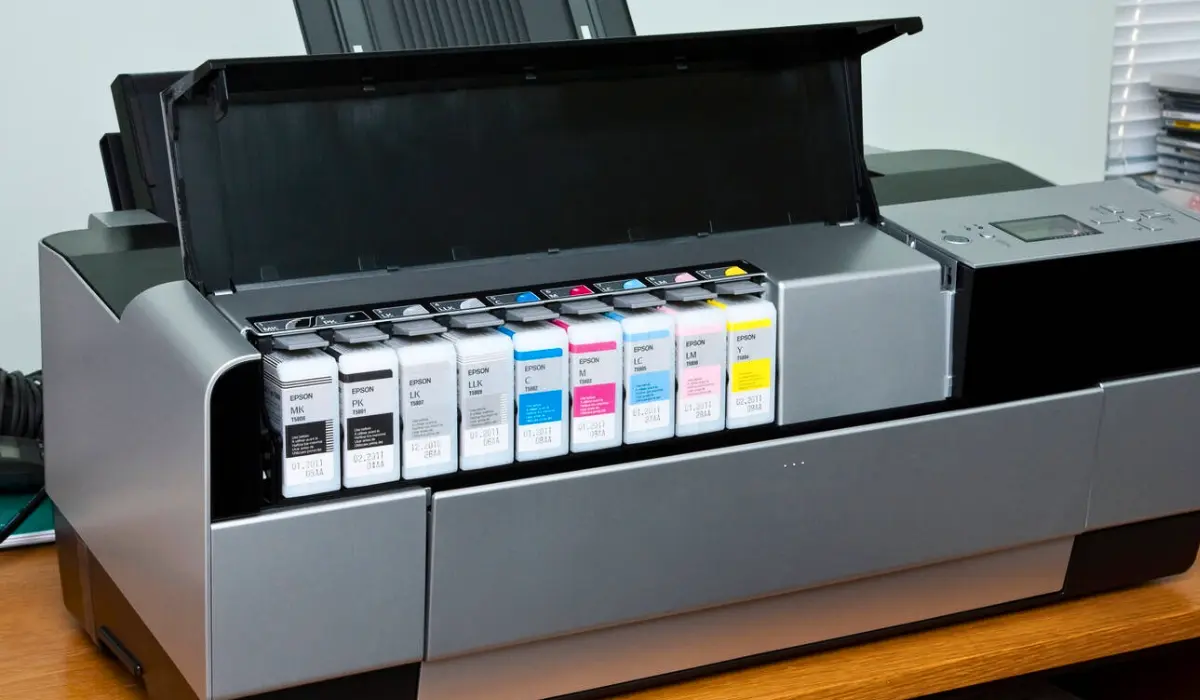
- Empty or low color cartridges
- Incorrect software settings
- Driver or firmware issues
- Air in ink lines
- Cartridge recognition errors
Identifying the root cause helps you apply the correct solution faster.
Check Printer Settings First
Before assuming there is a hardware issue, verify your printer settings.
Many users accidentally enable grayscale printing, which causes the printer to ignore color cartridges.
Windows
- Open Control Panel.
- Click Devices and Printers.
- Right-click your Epson printer.
- Select Printing Preferences.
- Ensure Color Printing is selected.
- Disable Grayscale or Black & White mode.
Mac
- Open System Settings.
- Select Printers & Scanners.
- Open Print Settings.
- Confirm Color Printing is enabled.
Incorrect print settings are one of the easiest problems to fix.
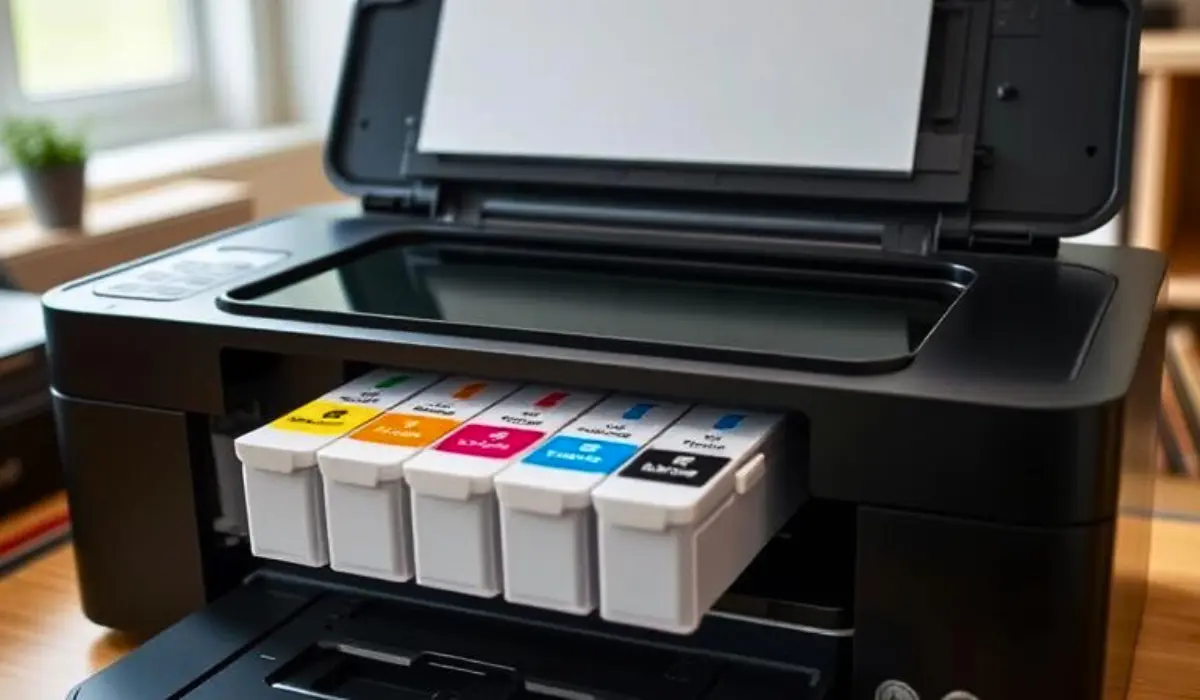
Check Epson Ink Levels
Low ink levels are one of the most common reasons Epson printers stop printing color.
How to Check Ink Levels
- Open Epson Status Monitor.
- View current ink levels.
- Check:
- Cyan
- Magenta
- Yellow
- Black
If any color cartridge is low or empty, replace or refill it immediately.
Common Symptoms of Low Ink
- Missing colors
- Faded graphics
- Weak photo quality
- Blank sections in color documents
Run a Nozzle Check
A nozzle check helps determine whether color ink is flowing properly.
Steps
- Open Epson Printer Utility.
- Select Nozzle Check.
- Print the test pattern.
Inspect the printed page carefully.
Signs of a Clogged Nozzle
- Missing lines
- Broken patterns
- Missing colors
If the nozzle check shows problems, proceed to printhead cleaning.
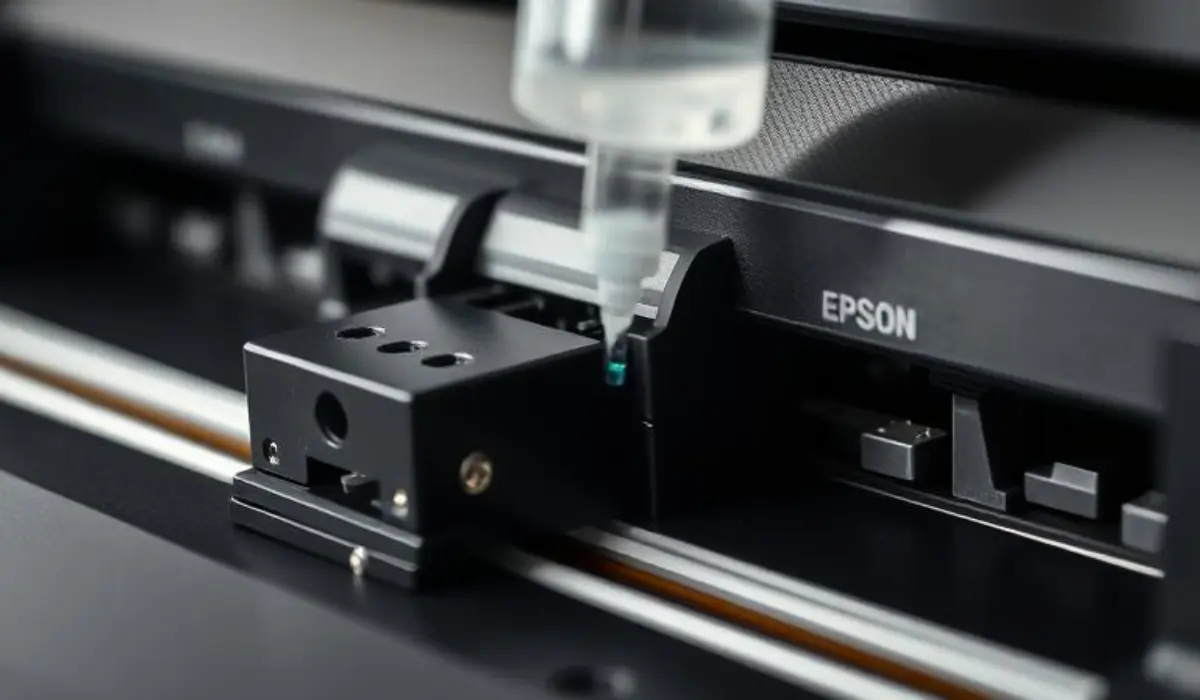
Clean the Epson Printhead
Printhead clogs are the number one cause of Epson color printing issues.
Ink can dry inside the tiny nozzles, especially if the printer hasn’t been used for several weeks.
How to Run Printhead Cleaning
- Open Epson Maintenance Settings.
- Select Head Cleaning.
- Follow the on-screen instructions.
- Allow the process to complete.
- Run another nozzle check.
Many Epson printers return to normal after one or two cleaning cycles.
Important
Avoid running multiple cleaning cycles back-to-back because they consume a significant amount of ink.
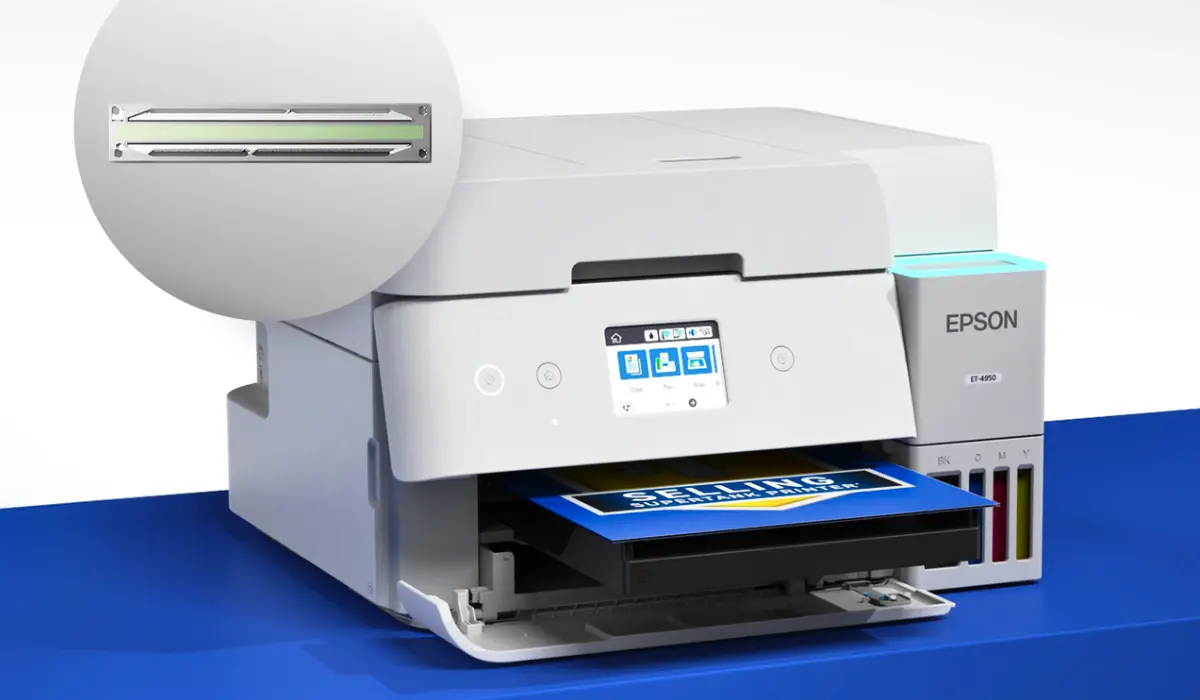
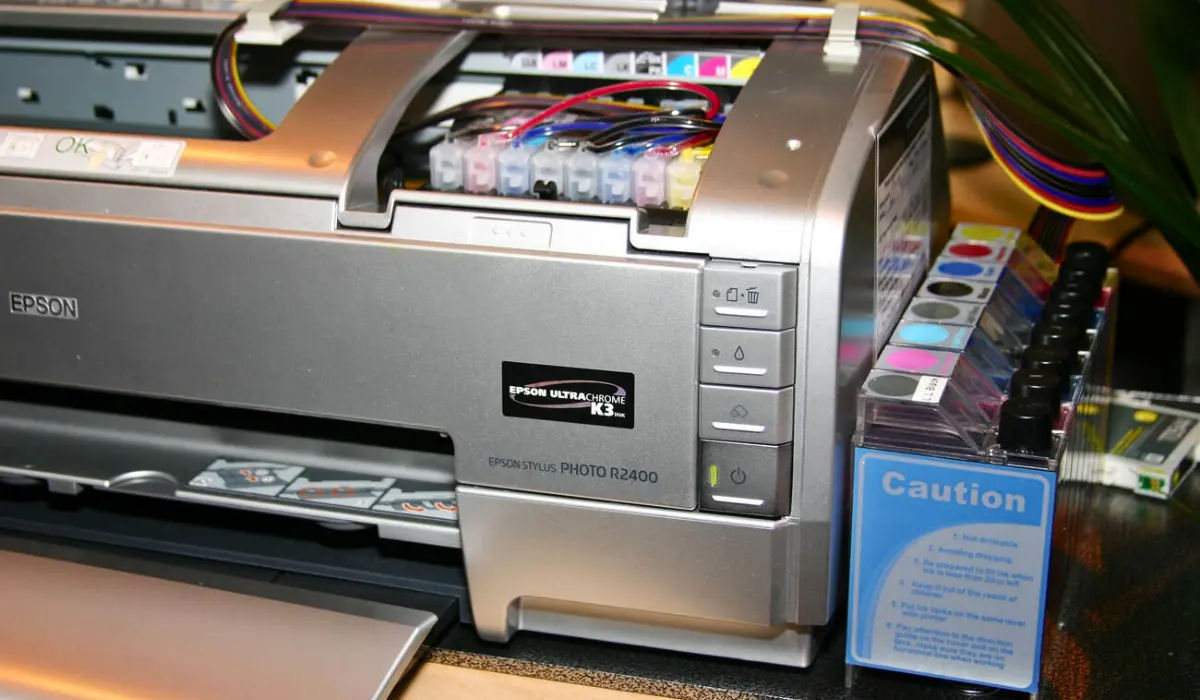
Epson EcoTank Not Printing Color?
If you’re using an Epson EcoTank printer, the issue may be slightly different.
Common EcoTank Problems
- Air trapped inside ink tubes
- Low ink tank levels
- Incomplete ink charging
- Printhead blockages
Fixes
- Check all ink tanks.
- Verify adequate ink levels.
- Run Power Cleaning.
- Print several color pages.
- Perform another nozzle check.
Power Cleaning is particularly effective for EcoTank printers experiencing color printing issues.
Replace Old or Expired Ink Cartridges
Ink cartridges have a limited lifespan.
Even if some ink remains inside, older cartridges can cause:
- Poor color output
- Inconsistent ink flow
- Recognition errors
- Missing colors
If cartridges are old or expired, replacing them often solves the problem.
Avoid Third-Party Ink Cartridges
Many printing problems originate from low-quality third-party cartridges.
Common issues include:
- Incorrect colors
- Poor print quality
- Clogged printheads
- Cartridge errors
- Reduced printer performance
For the best results, Epson recommends using genuine Epson ink.
Update Printer Drivers
Outdated or corrupted drivers can interfere with color printing.
How to Update Epson Drivers
- Visit the Epson support website.
- Search for your printer model.
- Download the latest driver.
- Install the update.
- Restart the printer and computer.
Driver updates often resolve printing bugs and compatibility issues.
Reinstall the Printer
If updating the driver doesn’t help, reinstalling the printer can eliminate software conflicts.
Steps
- Remove the printer from your device.
- Uninstall Epson software.
- Download the latest software package.
- Reinstall the printer.
- Test color printing again.
This process often fixes communication problems between the printer and operating system.
Manually Clean the Printhead
If software cleaning doesn’t resolve the issue, manual cleaning may help.
Basic Process
- Turn off the printer.
- Remove cartridges carefully.
- Locate the printhead.
- Use:
- Distilled water
- Printhead cleaning solution
- Gently clean the affected area.
- Allow everything to dry completely before reassembling.
Only attempt manual cleaning if you’re comfortable handling printer components.
How to Prevent Epson Color Printing Problems
A few simple habits can help prevent future issues.
Print Regularly
Print at least one color page every week.
This helps prevent ink from drying inside the nozzles.
Use Genuine Epson Ink
Original Epson ink helps:
- Improve color accuracy
- Reduce clogging
- Extend printhead life
- Maintain warranty coverage
Keep Firmware Updated
Firmware updates improve stability and fix known issues.
Store the Printer Properly
Avoid:
- Direct sunlight
- Excessive heat
- Dusty environments
Monitor Ink Levels
Never allow cartridges or tanks to run completely dry.
When Should You Contact Epson Support?
Professional assistance may be required if:
- Colors remain missing after multiple cleanings
- The printer displays hardware errors
- Cartridge recognition problems continue
- Printhead cleaning fails repeatedly
- Internal hardware appears damaged
An Epson-authorized technician can diagnose advanced hardware issues.
Frequently Asked Questions
Why is my Epson printer printing black but not color?
This usually happens because color cartridges are empty, clogged, improperly installed, or disabled through printer settings.
Why are colors missing from my Epson printer?
Missing colors are often caused by blocked printhead nozzles or low color ink levels.
How do I restore color printing on my Epson printer?
Run a nozzle check, clean the printhead, verify ink levels, and confirm that color printing is enabled.
Can Epson EcoTank printers stop printing color?
Yes. Air trapped in ink lines, low tank levels, or clogged printheads can prevent color printing.
Does printhead cleaning use ink?
Yes. Every cleaning cycle uses ink to flush clogged nozzles, so it should only be performed when necessary.
Final Thoughts
If your Epson printer is not printing color, the issue is usually related to clogged printhead nozzles, low ink levels, incorrect settings, outdated drivers, or cartridge-related problems. Fortunately, most users can resolve the issue without professional repairs by following a systematic troubleshooting process.
By checking ink levels, running a nozzle check, cleaning the printhead, updating drivers, and using genuine Epson supplies, you can restore vibrant color printing and keep your Epson printer performing reliably throughout 2026 and beyond.
Whether you use an Epson EcoTank, WorkForce, Expression, or business printer, proper maintenance and regular printing will help prevent color issues and ensure consistently high-quality results.