Blog
How to Download Epson Printer Software? A Complete Step-by-Step Guide for Easy Setup

Printing technology has become essential for homes, offices, schools, and businesses. Whether you use your printer for documents, photos, labels, or large-format designs, proper software installation is the key to smooth performance. Many users search for clear instructions on how to download Epson printer software because the setup process can feel confusing, especially when different models require specific drivers and utilities.
The good news is that Epson provides official support tools that make installation straightforward when you follow the correct steps. In this guide, you will learn exactly how to download, install, and configure your Epson printer software safely and efficiently so your device works perfectly from day one.
Why Epson Printer Software Is Important?
Before starting the download process, it’s helpful to understand why printer software matters. Printer software includes drivers, utilities, firmware updates, and scanning applications that allow your computer or mobile device to communicate with the printer. Without the correct driver, your printer may not respond, may print incorrectly, or may not appear on your device at all. Epson software ensures proper print quality, color accuracy, paper handling, and scanning functionality. It also enables advanced features such as wireless printing, mobile connectivity, and maintenance tools like nozzle checks and print head alignment. Installing official software rather than third-party tools protects your printer’s performance and keeps it secure.

Getting Ready Before You Start the Download Process
Before beginning the installation, it is important to prepare your device and gather the correct information. A few simple checks can prevent installation errors and save time later. Make sure your internet connection is stable, and your computer system is updated before proceeding with the steps below.
Step 1: Identify Your Exact Epson Printer Model
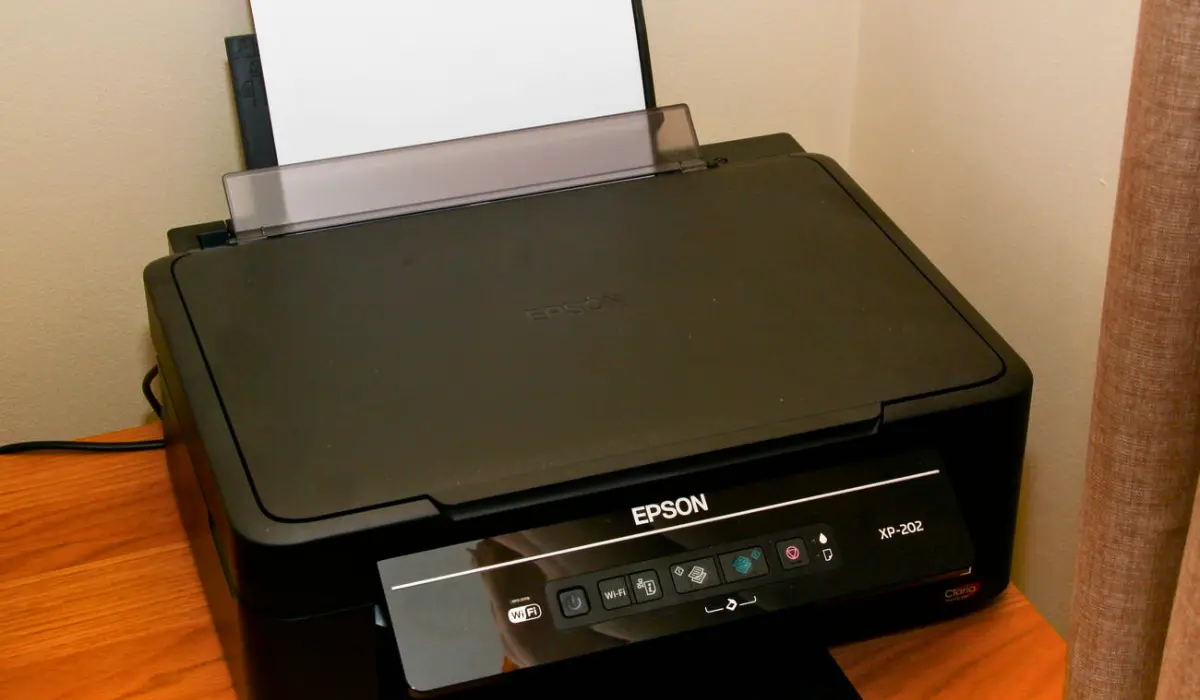
The first and most important step is identifying your exact printer model. Epson manufactures many series, including Epson EcoTank, Epson SureColor, Epson WorkForce, and Epson SureLab. Each series has different software requirements. You can usually find the model number printed on the front of the printer or on a label at the back. Writing down the exact model avoids downloading incompatible drivers.
Step 2: Visit the Official Epson Support Website
To ensure safety and compatibility, always download software from the official website of Epson. Open your browser and navigate to the official Epson support page for your country or region. Enter your printer model into the search bar to access the correct drivers, utilities, firmware updates, and manuals. Avoid downloading drivers from unknown third-party websites to prevent security risks.
Step 3: Select Your Operating System
After selecting your printer model, choose your operating system carefully. Software differs between Windows, macOS, and other platforms. Select the exact version of your operating system, such as Windows 10, Windows 11, or the latest macOS version. Choosing the correct system ensures proper installation and full printer functionality.
Step 4: Download the Recommended Driver Package
Epson typically provides a complete “Driver and Utilities Combo Package” for easy installation. Click the download button and save the file to your computer. If you are learning how to download Epson printer software properly, selecting the full driver package is usually the best option because it includes all necessary components for printing and scanning.
Step 5: Install the Software on Your Computer
Locate the downloaded file and double-click to begin installation. Follow the on-screen instructions provided by the setup wizard. You may need to accept the license agreement and choose the connection type, either USB or Wi-Fi. Ensure your printer is powered on and connected during installation.
Step 6: Connect Your Printer to Wi-Fi (If Applicable)
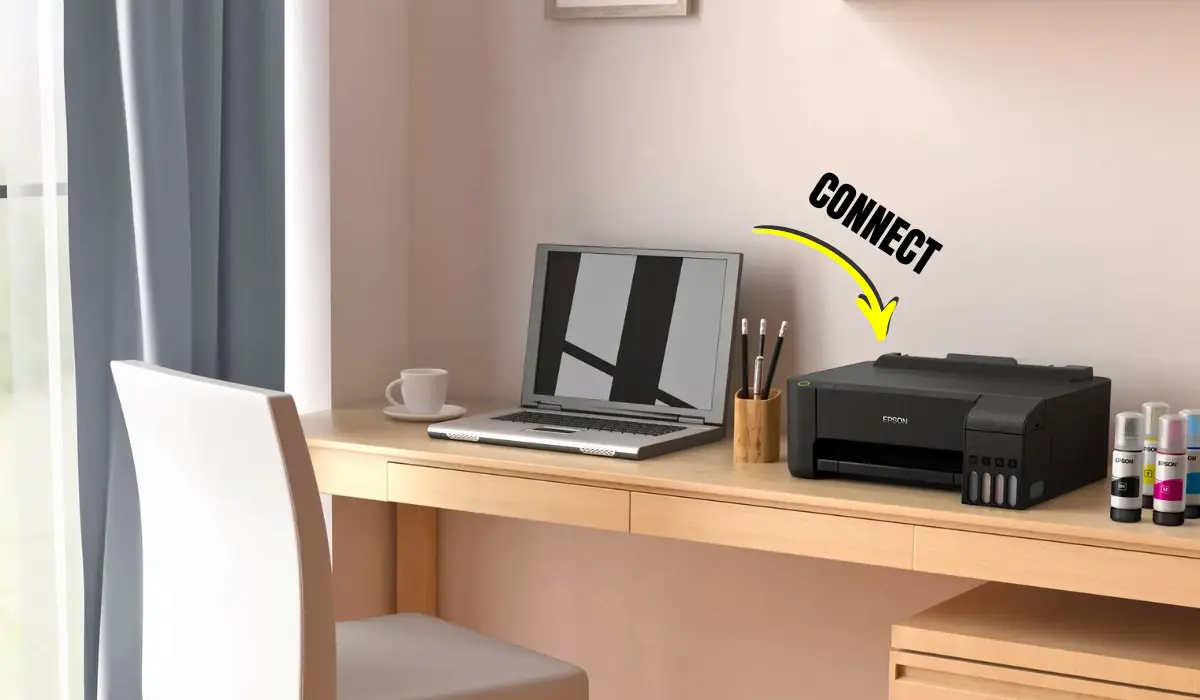
If you are setting up a wireless connection, make sure your printer and computer are connected to the same Wi-Fi network. The installer will guide you through network selection and password entry. A stable connection ensures your printer is detected automatically.
Step 7: Restart and Test Your Printer
After installation is complete, restart your computer if prompted. Print a test page to confirm the software works correctly. If everything functions properly, your printer is ready for regular use.
How to Install Epson Printer Software on Mac
Mac users follow a similar process but should pay attention to security permissions. After downloading the driver from the Epson website, open the installer package. macOS may ask you to allow installation from a downloaded source. Approve the request in System Settings under Security & Privacy. After installation, go to Printers & Scanners in System Settings and add your Epson printer if it does not appear automatically. Selecting the correct driver ensures full functionality, including scanning and advanced print settings.
Common Problems and Troubleshooting Tips
Even when you follow instructions carefully, issues can sometimes occur. Here are common problems and solutions:
- Printer not detected – Check USB cables or confirm Wi-Fi network connection.
• Driver installation fails – Re-download the file and run as administrator.
• Printer shows offline – Restart both the printer and the computer.
• Print quality issues – Use maintenance tools from Epson software.
Keeping your printer firmware updated can also resolve connectivity or compatibility problems. Epson frequently releases updates to improve performance and security.
How to Update Epson Printer Software
Once installed, it is important to keep your software updated. You can check for updates directly through Epson utilities or revisit the official Epson support page. Updating ensures compatibility with new operating system versions and fixes any performance bugs. Do not ignore update notifications, especially after upgrading your computer’s OS. Regular updates help extend the lifespan of your printer and maintain high print quality.
Mobile Printing and Additional Tools
Many Epson printers support mobile printing through apps and wireless services. Epson provides mobile solutions that allow printing from smartphones and tablets. Depending on your model, you may also access scanning apps, cloud printing features, and remote monitoring tools. These additional features enhance productivity for home offices and business environments. Always download official apps from trusted app stores for secure installation.
Safety Tips When Downloading Printer Software
When downloading any printer software, follow these safety recommendations:
- Always use the official Epson website
• Verify your printer model number carefully
• Choose the correct operating system
• Avoid unofficial third-party driver sites
• Keep antivirus software active
Following these guidelines ensures a secure installation and prevents potential malware risks.
Conclusion
Installing the correct software is essential for unlocking your printer’s full performance, whether you print documents at home or manage professional projects in an office. Understanding how to download Epson printer software properly ensures your device runs smoothly, connects reliably, and delivers high-quality results every time.
By identifying your exact model, visiting the official Epson website, selecting the right operating system, and installing the recommended driver package, you can complete the setup process without stress. Keeping your software updated also helps maintain long-term efficiency and security. Now that you know how to download Epson printer software safely and correctly, you can confidently set up your printer and enjoy seamless printing whenever you need it.
Frequently Asked Questions
- Is it safe to download Epson printer software from third-party websites?
No, it is always recommended to download from the official Epson website to avoid outdated files or security risks. - Do I need to reinstall software after updating Windows or macOS?
Sometimes yes. Major operating system updates may require installing updated printer drivers. - What should I do if my Epson printer is not detected during installation?
Check your connection, ensure both devices are on the same network, and restart your computer and printer. - Can I install Epson printer software without a CD?
Yes, most modern computers do not use CDs. You can download everything directly from Epson’s official website. - How often should I update my Epson printer software?
Check for updates every few months or whenever your operating system receives a major update.