Epson Printers

How to Connect Epson Printer to WiFi? Complete Guide (2026)

How to Connect Epson Printer to WiFi

How to Connect Epson Printer to WiFi? Complete Guide (2026)

Want to print wirelessly from your laptop, smartphone, tablet, or office computer? Learning how to connect an Epson printer to WiFi is one of the easiest ways to improve your printing experience.

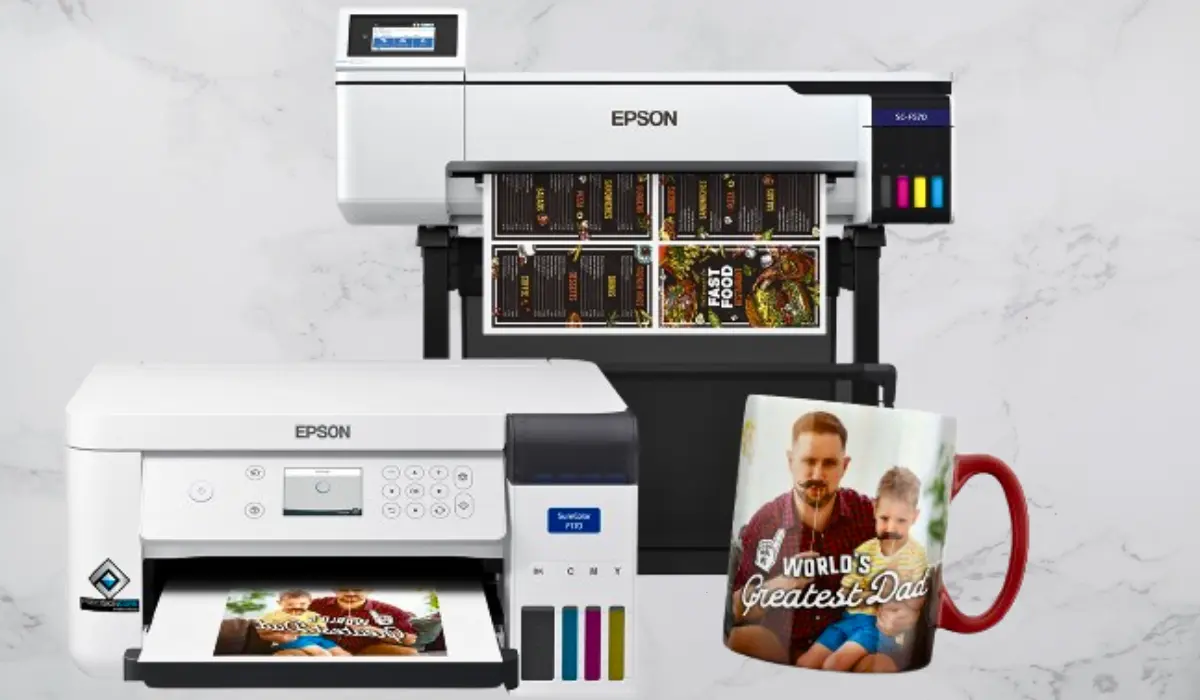
Modern Epson printers include built-in wireless connectivity that allows multiple users to print without connecting cables. Whether you own an Epson EcoTank, Epson WorkForce, Epson SureColor, or another wireless Epson printer, the setup process is simple and only takes a few minutes.

In this updated 2026 guide, you’ll learn:

  • How to connect an Epson printer to WiFi
  • How to connect Epson EcoTank printers wirelessly
  • How to use the Epson WiFi Setup Wizard
  • How to connect using WPS
  • How to print from mobile devices
  • How to fix Epson printer WiFi connection problems

By following these steps, you’ll be able to enjoy reliable wireless printing from anywhere in your home or office.

Quick Answer

To connect an Epson printer to WiFi:

  1. Turn on the printer.
  2. Open the Network or WiFi Settings menu.
  3. Select Wi-Fi Setup Wizard.
  4. Choose your wireless network.
  5. Enter your WiFi password.
  6. Confirm the connection.
  7. Install Epson printer drivers on your device.
  8. Print a test page.

Once connected, your Epson printer can print wirelessly from computers, smartphones, and tablets.

Why Connect Your Epson Printer to WiFi?

Wireless printing offers several advantages compared to USB-only connections.

Benefits include:

✅ Print from anywhere in your home or office

✅ Connect multiple devices to one printer

✅ Print directly from smartphones and tablets

✅ Reduce cable clutter

✅ Easy network sharing for teams and families

✅ Support for cloud and mobile printing

For most users in 2026, WiFi printing has become the preferred setup method.

Before You Start

Before connecting your Epson printer to WiFi, make sure:

  • Your WiFi router is powered on
  • You know your WiFi network name (SSID)
  • You have your WiFi password
  • Your printer is powered on
  • The printer is within range of the router

A strong wireless signal helps ensure stable printing performance.

Method 1: Connect Epson Printer to WiFi Using the Control Panel

Most modern Epson printers include a display screen and built-in setup wizard.

Step 1: Open Settings

On your printer:

  • Press the Home button
  • Navigate to Settings
  • Select Network Settings

Step 2: Choose WiFi Setup

Select:

Wi-Fi Setup

or

Wireless LAN Setup

depending on your printer model.

Step 3: Launch WiFi Setup Wizard

Select:

Wi-Fi Setup Wizard

The printer will automatically scan for nearby wireless networks.

Step 4: Select Your WiFi Network

Choose your network name (SSID) from the list.

If multiple networks appear, select the correct one.

Step 5: Enter Your WiFi Password

Carefully enter your wireless password.

Pay attention to:

  • Uppercase letters
  • Lowercase letters
  • Numbers
  • Special characters

Even a small mistake can prevent connection.

Step 6: Confirm Connection

Press OK or Connect.

The printer will attempt to connect to your network.

When successful, you’ll see:

Connected Successfully

or a WiFi signal icon on the screen.

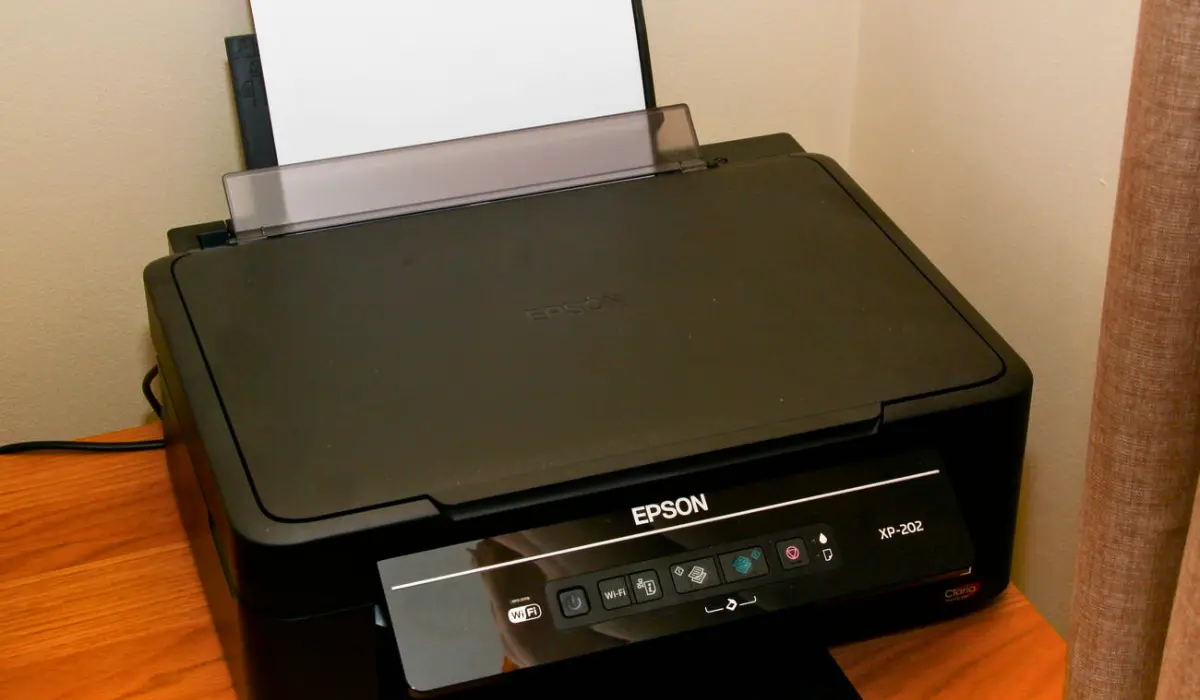
Method 2: Connect Epson Printer Using WPS

Many routers support WPS (Wi-Fi Protected Setup).

This method eliminates the need to type your WiFi password.

Step 1

Press the WPS button on your router.

Step 2

Within two minutes:

Press the WiFi button on your Epson printer.

Step 3

Wait for the printer and router to communicate.

Once connected, the WiFi light will remain solid.

This method is especially useful for older Epson printers without touchscreens.

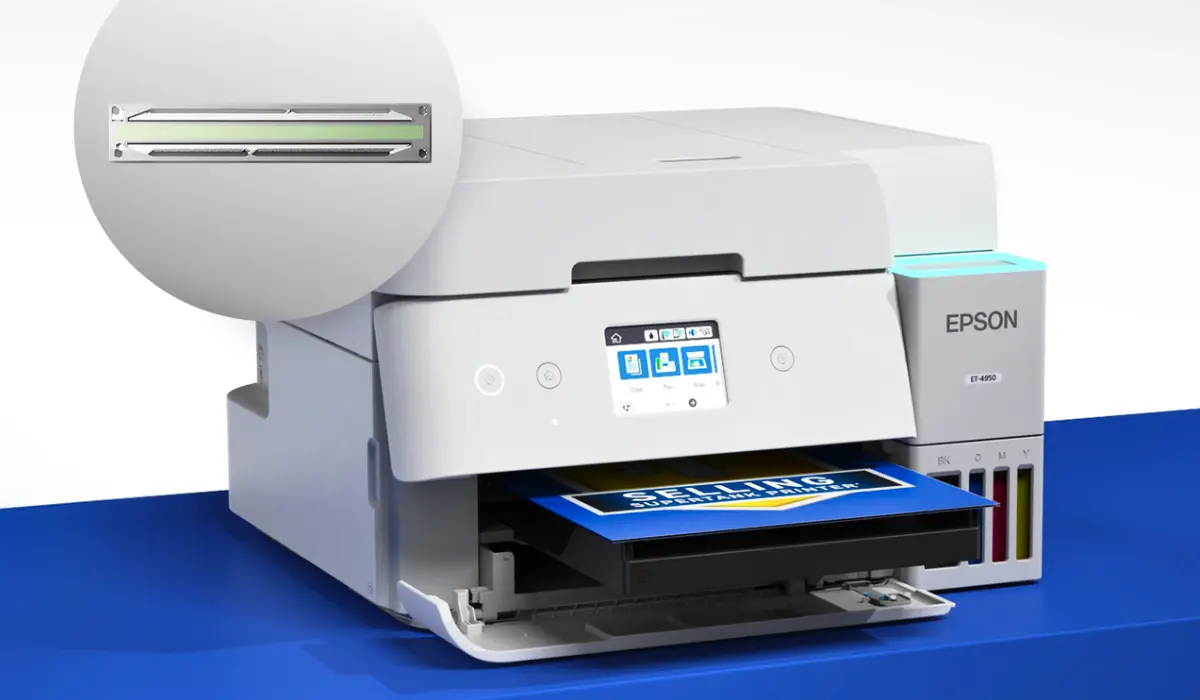
How to Connect Epson EcoTank Printers to WiFi

The process is nearly identical for Epson EcoTank models.

Popular models include:

  • Epson EcoTank L3250
  • Epson EcoTank L4260
  • Epson EcoTank L5290
  • Epson EcoTank ET Series

Simply:

  1. Open Network Settings.
  2. Launch WiFi Setup Wizard.
  3. Select your network.
  4. Enter the password.
  5. Confirm the connection.

Most EcoTank printers support wireless printing, mobile printing, and cloud printing.

Install Epson Printer Drivers

Connecting to WiFi is only part of the setup process.

You also need the correct Epson software and drivers.

Install Drivers

  1. Download the latest Epson drivers for your printer model.
  2. Run the installation program.
  3. Select Wireless Connection.
  4. Allow the installer to detect the printer.
  5. Complete setup.

Updated drivers improve:

  • Performance
  • Security
  • Compatibility
  • Wireless stability

How to Print from a Smartphone

After connecting your Epson printer to WiFi, you can print directly from mobile devices.

Epson iPrint App

Epson iPrint allows you to:

  • Print photos
  • Print documents
  • Scan files
  • Monitor printer status

Supported platforms:

  • Android
  • iPhone
  • iPad

Mobile printing is one of the most popular Epson printer features in 2026.

How to Print a Test Page

After setup, verify everything works properly.

Windows

  1. Open Printers & Scanners.
  2. Select your Epson printer.
  3. Choose Print Test Page.

Mac

  1. Open Printers & Scanners.
  2. Select Epson printer.
  3. Print a test document.

Successful printing confirms the wireless connection is working correctly.

Epson Printer Not Connecting to WiFi? Try These Fixes

Sometimes the connection process doesn’t work on the first attempt.

Here are common solutions.

Check the WiFi Password

Incorrect passwords are the most common cause of connection failures.

Verify:

  • Capital letters
  • Numbers
  • Symbols

Restart Your Devices

Restart:

  • Printer
  • Router
  • Computer

Then attempt the connection again.

Move the Printer Closer

Weak wireless signals can interrupt setup.

Place the printer closer to the router if possible.

Update Printer Firmware

Firmware updates often fix:

  • Connectivity issues
  • Security problems
  • Wireless performance bugs

Check for updates through Epson software.

Reset Network Settings

If all else fails:

  • Open Network Settings
  • Select Restore Network Settings
  • Reconnect from scratch

This resolves many persistent connection issues.

Benefits of Wireless Epson Printing in 2026

Modern wireless printing offers more flexibility than ever.

Benefits include:

  • Remote printing
  • Mobile printing
  • Cloud integration
  • Multi-user access
  • Easy office sharing
  • Faster setup for new devices

For home users and businesses alike, wireless printing has become the standard.

Frequently Asked Questions

How do I connect my Epson printer to WiFi?

Use the WiFi Setup Wizard on the printer, select your network, enter the password, and complete the setup.

Can I connect an Epson printer to WiFi without a screen?

Yes. Many Epson printers support WPS setup using the router’s WPS button.

Why won’t my Epson printer connect to WiFi?

Common causes include incorrect passwords, weak signals, outdated firmware, or router compatibility issues.

Do all Epson printers support wireless printing?

Most modern Epson EcoTank, WorkForce, and SureColor models support WiFi connectivity.

Can I print from my phone to an Epson printer?

Yes. The Epson iPrint app allows wireless printing from Android and iOS devices.

Final Thoughts

Knowing how to connect an Epson printer to WiFi allows you to enjoy faster, more convenient printing from virtually any device. Whether you’re using an Epson EcoTank printer at home or a professional Epson printer in an office environment, wireless printing improves productivity and simplifies daily tasks.

By following the steps in this guide and keeping your drivers and firmware updated, you can enjoy a reliable wireless printing experience throughout 2026 and beyond.

Leave a Reply

Your email address will not be published. Required fields are marked *