


Blog
Kyocera Printer Driver Unavailable? Fix Driver Problems Fast

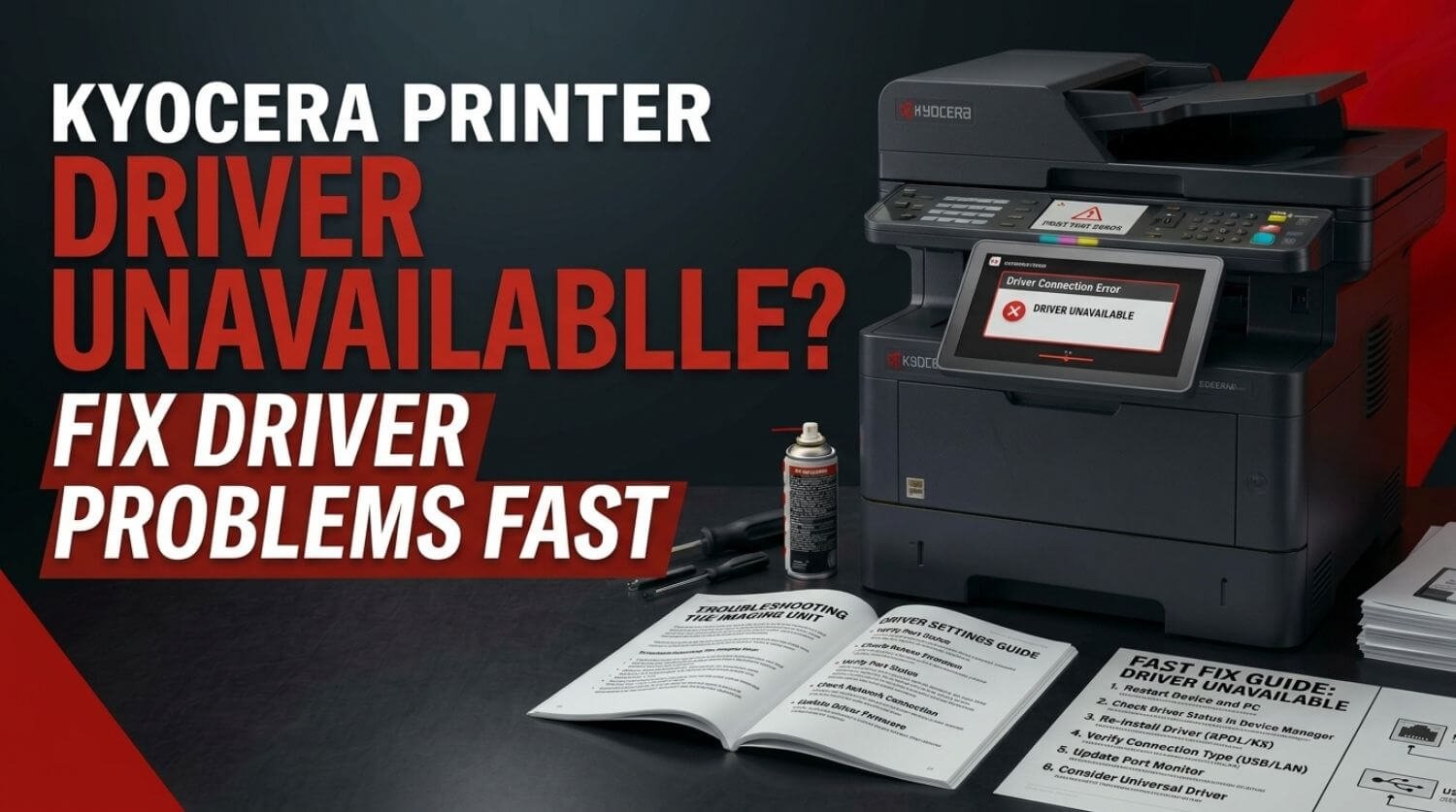
Seeing a Kyocera printer driver unavailable message can stop printing even when the printer is connected and powered on. Windows or macOS may show the printer as unavailable, offline, or unable to use the installed driver.
Driver problems can happen after an operating system update, printer reinstallation, network changes, or installation of an incorrect or generic driver.
The good news is that most Kyocera driver problems can be resolved by removing the problematic printer, installing the correct driver, and checking the printer connection.
Quick Fix: Why Is My Kyocera Printer Driver Unavailable?
A Kyocera printer driver may become unavailable because the driver is corrupted, outdated, incompatible with the operating system, incorrectly installed, or associated with the wrong printer port.
The Solution:
Remove the affected Kyocera printer from your computer, restart the system, and install the correct Kyocera driver for your exact printer model and operating system. After installation, verify that the printer is using the correct port and is not showing an offline or error status.
Table of Contents
- 1. Restart Your Computer and Kyocera Printer
- 2. Check the Printer Connection
- 3. Check the Printer Status in Windows
- 4. Remove the Kyocera Printer From Your Computer
- 5. Install the Correct Kyocera Driver
- 6. Avoid Relying on a Generic Printer Driver
- 7. Check the Printer Port
- 8. Reinstall the Driver After a Windows Update
- 9. Check for Multiple Kyocera Printer Installations
- 10. Make Sure the Correct Printer Is Selected
- 11. Clear the Print Queue
- 12. Check Whether the Printer Works From Another Computer
- Kyocera Driver Unavailable After Reinstalling the Printer
- Kyocera Printer Driver Unavailable on WiFi
- Kyocera Printer Driver Unavailable but Printer Is Online
- Kyocera Driver Works but Printer Is Not Printing
- Quick Kyocera Driver Troubleshooting Checklist
- Frequently Asked Questions
- Related Kyocera Printer Guides
- Final Thoughts
1. Restart Your Computer and Kyocera Printer
Start with a simple restart before reinstalling anything.
Turn off the Kyocera printer normally, wait a few seconds, and turn it back on.
Then restart your computer.
Try printing again.
Temporary driver or communication problems can sometimes disappear after a restart, especially following a system update or printer configuration change.
2. Check the Printer Connection
A driver can appear unavailable when the computer cannot communicate with the printer.
For a USB connection, check that the cable is securely connected.
For a network printer, verify that:
- The printer is powered on.
- The printer is connected to the same network.
- The computer can communicate with the printer.
- The printer’s network connection has not changed.
- The printer is not showing an error.
If your printer was recently moved to another WiFi network, the computer may still be trying to communicate with its old network address.
For related connection troubleshooting, see Kyocera Printer WiFi Setup Guide (Windows, Mac & Mobile).
3. Check the Printer Status in Windows
On Windows, open the installed printers and check your Kyocera device.
Look for messages such as:
- Driver unavailable
- Offline
- Error
- Needs attention
- Not connected
If the printer is listed but cannot be used, continue with the driver troubleshooting steps below.
Do not immediately assume that the physical printer is defective. A driver or port configuration problem can produce the same symptoms.
4. Remove the Kyocera Printer From Your Computer
If the existing installation is corrupted, removing and reinstalling the printer can be more effective than repeatedly changing settings.
Remove the affected Kyocera printer from your computer.
After removing it, restart the computer.
Then add the printer again using the correct installation method for your connection.
This gives the operating system a clean printer configuration.
5. Install the Correct Kyocera Driver
Make sure you use a driver intended for your exact Kyocera printer model.
Do not select a random Kyocera driver simply because the printer brand is correct.
Check:
- Exact printer model
- Operating system
- Operating system version
- 32-bit or 64-bit compatibility where applicable
- Connection type
Using the correct model-specific driver can restore printing options that may be missing with a generic driver.
6. Avoid Relying on a Generic Printer Driver
Operating systems may automatically install a basic or generic printer driver.
While this can sometimes allow basic printing, it may not provide all the features of the Kyocera device.
You may experience:
- Missing printer settings
- Incorrect print options
- Limited finishing controls
- Communication problems
- Driver unavailable messages
If the printer was automatically installed and problems started afterward, remove the generic installation and install the appropriate Kyocera driver.
7. Check the Printer Port
A printer can have the correct driver installed but still fail because the computer is using the wrong port.
This is particularly common with network printers.
For example, the printer may have received a different network address while the computer continues trying to connect to its previous address.
Check the printer’s configured port and compare it with the printer’s current network information.
If the printer was recently moved, reconnected, or assigned a new network address, correcting the port may restore communication.
8. Reinstall the Driver After a Windows Update
A major Windows update can sometimes affect existing printer drivers.
If your Kyocera printer worked normally before a Windows update but suddenly became unavailable afterward, check the driver installation.
Try removing the printer and reinstalling the appropriate Kyocera driver.
Then restart Windows and test a simple document.
If other printers are also affected after the same update, the issue may be related to the operating system rather than the physical Kyocera printer.
9. Check for Multiple Kyocera Printer Installations
Having several installations of the same printer can create confusion.
You may see entries such as:
- Kyocera Printer
- Kyocera Printer Copy 1
- Kyocera Printer Copy 2
- Kyocera Printer on Network
- Kyocera Printer USB
Check which installation is actually connected to your printer.
Remove old or duplicate installations when they are no longer needed, then install the correct printer again.
10. Make Sure the Correct Printer Is Selected
Sometimes the driver is installed correctly but another printer is selected as the default.
Before printing, check the printer selected in the application’s print window.
Make sure you are selecting the active Kyocera printer rather than:
- An old Kyocera installation
- Microsoft Print to PDF
- Another office printer
- A disconnected printer
- A duplicate printer entry
Then print a simple test document.
11. Clear the Print Queue
A damaged print job can make the printer appear unavailable or prevent new jobs from processing.
Open the printer queue and cancel pending documents.
If the queue remains stuck, restart the printer and computer before testing again.
A clean queue helps determine whether the driver itself is unavailable or whether an old print job is blocking communication.
For more detailed queue troubleshooting, see Kyocera Printer Print Queue Stuck? Clear Jobs & Fix Spooler.
12. Check Whether the Printer Works From Another Computer
If another computer can print successfully to the same Kyocera printer, the printer hardware and network connection are less likely to be the primary problem.
Focus on the computer showing the driver error.
Compare:
- Driver version
- Printer name
- Printer port
- Connection method
- Printer settings
This can help isolate the issue without making unnecessary changes to the printer itself.
Kyocera Driver Unavailable After Reinstalling the Printer
If the printer worked before you removed it but becomes unavailable immediately after reinstalling it, check whether the operating system automatically selected a generic driver.
Remove the printer again and reinstall it using the correct Kyocera driver for the exact model.
Also verify that the installation is using the correct connection and printer port.
Kyocera Printer Driver Unavailable on WiFi
A wireless printer can show a driver-related error when the computer cannot reach the printer.
First confirm that the printer is connected to the correct WiFi network.
Then check whether the printer’s network address has changed.
If necessary, reinstall the printer using its current network connection.
For detailed wireless setup and troubleshooting, see Kyocera Printer WiFi Setup Guide (Windows, Mac & Mobile).
Kyocera Printer Driver Unavailable but Printer Is Online
If the printer is online and responds to network communication but Windows still reports the driver as unavailable, focus on the local driver installation.
Try:
- Remove the printer.
- Restart the computer.
- Install the correct Kyocera driver.
- Add the printer again.
- Confirm the correct port.
- Print a test document.
If the problem continues, check whether another computer can print to the same device.
Kyocera Driver Works but Printer Is Not Printing
Sometimes the driver is available but the printer still does not produce output.
In that situation, investigate the connection, printer status, queue, and printer settings rather than reinstalling the driver repeatedly.
For broader troubleshooting, see Kyocera Printer Not Printing? 15 Proven Fixes That Actually Work (2026).
Quick Kyocera Driver Troubleshooting Checklist
Before contacting support, check the following:
- Restart the Kyocera printer.
- Restart the computer.
- Check the USB or network connection.
- Remove duplicate printer installations.
- Remove the affected Kyocera printer.
- Install the correct model-specific driver.
- Check the printer port.
- Make sure the correct printer is selected.
- Clear the print queue.
- Test the printer from another computer.
- Check whether the issue started after an operating system update.
- Verify that the printer is connected to the correct network.
Frequently Asked Questions
Why does my Kyocera printer say driver unavailable?
The driver may be corrupted, outdated, incompatible, incorrectly installed, or associated with the wrong printer port. Removing the printer and installing the correct Kyocera driver often resolves the problem.
Can Windows automatically install the wrong Kyocera driver?
Windows may install a basic or generic printer driver. While it can provide basic functionality, it may not offer all features or work correctly with every Kyocera model.
Why did my Kyocera driver stop working after a Windows update?
An operating system update can affect existing printer drivers or printer configurations. Reinstalling a compatible Kyocera driver may restore normal operation.
Why is my Kyocera printer online but the driver is unavailable?
The printer can be reachable on the network while the local driver installation is damaged or incorrectly configured. Reinstall the appropriate driver and verify the printer port.
Should I remove my Kyocera printer before reinstalling the driver?
If the existing installation is corrupted, removing the printer first can provide a cleaner installation. Restart the computer and then add the printer again with the correct driver.
Can the wrong printer port cause a driver problem?
Yes. A printer may have a functioning driver but still fail to communicate if the computer is configured to use an incorrect or outdated port.
Related Kyocera Printer Guides
- Kyocera Printer Not Printing? 15 Proven Fixes That Actually Work (2026)
- Kyocera Printer WiFi Setup Guide (Windows, Mac & Mobile)
- Kyocera Printer Offline? 10 Fast Fixes to Get It Back Online (2026)
- Kyocera Printer Connected But Not Printing? Fix It Fast
- Kyocera Printer Print Queue Stuck? Clear Jobs & Fix Spooler
- Kyocera Printer in Error State? Quick Fix Guide
Final Thoughts
A Kyocera printer driver unavailable message usually points to a software, installation, or communication problem rather than an immediate hardware failure.
Start by checking the connection and printer status. If those are normal, remove the existing printer installation and install the correct driver for your exact Kyocera model and operating system.
Finally, verify the printer port and clear the print queue before testing again. These steps can resolve many driver problems and restore normal Kyocera printing without unnecessary hardware changes.
