


Blog
Kyocera Printer in Error State? Quick Fix Guide

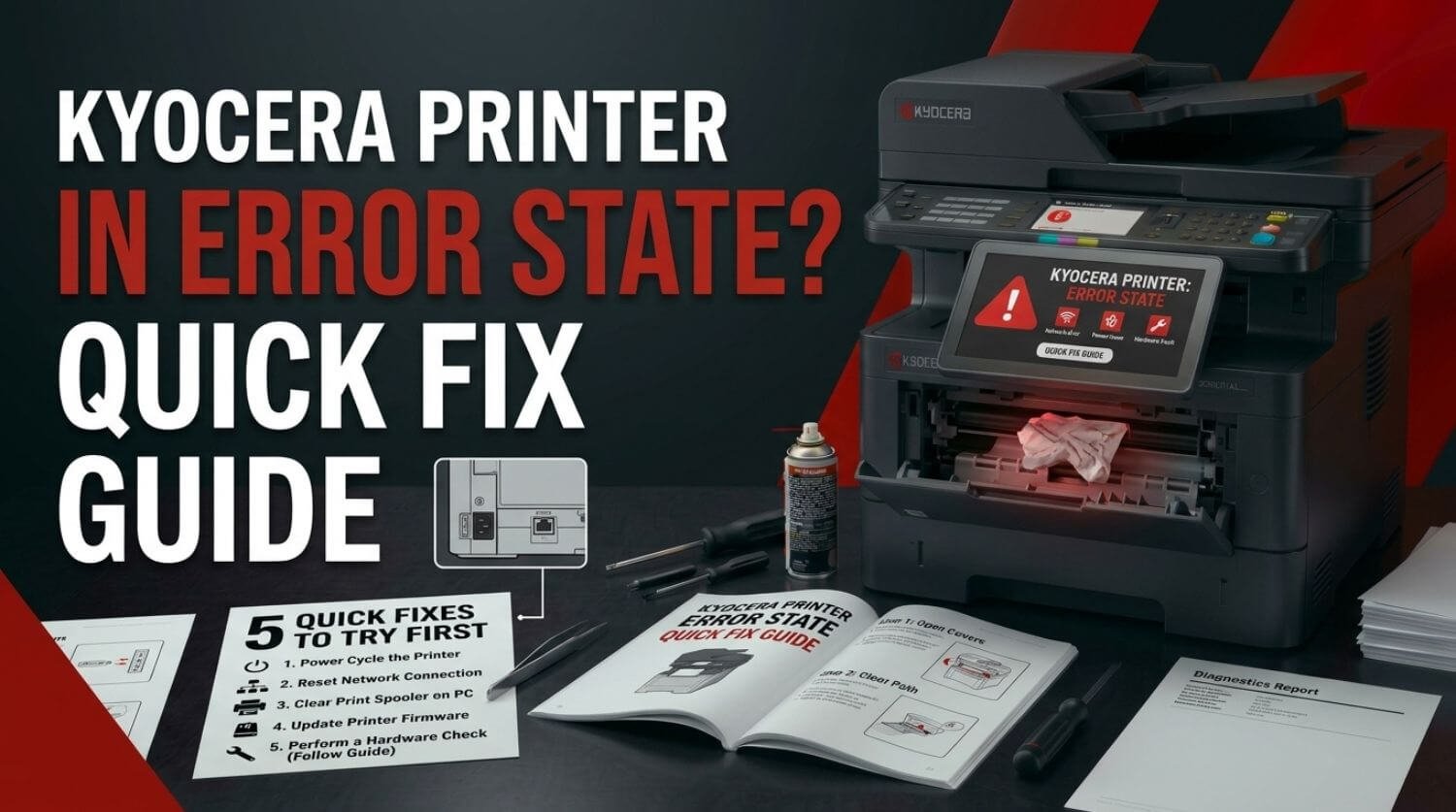
A Kyocera printer in error state can stop printing even when the printer is powered on and connected to your computer. Windows may show an error message, the printer may display a warning, or print jobs may remain stuck without producing any pages.
The cause can range from a simple paper or toner problem to a connection issue, incorrect driver, print queue problem, or internal printer fault.
This guide walks through the most common ways to clear a Kyocera printer error state and restore normal printing.
Quick Fix: Why Is My Kyocera Printer in an Error State?
The Solution:
Check the printer’s display first and resolve any physical warning shown there. Then check the paper supply, toner, connection, printer queue, and driver. After clearing the cause, restart the printer and send a fresh test document.
Table of Contents
- 1. Check the Kyocera Printer Display
- 2. Check for a Paper Jam
- 3. Check the Paper Tray
- 4. Check the Toner
- 5. Make Sure All Covers Are Closed
- 6. Restart the Kyocera Printer
- 7. Check Whether the Printer Is Offline
- 8. Check the Print Queue
- 9. Check the Printer Driver
- 10. Check the Printer Port
- 11. Check the Kyocera Printer’s Network Connection
- Kyocera Printer in Error State but No Error Message
- Kyocera Printer Error State After Windows Update
- Kyocera Printer Error State After Changing WiFi
- When the Error State Keeps Returning
- Quick Kyocera Error State Checklist
- Frequently Asked Questions
- Related Kyocera Printer Guides
- Final Thoughts
1. Check the Kyocera Printer Display
Start with the printer itself.
The control panel may provide a specific message indicating what is preventing printing.
Look for warnings related to:
- Paper jams
- Toner
- Paper supply
- Open covers
- Maintenance
- Network connection
- Printer hardware
If the printer provides a specific error message, address that problem before changing computer settings.
A physical error on the printer can prevent every connected computer from printing.
2. Check for a Paper Jam
A paper jam is one of the most common reasons a Kyocera printer enters an error state.
Inspect the areas identified by the printer display and carefully remove any stuck paper.
Also check for small pieces of torn paper that may remain inside the paper path.
For detailed instructions, see Kyocera Printer Paper Jam? Step-by-Step Fix Guide.
After clearing the jam, close all access panels securely and check whether the error message disappears.
3. Check the Paper Tray
An empty or incorrectly loaded tray can also cause an error.
Check that:
- The tray contains paper.
- The paper is loaded correctly.
- The paper guides are positioned properly.
- The selected paper size matches the loaded paper.
- The tray is fully inserted.
If the printer expects a different paper size than what is loaded, it may stop and display an error instead of printing.
4. Check the Toner
A toner-related warning can prevent printing.
Check the printer’s toner status and look for messages indicating that toner is low, empty, missing, or not recognized.
If you recently installed a cartridge, make sure it is properly seated and compatible with the Kyocera model.
For additional toner troubleshooting, see Kyocera Printer Toner Not Recognized? Easy Fix Guide.
5. Make Sure All Covers Are Closed
A printer may remain in an error state if a cover or access panel is not completely closed.
Check the printer carefully after:
- Replacing toner
- Clearing a paper jam
- Inspecting the paper path
- Performing maintenance
Close each accessible panel firmly without forcing it.
Then check the printer display again.
6. Restart the Kyocera Printer
Once obvious physical issues have been resolved, restart the printer.
First cancel any active print jobs.
Then:
- Turn the printer off normally.
- Wait briefly.
- Turn it back on.
- Wait until the printer finishes initialization.
- Check whether the error message remains.
- Send a small test document.
Restarting can clear temporary printer states and communication errors.
7. Check Whether the Printer Is Offline
A network or USB connection problem can cause Windows to report an error even when the printer itself appears normal.
Check the printer’s connection.
For a network printer, make sure it is connected to the correct network.
For USB, check the cable and connection.
If the printer is offline, resolve the connection before troubleshooting the print driver.
For more information, see Kyocera Printer Offline? 10 Fast Fixes to Get It Back Online (2026).
8. Check the Print Queue
A corrupted or stuck print job can prevent new documents from printing.
Open the Kyocera printer queue and cancel pending jobs.
If several documents are waiting, remove them all before sending another test document.
Then restart the printer and try again.
A clean queue helps determine whether the error was caused by a specific print job.
For detailed queue troubleshooting, see Kyocera Printer Print Queue Stuck? Clear Jobs & Fix Spooler.
9. Check the Printer Driver
If the physical printer shows no obvious error but Windows continues reporting an error state, inspect the printer driver.
A corrupted or incompatible driver can interfere with communication between the computer and printer.
Check whether:
- The correct Kyocera model is installed.
- The driver is compatible with your operating system.
- The printer is using the correct port.
- Multiple duplicate printer installations exist.
If necessary, remove the printer and reinstall the appropriate Kyocera driver.
See Kyocera Printer Driver Unavailable? Fix Driver Problems Fast for related troubleshooting.
10. Check the Printer Port
For network printers, the computer may be configured to use an outdated network address.
This can happen after:
- Changing routers
- Changing WiFi networks
- Restarting network equipment
- Reconfiguring the printer
- Assigning a new network address
Check the printer’s current network information and compare it with the port configured on the computer.
If they do not match, the computer may be trying to communicate with the printer at an old address.
11. Check the Kyocera Printer’s Network Connection
If the printer is connected through WiFi or Ethernet, confirm that its network connection is working.
Check whether the printer has a valid network address and whether other devices can communicate with it.
If the printer recently stopped working after a network change, reconnecting it to the correct network may resolve the error.
For setup help, see Kyocera Printer WiFi Setup Guide (Windows, Mac & Mobile).
Kyocera Printer in Error State but No Error Message
Sometimes Windows reports an error while the printer display looks completely normal.
In this situation, the problem may be on the computer rather than the physical printer.
Try:
- Cancel all print jobs.
- Restart the printer.
- Restart the computer.
- Remove the printer from the computer.
- Add it again.
- Verify the correct Kyocera driver.
- Print a test page.
If another computer can print to the same printer normally, the problem is likely specific to the original computer’s configuration.
Kyocera Printer Error State After Windows Update
If the printer worked before a Windows update and entered an error state afterward, check the printer driver first.
An operating system update can affect existing printer configurations.
Remove the affected printer and reinstall the appropriate Kyocera driver.
Also verify the printer port and clear any existing print jobs.
Kyocera Printer Error State After Changing WiFi
Changing the router, WiFi network, or wireless password can interrupt communication with the printer.
Check that the printer is connected to the new network.
Then check whether its network address changed.
Your computer may still contain the old printer configuration.
For wireless troubleshooting, see Kyocera Printer WiFi Setup Guide (Windows, Mac & Mobile).
Kyocera Printer Error State After Clearing a Paper Jam
If the jam has been removed but the printer still reports an error, inspect the entire affected paper path again.
Look for small pieces of paper that may have torn during removal.
Also check that all covers and trays are properly closed and seated.
If the same error returns immediately after every restart, the printer may be detecting a sensor or mechanical problem.
When the Error State Keeps Returning
If the printer repeatedly returns to an error state after apparently successful troubleshooting, pay attention to when the error happens.
For example:
- Error appears immediately after startup.
- Error appears when printing begins.
- Error appears during duplex printing.
- Error appears after replacing toner.
- Error appears only over WiFi.
- Error appears only from one computer.
The timing can help identify the affected component or configuration.
If the error appears before any print job is sent, focus on the printer itself. If it appears only after sending a document, investigate the connection, driver, queue, or print settings.
Quick Kyocera Error State Checklist
Before contacting technical support, check:
- Read the printer’s displayed error message.
- Check for paper jams.
- Check the paper tray.
- Check paper size and type.
- Check toner levels.
- Make sure toner is recognized.
- Close all printer covers.
- Restart the printer.
- Check the USB or network connection.
- Clear the print queue.
- Verify the Kyocera driver.
- Check the printer port.
- Confirm the printer is on the correct network.
- Test from another computer if available.
Frequently Asked Questions
Why is my Kyocera printer in an error state?
Common causes include paper jams, toner problems, empty paper trays, incorrect paper settings, connection problems, stuck print jobs, driver issues, and internal printer errors.
How do I get my Kyocera printer out of error state?
Start by checking the printer display and resolving any paper, toner, tray, or cover warnings. Then restart the printer and check its connection, queue, driver, and port.
Why does my Kyocera printer show an error state but no error on the printer?
Windows may be reporting a software, driver, queue, or communication problem rather than a physical printer error. Restart the printer and computer, clear the queue, and verify the driver.
Can a paper jam cause a Kyocera error state?
Yes. A paper jam or even a small remaining piece of paper can keep the printer in an error state until the paper path is completely clear.
Why did my Kyocera printer enter an error state after changing WiFi?
The printer may be connected to a different network, or your computer may still be using the printer’s previous network address. Reconnect the printer and verify its current network configuration.
Can a printer driver cause a Kyocera error state?
Yes. An incorrect, corrupted, or incompatible driver can prevent the computer from communicating correctly with the printer and may result in an error or unavailable status.
Related Kyocera Printer Guides
- Kyocera Printer Not Printing? 15 Proven Fixes That Actually Work (2026)
- Kyocera Printer Offline? 10 Fast Fixes to Get It Back Online (2026)
- Kyocera Printer Driver Unavailable? Fix Driver Problems Fast
- Kyocera Printer WiFi Setup Guide (Windows, Mac & Mobile)
- Kyocera Printer Paper Jam? Step-by-Step Fix Guide
- Kyocera Printer Connected But Not Printing? Fix It Fast
- Kyocera Printer Print Queue Stuck? Clear Jobs & Fix Spooler
- Kyocera Printer Toner Not Recognized? Easy Fix Guide
Final Thoughts
A Kyocera printer in an error state can often be restored by checking the basics before assuming there is a serious hardware problem.
Start with the printer’s own display and resolve any paper, toner, tray, or cover warnings. Then check the connection, print queue, driver, and printer port.
If the error keeps returning despite a clear paper path, correct toner, stable connection, and clean driver installation, pay attention to the exact point at which the error appears. Recurring errors may indicate a sensor, mechanical, or other internal printer problem that requires further inspection.
