Blog
Why Is My Canon Printer Printing Blank Pages? 12 Proven Fixes That Actually Work (2026)

Nothing is more frustrating than sending a document to print and watching your Canon printer produce completely blank pages. Whether you’re printing business documents, school assignments, invoices, reports, or photos, blank page issues can disrupt your workflow and waste both paper and ink.
If you’re wondering:
“Why is my Canon printer printing blank pages?”
you’re not alone. This is one of the most common Canon printer problems reported by home users, offices, and businesses.
The good news is that blank pages are usually caused by simple issues such as empty cartridges, clogged printheads, incorrect printer settings, cartridge installation mistakes, or software-related problems.
In this complete troubleshooting guide, we’ll explain the most common causes and show you exactly how to fix a Canon printer printing blank pages.
Quick Fix: Why Is Your Canon Printer Printing Blank Pages?
If your Canon printer is printing blank pages, the most common causes include empty or low ink cartridges, clogged printhead nozzles, improperly installed cartridges, protective tape left on new cartridges, outdated printer drivers, or print spooler errors.
The Solution: Check ink levels, inspect cartridge installation, remove any protective seals, run a nozzle check, clean the printhead, update printer drivers, and restart the print spooler service. These steps resolve most blank page printing problems without professional repairs.
Why Is My Canon Printer Printing Blank Pages?
A Canon printer prints blank pages when ink cannot properly reach the paper or when software prevents the printer from processing print data correctly.
Common causes include:
- Empty ink cartridges
- Clogged printheads
- Air trapped in cartridges
- Incorrect printer settings
- Driver corruption
- Faulty cartridges
- Print spooler errors
- Cartridge recognition issues
Let’s look at each cause and solution.
1. Check Ink Levels
Low or empty cartridges are the number one reason Canon printers print blank pages.
Even if your printer doesn’t show a warning message, the cartridge may have already run dry.
How to Check Ink Levels
- Open Canon Printer Utility.
- Navigate to Maintenance.
- Check all cartridge levels.
- Replace any cartridge showing low or empty status.
Signs of Low Ink
- Blank pages
- Missing text
- Missing colors
- Faded prints
- Incomplete images
Always start troubleshooting by checking ink levels.
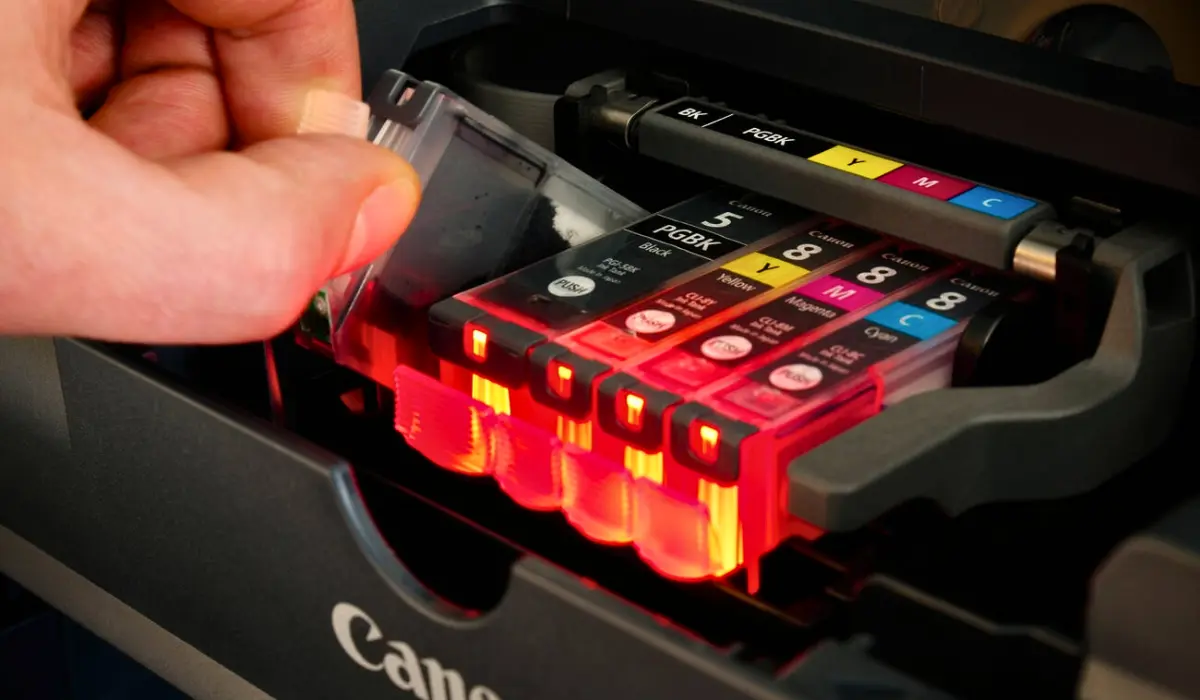
2. Remove Protective Tape from New Cartridges
Many users install a new cartridge and immediately experience blank pages.
The reason?
The protective tape covering the ink outlet was never removed.
Solution
- Open the printer cover.
- Remove the cartridge.
- Inspect for:
- Orange tape
- Plastic seals
- Packaging materials
- Remove all protective materials.
- Reinstall the cartridge.
Print a test page afterward.
3. Run a Canon Nozzle Check
A nozzle check helps determine whether ink is flowing through the printhead correctly.
Steps
- Open Canon Maintenance Settings.
- Select Nozzle Check.
- Print the test pattern.
What to Look For
- Missing lines
- Missing colors
- Broken patterns
- Blank sections
If the pattern is incomplete, proceed to printhead cleaning.
4. Clean the Printhead
Clogged printheads are one of the most common causes of blank printing.
Ink can dry inside the nozzles when a printer remains unused for extended periods.
How to Clean a Canon Printhead
- Open Printer Maintenance.
- Select Cleaning.
- Follow the instructions.
- Wait for completion.
- Run another nozzle check.
If needed:
- Select Deep Cleaning.
- Allow the process to finish.
- Print a test page.
Important
Avoid running multiple cleaning cycles consecutively because this uses significant amounts of ink.
5. Check Cartridge Installation
Improper cartridge installation can prevent proper ink flow.
Verify
- Cartridge clicks into place
- Cartridge contacts are clean
- Cartridge is installed in the correct slot
- Cartridge is recognized by the printer
Remove and reinstall cartridges if necessary.
6. Replace a Faulty Cartridge
Occasionally, even brand-new cartridges can be defective.
Common Signs
- Printer recognizes cartridge but prints blank pages
- One color is completely missing
- Nozzle checks remain blank
- Printhead cleaning has no effect
Replacing the cartridge often resolves the issue.
7. Check Paper Size and Print Settings
Incorrect print settings can sometimes cause blank or incomplete output.
Verify
- Paper size matches loaded paper
- Correct paper type selected
- Print area settings are correct
- Blank page separator options are disabled
Also review Print Preview before printing.
8. Update Canon Printer Drivers
Outdated drivers frequently cause printing errors.
Symptoms
- Blank pages
- Missing content
- Random print failures
- Printer communication errors
How to Update Drivers
- Visit Canon Support.
- Search for your printer model.
- Download the latest driver.
- Install updates.
- Restart your computer.
Updated drivers improve printer stability and compatibility.
9. Restart the Print Spooler
The print spooler controls communication between your operating system and printer.
If it becomes stuck, printing problems can occur.
Windows Users
- Press Windows + R.
- Type services.msc.
- Locate Print Spooler.
- Right-click and select Restart.
Clear any pending print jobs afterward.
10. Check for Air Inside the Cartridge
Air trapped inside a cartridge can interrupt ink flow.
Common Symptoms
- Blank pages after cartridge replacement
- Missing text
- Missing colors
Running one or two cleaning cycles usually removes trapped air.
11. Reinstall the Printer
If software corruption exists, reinstalling the printer may solve the issue.
Steps
- Remove the printer from your computer.
- Uninstall Canon software.
- Restart the computer.
- Download the latest Canon software package.
- Reinstall the printer.
This eliminates many communication-related errors.
12. Check for Hardware Problems
If all troubleshooting steps fail, a hardware issue may be responsible.
Possible causes include:
- Damaged printhead
- Faulty cartridge contacts
- Internal board failure
- Ink delivery system malfunction
Professional service may be required.
Canon Printer Printing Blank Pages After Changing Ink
This is one of the most common complaints among Canon users.
Possible Causes
- Protective tape still attached
- Cartridge not seated correctly
- Air trapped in cartridge
- Cartridge not recognized
Quick Fix
- Remove the cartridge.
- Check for tape.
- Reinstall carefully.
- Run nozzle check.
- Perform printhead cleaning.
This solves most post-installation issues.
Canon Printer Printing Blank Pages But Ink Is Full
If your cartridges show sufficient ink but pages remain blank, the likely causes are:
- Clogged printhead
- Driver corruption
- Printhead failure
- Cartridge communication issue
Running a nozzle check helps identify the problem.
How to Prevent Blank Pages in the Future
A few simple maintenance habits can help avoid future problems.
Print Regularly
Print at least one page every week to keep ink flowing.
Use Genuine Canon Ink
Original cartridges provide:
- Better reliability
- Improved print quality
- Reduced clogging
Keep Drivers Updated
Install updates whenever available.
Store Cartridges Properly
Avoid:
- Heat
- Direct sunlight
- Dry environments
Perform Maintenance Checks
Regular nozzle checks can identify problems early.
When Should You Contact Canon Support?
Contact Canon support if:
- Blank pages continue after cleaning
- The printer shows hardware errors
- Cartridges are recognized but no ink prints
- Internal components appear damaged
- Printhead cleaning repeatedly fails
Professional diagnosis may be required.
Frequently Asked Questions
Why is my Canon printer printing blank pages when ink is full?
A clogged printhead, faulty cartridge, software issue, or printhead communication problem is usually responsible.
Why does my Canon printer print blank pages after replacing ink?
Protective tape may still be attached, the cartridge may not be installed properly, or air may be trapped inside the cartridge.
Can a clogged printhead cause blank pages?
Yes. Clogged nozzles are one of the most common causes of blank printing.
Does printhead cleaning fix blank pages?
In many cases, yes. Cleaning removes dried ink and restores normal ink flow.
How do I stop my Canon printer from printing blank pages?
Check ink levels, clean the printhead, update drivers, inspect cartridges, and verify printer settings.
Final Thoughts
If your Canon printer is printing blank pages, don’t panic. In most cases, the issue is caused by empty cartridges, clogged printheads, incorrect settings, faulty cartridges, or software-related problems that can be fixed at home.
By checking ink levels, running nozzle checks, cleaning the printhead, updating drivers, and ensuring cartridges are installed correctly, you can quickly restore normal printing performance.
Whether you’re using a Canon PIXMA, MAXIFY, imageCLASS, or another Canon printer model, following the troubleshooting steps in this guide will help eliminate blank page issues and keep your printer running smoothly throughout 2026.