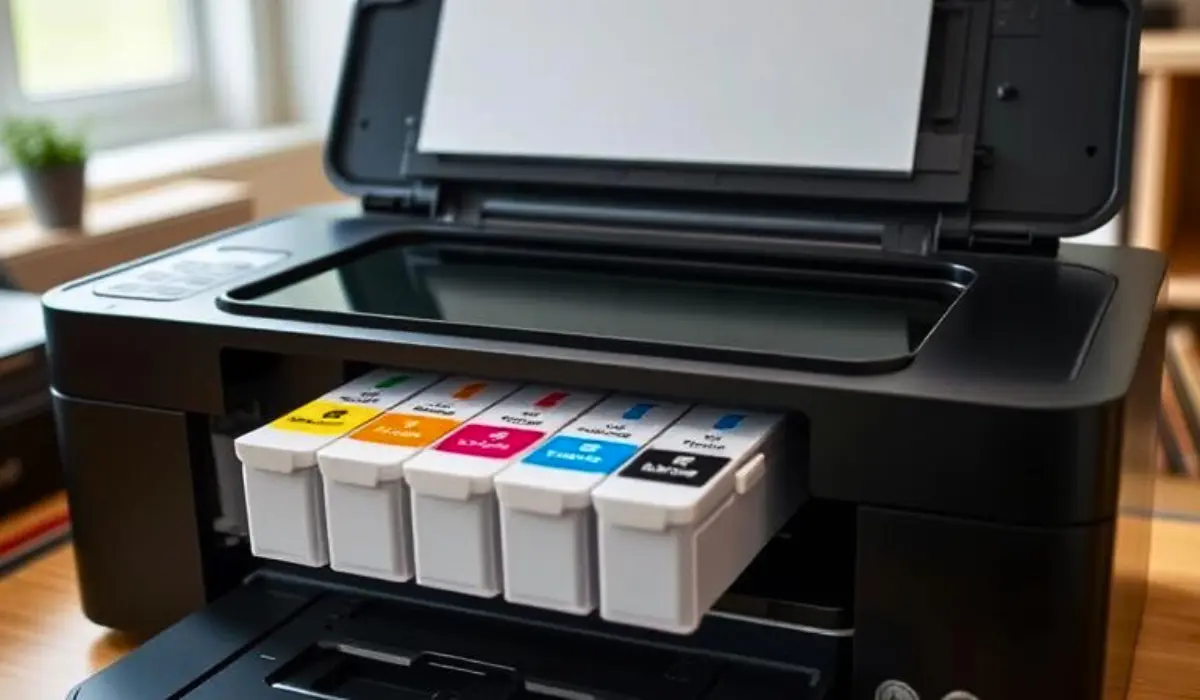
Troubleshooting Epson Printer Ink Not Working Issues

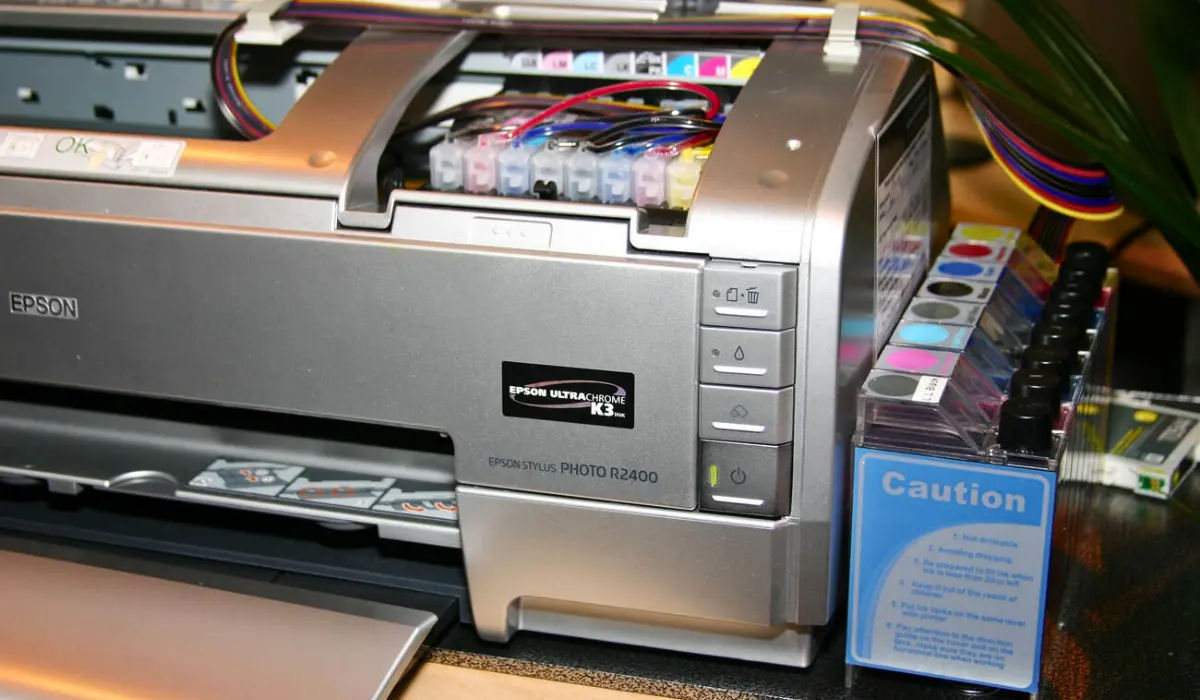
Print problems can be annoying. Sometimes you need a document or photo, and your printer won’t work. The most frequent problem is Epson printer ink problems. This can happen even if the cartridges are new, filled with ink, and properly installed. Usually this can leave you puzzled and looking for a quick fix.
The good news is that there actually are some easy fixes for almost all ink-related problems one may have with their Epson printer after knowing the potential causes. Pigment and dye inks can be susceptible to clogged nozzles, outdated drivers, incorrect settings, or maybe in some cases, just using non-genuine ink cartridges – among other factors – can lead to poor and poorer lack of ink output. In this blog, I’ll provide valid explanations for the likely causes of this issue, and practical solutions to get your Epson printer back up and running smoothly.
Why Does Epson Printer Ink Stop Working?
There are many potential reasons for an Epson printer to have no delivery of ink onto the page. Knowing some of these will help narrow down the issue and ultimately find the right fix with the least amount of time and money wasted. Experiencing Epson printer ink not working can be frustrating, but understanding the causes makes it easier to resolve.
- Clogged Printhead Nozzles: Ink dries over time and may block the tiny nozzles, therefore not allowing ink to go through.
- Empty or Low Ink Levels: Even if you think there is ink, the cartridge may low or have wonky ink detection.
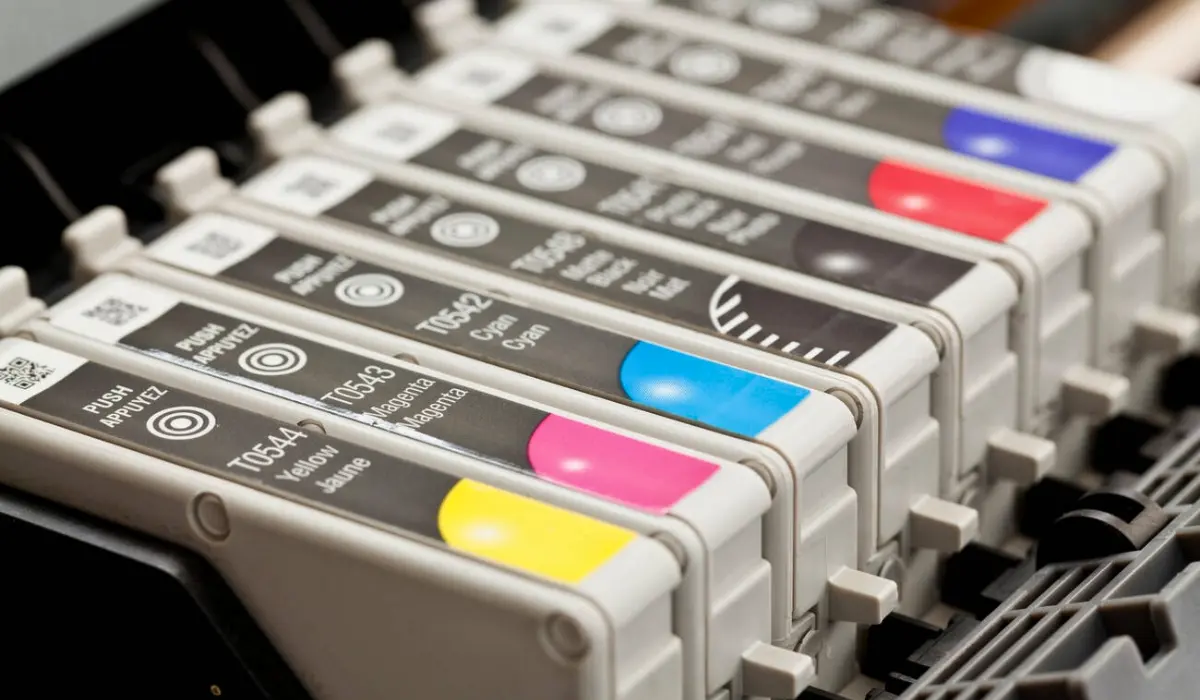
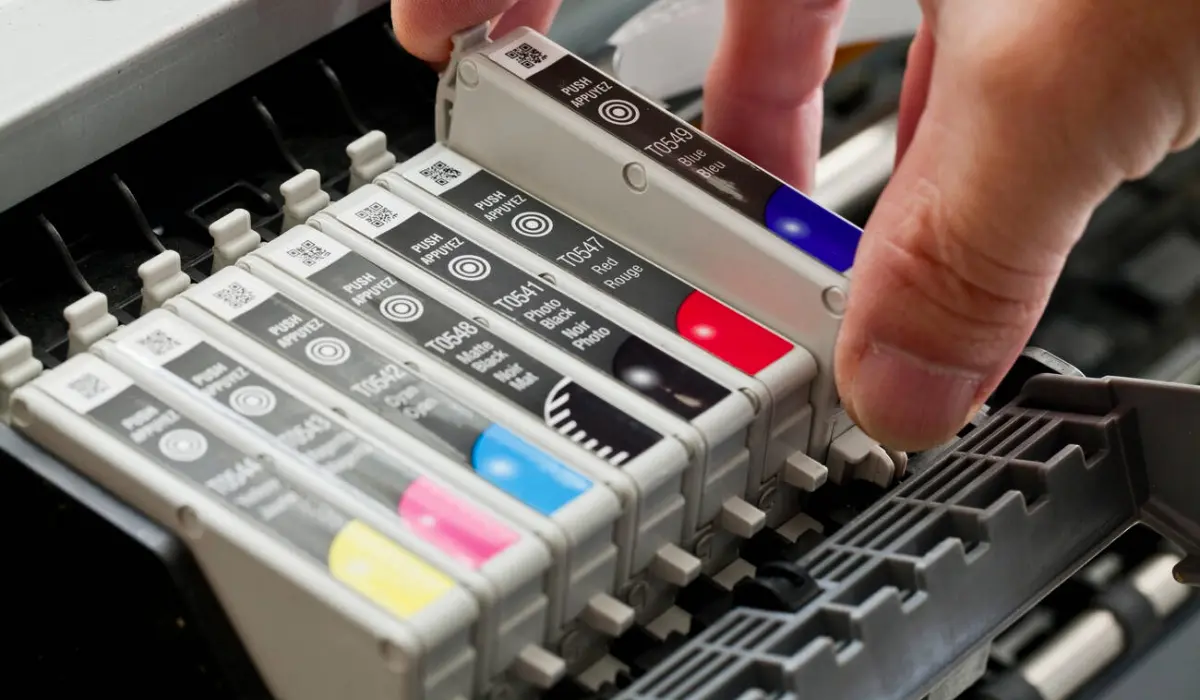
- Incorrect Cartridge Installation: The printer cannot recognize or utilize ink cartridges unless they are set as they should be.
- Software or Driver Issues: Possible errors may arise due to software glitches, or outdated printer drivers or firmware.
- Non Genuine Cartridges: Third party cartridges or refilled cartridges do not usually meet Epson’s system requirements.
Step-by-Step Solutions for Epson Printer Ink Problems
- Run a Nozzle Check and Head Cleaning
Epson printers have useful built-in tools to help identify and resolve ink flow problems. When you run a nozzle check, a test page is printed that shows if all of the colors are being released properly. If it shows gaps or blemishes, run the head cleaning option which will unclog clogged nozzles. You may need to run it two or three times as needed.
- Reseat or Replace the Ink Cartridges
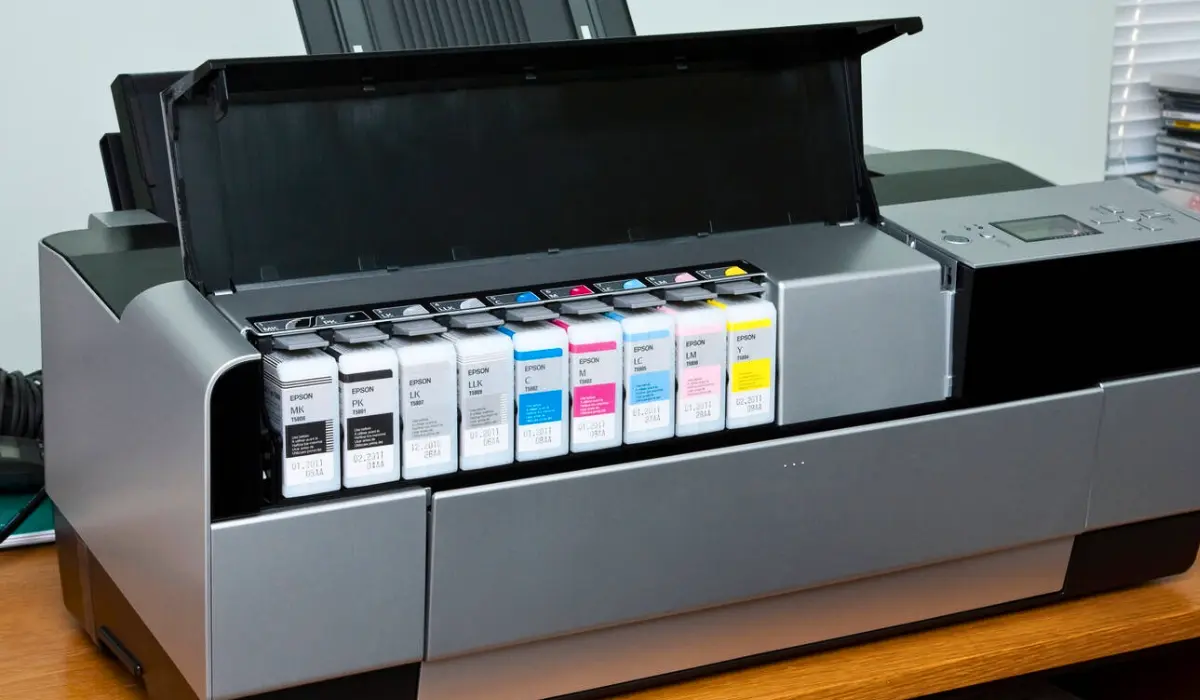
Sometimes the fix is simple, you just need to remove the cartridge and put it back in. Make sure the protective tapes or stickers were removed prior to installation. If the cartridge is empty, or the printer does not recognize it still, replacing it with a new cartridge is the best resolution.
- Use Genuine Epson Ink Cartridges
To ensure quality prints and reduce errors, you should only use original Epson cartridges. Although third-party cartridges may appear cheaper, they may result in your ink cartridges not being recognized, or the printed results may not perform well. Epson’s original cartridges are designed specifically to be used together with their printhead technology.
- Update Printer Drivers and Firmware
Old drivers could lead to issues when trying to print. To update your drivers and firmware, go to the Epson website and search for your printer model. Download the most up-to-date version of the drivers and firmware. Updating drivers and firmware usually takes care of any compatibility and performance problems.
- Look for Software or Setting Issues
Occasionally, the issue may not be with the printer itself, but the print settings. Make sure that you have selected the correct printer to print to, as well as the correct paper type and print quality. Additionally, if you are trying to print in color, make sure that your printer does not have “grayscale” selected.
Preventive Measures to Avoid Ink Issues in the Future
Instead of waiting until you have issues, it is better to implement best practices to keep your Epson printer performing well.
Print Regularly: If you print regularly (a minimum of one time a week), you will reduce the risk of your ink drying and blocking the nozzles.
Store Cartridges Correctly: If you have new cartridges, then for storage, store them in an upright position and in a cool and dry place.
Turn Off Properly: Always use the printer’s power button to turn the printer off – this will allow the cartridges to seal correctly.
Use Good Quality Paper: Poor quality paper can absorb too much ink and also damage the printhead over time.
Quick DIY Tips for Faster Results
- Gently wipe the cartridge nozzles with a lint-free cloth to remove dried ink.
- Run a second cleaning cycle if the first attempt doesn’t improve the print quality.
- Avoid over-cleaning as it can waste ink—two or three times should be enough.
- If you still face issues, contact Epson support for advanced troubleshooting.
Conclusion
It can be frustrating dealing with an Epson printer ink not working, but the likelihood is that it won’t be an issue for long, and in most cases, you can resolve it with simple steps like cleaning a printhead, reinstalling cartridges, updating the drivers, or using genuine ink rather than third-party ink. Developing some preventative habits, such as regularly printing in color, and storing cartridges safely, will help deter any future breakdowns.
Know that printers are developed to be consistent machines. However, as a machine, it will never run on its own, and it will need maintenance from time to time. The best way to keep a printer is to be proactive, identify any issues early, and apply the fixes. The options presented in this guide will help get your Epson printer back to the clear, high-quality prints that you are used to, without delay!
FAQs
- Why is my Epson printer printing blank pages even though I have ink?
Often, this is caused by clogged nozzles or dry print heads. A nozzle check and then a maximum of two head-clean cycles rarely helps
- What can I do if it doesn’t recognize a new cartridge?
First, make sure the cartridge is installed properly, seals removed, and contacts are clean. “reset” the printer by turning it off and on., and this may help it recognize it again.
- Can print driver issues cause print failures, even with full ink?
Yes. Faulty or out dated drivers can disrupt communication between your device and printer. Downloading the current driver from the Epson support site can help with this
- Is it alright to use a third party ink cartridge with my Epson printer?
Even though it is cheaper third party or refilled cartridges may result in errors or poor quality printing, or even damage to your printer. If you want the best performance possible, Epson recommends the use of genuine cartridges.
- What does it mean when the Epson service alert for ink pads appear?
The ink pads that collect waste ink are full. At this time you can use a one time reset utility or arrange for a replacement or repair with Epson support if you want to continue printing