


Blog
Lexmark Printer Offline? 10 Fast Fixes to Get It Back Online (2026)

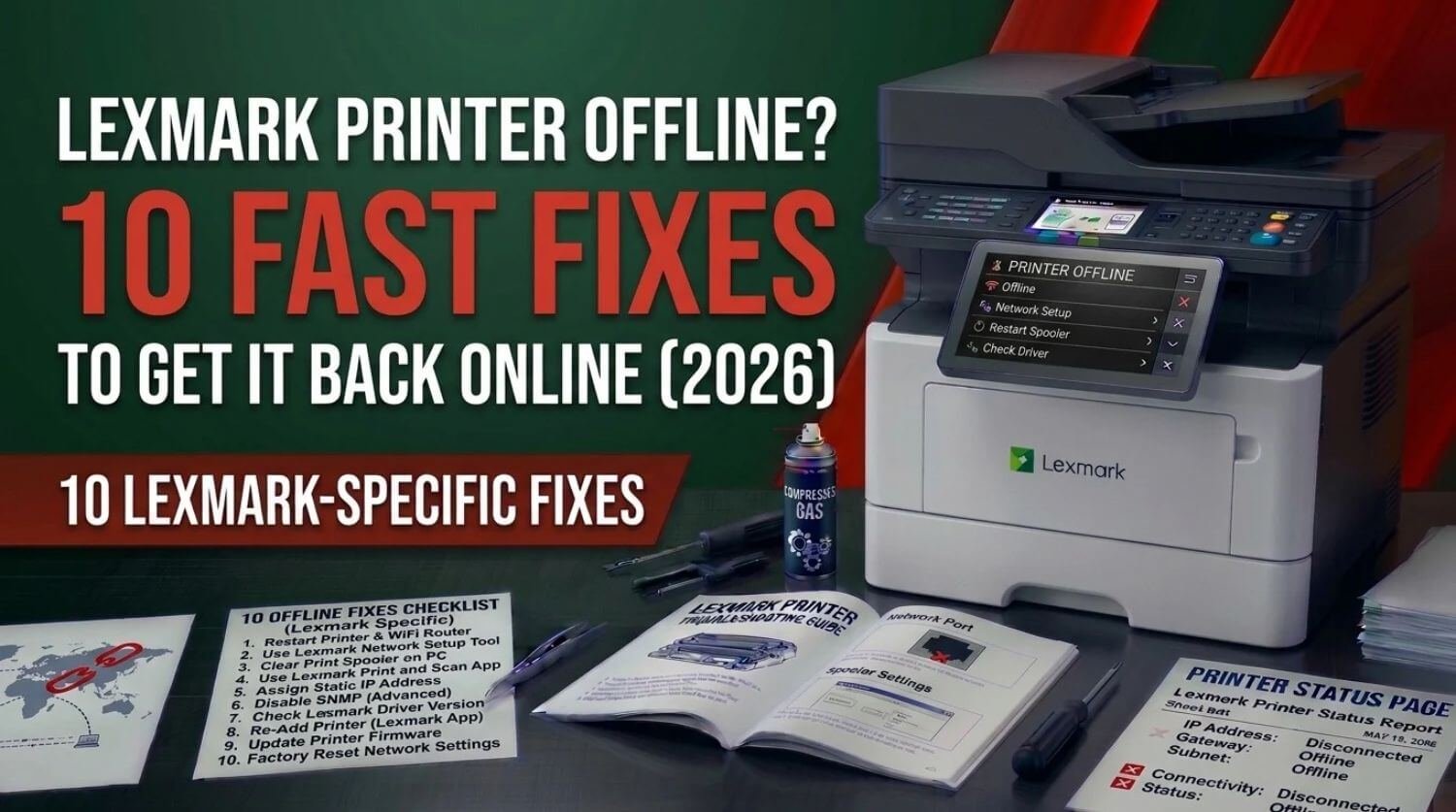
If your Lexmark printer is offline, your computer may be unable to send documents even though the printer is powered on and appears ready. This can happen with both wireless and USB-connected Lexmark printers.
A Lexmark printer can go offline after a WiFi change, router restart, Windows update, driver problem, stuck print queue, or temporary communication failure. In many cases, you can restore the connection without reinstalling everything.
This guide covers 10 practical fixes to get a Lexmark printer back online, starting with the quickest checks and moving toward driver and network troubleshooting.
Quick Fix: Why Is My Lexmark Printer Offline?
Make sure the printer is powered on.
Check the printer display for errors.
Confirm paper and toner are available.
Check the WiFi or USB connection.
Make sure your computer and printer use the same WiFi network.
Turn off offline mode in printer settings.
Clear stuck print jobs.
Restart the printer and computer.
Restart the print spooler.
Reinstall the Lexmark printer driver if necessary.
The Solution:
Most offline problems are caused by a lost connection, incorrect printer selection, a stuck queue, or driver communication failure. Work through the fixes below in order to identify and resolve the cause.
Table of Contents
- 1. Restart Your Lexmark Printer
- 2. Check the Printer for an Error
- 3. Check Your WiFi Connection
- 4. Make Sure the Printer Is Not Set to Offline Mode
- 5. Check the USB Cable
- 6. Clear the Print Queue
- 7. Restart the Windows Print Spooler
- 8. Restart Your Router
- 9. Check the Lexmark Printer Driver
- 10. Remove and Re-Add the Lexmark Printer
- Lexmark Printer Offline After Changing WiFi
- Lexmark Printer Offline but Connected to WiFi
- Lexmark Printer Offline After Windows Update
- Lexmark Printer Offline on a Network
- How to Tell Whether the Problem Is the Printer or Computer
- Quick Lexmark Offline Printer Checklist
- Frequently Asked Questions
- Related Guides
- Final Thoughts
1. Restart Your Lexmark Printer
The simplest solution is often a complete printer restart.
Turn off the Lexmark printer using its power button. Wait for several seconds, then turn it back on.
Allow the printer to finish initializing and return to its Ready screen before checking your computer.
If the printer temporarily lost communication with the computer or network, restarting it can restore the connection.
You can also restart your computer afterward, particularly if Windows continues showing the printer as offline.
2. Check the Printer for an Error
Your Lexmark printer may appear offline because an actual printer error is preventing it from becoming ready.
Check the printer display for messages related to:
- Paper jams
- Empty paper trays
- Toner
- Open doors
- Cartridge errors
- Network connection
- Hardware problems
- Maintenance requirements
Resolve the displayed error first.
If the printer remains in an error condition, see Lexmark Printer in Error State? Quick Fix Guide.
An error message is generally more useful than repeatedly attempting to print because it identifies what is preventing the printer from reaching Ready status.
3. Check Your WiFi Connection
If your Lexmark printer uses WiFi, verify that it is connected to the correct wireless network.
A printer can become offline after:
- Changing your router
- Changing the WiFi password
- Switching Internet providers
- Restarting network equipment
- Moving the printer
- Separating the printer and computer onto different networks
Check the network information on the printer and confirm that the computer is connected to the same network.
For example, if the printer is connected to your home WiFi but your computer is connected to a guest network, they may not communicate correctly.
For complete wireless setup instructions, see Lexmark Printer WiFi Setup Guide (Windows, Mac & Mobile).
4. Make Sure the Printer Is Not Set to Offline Mode
Windows can sometimes leave a printer in Offline mode even after the physical connection has been restored.
Open your printer settings and select the Lexmark printer.
Check its current status. If Windows provides an option such as Use Printer Offline, make sure it is disabled.
After changing the setting, wait a few seconds and check whether the printer status changes to Ready or Online.
If the printer immediately returns to Offline status, the problem may be related to the network, driver, or print spooler.
5. Check the USB Cable
For a USB-connected Lexmark printer, inspect the cable and connections.
Make sure the cable is firmly connected to both the printer and computer.
If the printer still appears offline:
- Disconnect and reconnect the USB cable.
- Try another USB port.
- Avoid using an unreliable USB hub.
- Restart the printer.
- Restart the computer.
- Test another compatible USB cable if available.
If the printer works through another USB port, the original port or connection may have been the cause.
6. Clear the Print Queue
A stuck print job can prevent Windows from communicating properly with the Lexmark printer.
Open the Lexmark printer’s print queue and cancel pending documents.
Pay particular attention to old jobs showing statuses such as:
- Error
- Printing
- Deleting
- Pending
- Offline
After clearing the queue, send a small test document.
If Windows will not remove the stuck jobs, restart the Print Spooler service and try again.
For detailed queue troubleshooting, see Lexmark Printer Print Queue Stuck? Clear Jobs & Fix Spooler.
7. Restart the Windows Print Spooler
The Print Spooler is responsible for managing print jobs in Windows. If it becomes stuck, the Lexmark printer may show as offline even when the printer itself is working.
Open Windows Services and locate Print Spooler.
Restart the service and then return to your Lexmark printer settings.
Check whether the printer comes back online.
This fix is particularly useful when:
- Print jobs remain stuck.
- Documents never reach the printer.
- The printer frequently switches between online and offline.
- Multiple printers are affected.
- The printer worked normally before a print job became stuck.
After restarting the spooler, try printing a test page.
8. Restart Your Router
If your Lexmark printer is connected wirelessly, the router may be responsible for the offline status.
Restart the router and wait until the network is fully available.
Then:
- Turn the Lexmark printer off.
- Restart the router.
- Wait for the WiFi network to return.
- Turn the printer back on.
- Wait for it to reconnect.
- Check the printer status on your computer.
If the printer still cannot reconnect, verify its WiFi settings.
A network change may require you to configure the printer again.
9. Check the Lexmark Printer Driver
An incorrect, damaged, outdated, or unavailable driver can make a working printer appear offline.
This can happen after operating system updates or when a printer is moved to a different computer.
Open your printer settings and inspect the installed Lexmark printer.
If Windows cannot communicate with it correctly, reinstall the appropriate Lexmark driver.
After reinstalling the driver:
- Restart the computer.
- Turn the printer on.
- Confirm the printer connection.
- Select the Lexmark printer.
- Send a test page.
For a dedicated driver troubleshooting guide, see Lexmark Printer Driver Unavailable? Fix Driver Problems Fast.
10. Remove and Re-Add the Lexmark Printer
If the printer continues to appear offline after the previous fixes, removing and adding it again can rebuild the connection.
Before doing this, make sure you know whether your Lexmark printer connects through WiFi, Ethernet, or USB.
Remove the existing printer from your operating system and restart the computer if necessary.
Then add the Lexmark printer again.
For wireless printers, make sure the printer is connected to the correct network before adding it.
For USB printers, connect the cable when the operating system asks for the printer or after the printer installation process begins.
This can resolve incorrect printer configuration, stale connection information, and corrupted printer entries.
Lexmark Printer Offline After Changing WiFi
If your Lexmark printer went offline after changing your router or WiFi password, the printer may still be trying to connect using the old network information.
In this situation, reconnect the printer to the new wireless network.
Check the printer’s wireless settings and select your current WiFi network.
Enter the correct password carefully.
Once connected, confirm that your computer is also using the same network.
If your network uses multiple bands or access points, keeping the printer and computer on a network that allows them to communicate is important.
See Lexmark Printer WiFi Setup Guide (Windows, Mac & Mobile) for more detailed setup help.
Lexmark Printer Offline but Connected to WiFi
A WiFi connection alone does not guarantee that your computer can communicate with the printer.
If the printer shows that it is connected to WiFi but Windows still says Offline, check:
- Computer and printer network
- Printer IP address
- Print queue
- Printer driver
- Offline mode
- Router communication
- Duplicate printer entries
Restarting both the printer and computer is a good first step.
If the printer remains connected but does not accept print jobs, see Lexmark Printer Connected But Not Printing? Fix It Fast.
Lexmark Printer Offline After Windows Update
A Windows update can sometimes affect printer drivers, printer configuration, or spooler behavior.
If your Lexmark printer worked before an update and became offline afterward, inspect the installed driver first.
Restart the Print Spooler and check the printer’s status.
If that does not help, remove and reinstall the Lexmark printer driver.
Also check whether Windows created a duplicate printer entry after the update.
The correct Lexmark printer should be selected as the default printing device if you use it regularly.
Lexmark Printer Offline on a Network
Network-connected Lexmark printers can become unavailable if their network address changes or communication between the computer and printer is interrupted.
Check the printer’s network information and compare it with your computer’s current network.
If the printer has a changed IP address, the computer may still be trying to communicate with its previous address.
Re-adding the printer can resolve this type of configuration problem.
If the printer repeatedly goes offline, investigate the network connection rather than repeatedly reinstalling the printer.
How to Tell Whether the Problem Is the Printer or Computer
One useful troubleshooting technique is to determine whether the problem occurs on the printer itself or only on one computer.
If the printer is offline on every computer
Focus on:
- Printer WiFi
- Router
- Ethernet connection
- Printer settings
- Printer errors
- Hardware
If the printer works on another computer
The problem is probably with the original computer.
Focus on:
- Printer driver
- Print spooler
- Printer settings
- Network configuration
- Print queue
If the printer works through USB but not WiFi
The printer itself may be working normally. Focus on wireless configuration and network communication.
This approach can save time because it prevents unnecessary hardware troubleshooting when the real issue is software or network related.
Quick Lexmark Offline Printer Checklist
Before moving to advanced troubleshooting, confirm:
- The printer is powered on.
- The printer display shows Ready.
- There are no paper jams.
- Paper is loaded.
- Toner is installed correctly.
- The printer is connected to WiFi or USB.
- The computer is connected to the correct network.
- Offline mode is disabled.
- The print queue is empty.
- Print Spooler is running.
- The correct Lexmark printer is selected.
- The correct driver is installed.
- The printer has been restarted.
- A test page has been attempted.
Frequently Asked Questions
Why is my Lexmark printer showing offline?
Your Lexmark printer may show offline because of a lost WiFi connection, USB problem, stuck print queue, incorrect printer settings, driver issue, router problem, or printer error.
Start by restarting the printer and checking its connection.
How do I get my Lexmark printer back online?
Restart the printer, verify its connection, disable Offline mode, clear the print queue, restart the Print Spooler, and check the printer driver.
If the problem continues, remove and add the printer again.
Why is my Lexmark printer connected to WiFi but offline?
The printer can be connected to WiFi while still being unreachable from your computer. Check whether the computer and printer are on the same network, then verify the printer’s network configuration and driver.
Why did my Lexmark printer suddenly go offline?
Common causes include router changes, WiFi interruptions, Windows updates, driver problems, stuck print jobs, and temporary communication failures.
How do I fix a Lexmark printer that is offline on Windows?
Start by checking the printer connection and Windows Offline mode. Then clear the print queue, restart Print Spooler, restart the printer, and reinstall the Lexmark driver if necessary.
Why does my Lexmark printer keep going offline?
Repeated offline problems may be caused by unstable WiFi, network configuration changes, driver problems, or communication issues between the printer and computer.
If the problem happens frequently, investigate the network and driver rather than repeatedly restarting the printer.
Related Guides
- Lexmark Printer Not Printing? 15 Proven Fixes That Actually Work (2026)
- Lexmark Printer WiFi Setup Guide (Windows, Mac & Mobile)
- Lexmark Printer in Error State? Quick Fix Guide
- Lexmark Printer Connected But Not Printing? Fix It Fast
- Lexmark Printer Driver Unavailable? Fix Driver Problems Fast
- Lexmark Printer Print Queue Stuck? Clear Jobs & Fix Spooler
- Lexmark Printer Paper Jam? Step-by-Step Fix Guide
Final Thoughts
A Lexmark printer offline message does not necessarily mean the printer has a serious hardware problem.
Start with the connection, printer status, WiFi, USB cable, and print queue. If those checks do not solve the problem, move on to the Print Spooler, router, driver, and printer configuration.
For wireless printers, make sure the printer and computer are connected to the same network. For USB printers, check the cable and USB port. If the printer works from another computer, focus on the original computer’s driver and printer settings.
Following these 10 fixes in order should help you identify the cause and get your Lexmark printer back online without unnecessary troubleshooting.
