


Blog
Kyocera Printer Print Queue Stuck? Clear Jobs & Fix Spooler

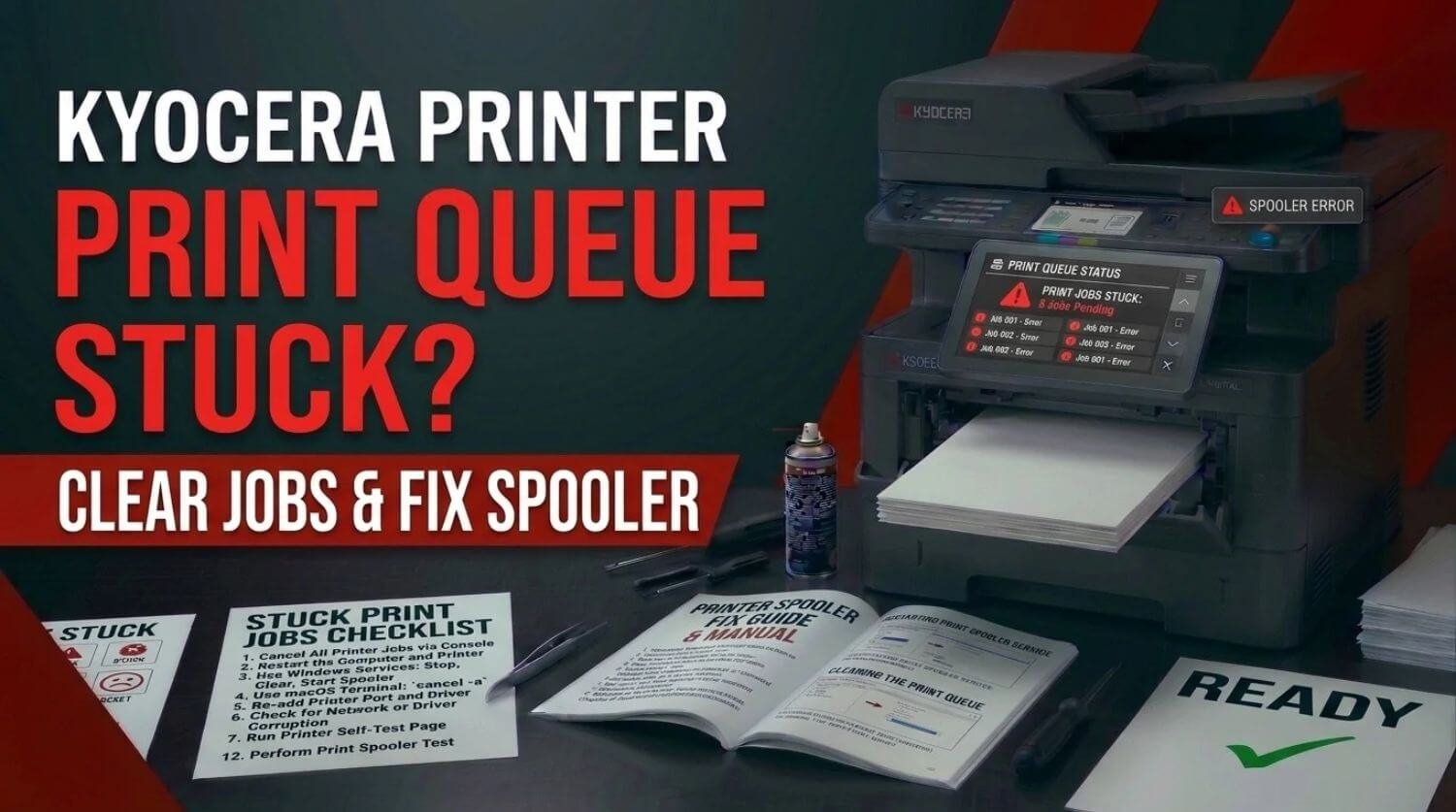
Is your Kyocera printer stuck with documents waiting in the print queue? A pending print job can prevent every document sent afterward from printing, even when the printer is connected and appears ready.
A Kyocera printer print queue stuck problem can be caused by a corrupted print job, Windows Print Spooler problems, connection issues, an incorrect printer driver, or a temporary communication error.
Clearing the queue and restarting the print system usually resolves the problem. If the queue keeps getting stuck, the underlying driver or connection should be checked.
Quick Fix: Why Is My Kyocera Print Queue Stuck?
The Solution:
Cancel all pending print jobs, restart the Kyocera printer, and try printing a simple document. If jobs remain stuck, restart the Print Spooler service and verify the printer driver, connection, and printer status.
Table of Contents
- 1. Cancel All Pending Print Jobs
- 2. Restart the Kyocera Printer
- 3. Restart the Computer
- 4. Restart the Windows Print Spooler
- 5. Check Whether One Document Is Causing the Problem
- 6. Check the Kyocera Printer Connection
- 7. Check Whether the Printer Is Offline
- 8. Check the Kyocera Printer Driver
- 9. Remove Duplicate Printer Installations
- 10. Check the Printer Port
- Kyocera Print Queue Stuck on One Document
- Kyocera Printer Queue Stuck After Windows Update
- Kyocera Printer Queue Stuck With WiFi Printing
- Kyocera Printer Queue Keeps Filling Up Again
- Quick Kyocera Print Queue Troubleshooting Checklist
- Frequently Asked Questions
- Related Kyocera Printer Guides
- Final Thoughts
1. Cancel All Pending Print Jobs
Start with the simplest solution.
Open your Kyocera printer queue and look at the documents waiting to print.
Cancel the pending jobs.
Wait until the queue is completely empty before sending another document.
If one document is causing the problem, removing that job may immediately allow the remaining printer functions to work normally.
Avoid repeatedly sending the same document while troubleshooting because it can add additional jobs to an already blocked queue.
2. Restart the Kyocera Printer
After clearing the queue, restart the printer.
Turn the Kyocera printer off normally, wait briefly, and turn it back on.
Allow it to complete its startup process and return to the ready state.
Then send a simple one-page test document.
A restart can clear temporary communication problems and remove a printer state that was preventing the queue from processing.
3. Restart the Computer
If the queue remains stuck after restarting the printer, restart the computer.
This can reset the local printer connection and refresh the printing system.
After restarting:
- Open the Kyocera printer queue.
- Confirm there are no old jobs.
- Check that the printer is online.
- Send a small test document.
If the queue immediately becomes stuck again, continue with the Print Spooler checks.
4. Restart the Windows Print Spooler
The Windows Print Spooler manages print jobs between applications and printers.
If it becomes stuck, documents may remain in the queue indefinitely.
Restarting the Print Spooler can restore normal queue processing.
After restarting the service, open the Kyocera printer queue again and check whether the pending document clears.
Then send a new test document.
If the queue repeatedly freezes, the issue may be caused by a damaged print job, driver, or printer installation.
5. Check Whether One Document Is Causing the Problem
Sometimes only one print job is corrupted.
If several documents are waiting, cancel all of them and test with a new simple document.
For example, print a basic page containing a few lines of text.
If the simple document prints
The original document may have caused the queue problem.
If the simple document also gets stuck
Investigate the printer driver, Print Spooler, connection, and printer status.
This test helps separate document-specific problems from printer-system problems.
6. Check the Kyocera Printer Connection
A queue can remain stuck when the computer cannot communicate with the printer.
For a USB printer, check the cable and connection.
For a network or WiFi printer, confirm that:
- The printer is powered on.
- The printer is connected to the correct network.
- The computer is connected to the same network.
- The printer has a valid network address.
- The printer is not offline.
If the printer recently changed networks, the computer may still be using an old printer configuration.
For wireless troubleshooting, see Kyocera Printer WiFi Setup Guide (Windows, Mac & Mobile).
7. Check Whether the Printer Is Offline
A stuck queue can be caused by an offline printer.
Check the printer status in Windows and make sure the Kyocera device is available.
If it shows Offline, resolve the connection problem first.
For additional troubleshooting, see Kyocera Printer Offline? 10 Fast Fixes to Get It Back Online (2026).
8. Check the Kyocera Printer Driver
An incorrect or corrupted driver can prevent print jobs from processing.
If the queue becomes stuck every time you print, check the installed Kyocera driver.
Verify that it matches:
- Your exact Kyocera model
- Your operating system
- Your printer connection
A generic or incompatible driver can cause unexpected queue behavior.
If necessary, remove the printer and reinstall the correct Kyocera driver.
See Kyocera Printer Driver Unavailable? Fix Driver Problems Fast for related troubleshooting.
9. Remove Duplicate Printer Installations
Multiple installations of the same Kyocera printer can cause confusion.
You may have several entries for the same physical printer, especially after repeated installations.
For example, you might see separate entries for:
- Kyocera Printer
- Kyocera Printer Copy 1
- Kyocera Printer USB
- Kyocera Printer Network
Check which printer is actually connected and remove obsolete installations when appropriate.
Then add the active Kyocera printer again and test the queue.
10. Check the Printer Port
For network printers, verify that the printer is using the correct port.
If the printer’s IP address changed, Windows may still be sending jobs to the old address.
This can result in documents remaining in the queue without printing.
Check the printer’s current network information and compare it with the configured printer port.
If they do not match, update the printer configuration or reinstall the network printer.
Kyocera Print Queue Stuck on One Document
If one document remains permanently stuck while other documents cannot print, cancel that job first.
If it refuses to disappear, restart the Print Spooler and check the queue again.
Then restart the printer and computer before sending another document.
If the same file repeatedly causes the queue to freeze, test a different document.
The problem may be related to the original file, application, or print processing.
Kyocera Printer Queue Stuck After Windows Update
If the queue worked normally before a Windows update and stopped afterward, check the printer driver and Print Spooler.
An update can affect printer configurations or compatibility.
Remove the affected Kyocera printer and reinstall the appropriate driver if necessary.
Then restart Windows and test with a basic document.
Kyocera Printer Queue Stuck With WiFi Printing
If wireless jobs remain stuck, verify the network connection before changing the driver.
Check the printer’s IP address and confirm that the computer can communicate with the printer.
If the printer received a new IP address, the existing Windows printer installation may point to the wrong location.
Reconnect or reinstall the printer using its current network configuration.
Kyocera Printer Queue Keeps Filling Up Again
If cancelled jobs keep returning or new jobs become stuck immediately, investigate the source of the problem instead of repeatedly clearing the queue.
Possible causes include:
- Corrupted driver
- Print Spooler problem
- Incorrect printer port
- Network connection issue
- Damaged print job
- Duplicate printer installation
Test with a simple document and, if possible, another computer.
If another computer prints normally, focus on the original computer’s printer configuration.
Quick Kyocera Print Queue Troubleshooting Checklist
Work through these steps:
- Cancel all pending print jobs.
- Restart the Kyocera printer.
- Restart the computer.
- Restart the Windows Print Spooler.
- Test a simple document.
- Check printer status.
- Confirm the printer is online.
- Check the USB or network connection.
- Verify the Kyocera driver.
- Remove duplicate printer installations.
- Check the printer port.
- Test from another computer if available.
Frequently Asked Questions
Why is my Kyocera print queue stuck?
A corrupted print job, Print Spooler problem, driver issue, network connection problem, or incorrect printer port can cause the queue to stop processing.
How do I clear a stuck Kyocera print queue?
Cancel all pending jobs from the printer queue, restart the printer and computer, and restart the Windows Print Spooler if the jobs do not clear.
Why won’t my Kyocera print job cancel?
The Windows Print Spooler may be stuck processing the job. Restarting the Print Spooler can allow the queue to clear.
Why does my Kyocera queue get stuck every time I print?
Repeated queue failures can indicate a driver, port, network, or printer installation problem. Check the driver and connection rather than repeatedly clearing the queue.
Can WiFi cause a Kyocera print queue to get stuck?
Yes. If the computer cannot communicate with the printer over the network, print jobs may remain pending. Check the printer’s network connection and IP address.
Why does my Kyocera printer work from another computer?
If another computer prints normally, the problem is likely related to the original computer’s driver, Print Spooler, printer port, or printer installation.
Related Kyocera Printer Guides
- Kyocera Printer Not Printing? 15 Proven Fixes That Actually Work (2026)
- Kyocera Printer Connected But Not Printing? Fix It Fast
- Kyocera Printer Offline? 10 Fast Fixes to Get It Back Online (2026)
- Kyocera Printer Driver Unavailable? Fix Driver Problems Fast
- Kyocera Printer WiFi Setup Guide (Windows, Mac & Mobile)
- Kyocera Printer In Error State? Quick Fix Guide
- Kyocera Printer Printing Weird Symbols? Fix Gibberish Output
Final Thoughts
A stuck Kyocera print queue is usually caused by a blocked print job, Print Spooler problem, driver issue, or communication failure.
Start by cancelling the queue and restarting the printer. If that does not work, restart the computer and Windows Print Spooler, then check the printer driver, connection, and port.
Testing a simple document after each major change can help identify what is actually preventing the queue from processing and avoid unnecessary printer reinstallation.
