


Blog
Brother Printer Paper Jam? Step-by-Step Fix Guide (2026)

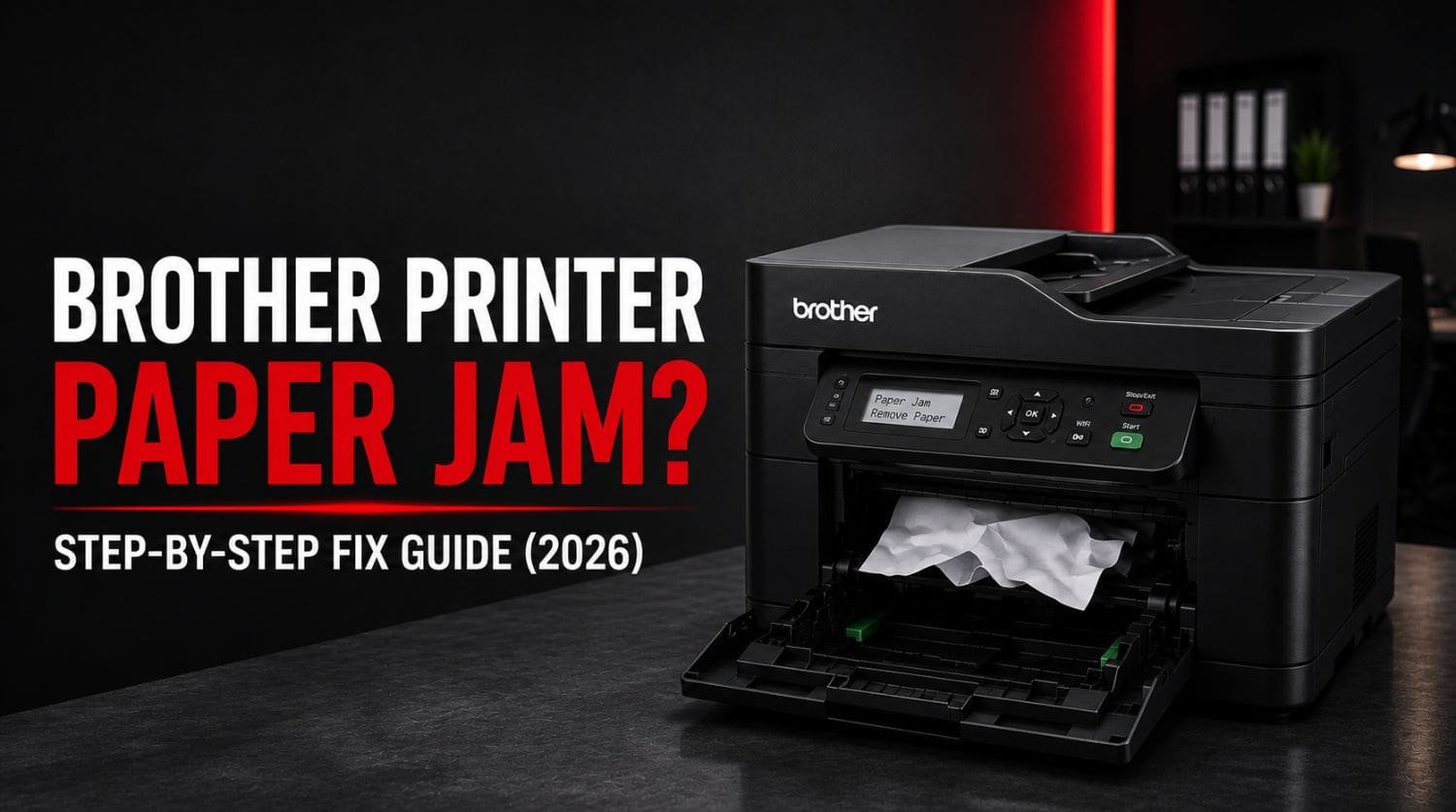
Quick Fix: How Do You Fix a Brother Printer Paper Jam?
A Brother printer paper jam usually occurs when paper becomes stuck inside the printer, the feed rollers cannot move paper properly, or small paper fragments block the paper path.
The Solution:
Turn off the printer, remove jammed paper carefully, inspect the paper path, clean the rollers, reload paper correctly, and restart the printer. Most Brother paper jams can be fixed in a few minutes.
Table of Contents
- Introduction
- Why Does My Brother Printer Keep Jamming?
- Fix 1: Turn Off the Printer
- Fix 2: Remove the Jammed Paper Carefully
- Fix 3: Check the Paper Tray
- Fix 4: Inspect the Rear Access Area
- Fix 5: Check the Duplex Unit
- Fix 6: Clean the Paper Feed Rollers
- Fix 7: Use the Correct Paper Type
- Fix 8: Remove Foreign Objects
- Fix 9: Reset the Printer
- Fix 10: Check Paper Size Settings
- Fix 11: Update Printer Firmware
- Why Does My Brother Printer Keep Showing a Paper Jam After Removing the Paper?
- When a Paper Jam Leads to an Error State
- How to Prevent Future Paper Jams
- Quick Troubleshooting Checklist
- Frequently Asked Questions
- Final Thoughts
Introduction
Is your Brother printer displaying a Paper Jam message?
Paper jams are one of the most common printer problems and can stop printing completely until the obstruction is removed.
You may notice:
- Paper stuck inside the printer
- Paper feeding halfway then stopping
- Repeated jam warnings
- Wrinkled paper output
- Error messages preventing printing
The good news is that most paper jams are easy to fix and do not require professional repair.
This guide explains how to remove paper jams safely and prevent them from happening again.
If your printer has broader printing issues, visit our Brother Printer Not Printing? guide.
Why Does My Brother Printer Keep Jamming?
Paper jams usually occur when something interferes with the paper feeding process.
Common causes include:
- Misaligned paper
- Overloaded paper tray
- Damaged paper
- Dirty feed rollers
- Torn paper fragments
- Foreign objects inside the printer
- Worn rollers
- Incorrect paper size settings
Identifying the cause helps prevent future jams.
Fix 1: Turn Off the Printer
Before removing jammed paper, power off the printer.
Steps
- Turn off the Brother printer
- Disconnect the power cable
- Wait a few seconds
This prevents damage to internal components while removing paper.
Fix 2: Remove the Jammed Paper Carefully
Locate the jammed paper and remove it slowly.
Important
Do NOT:
❌ Pull paper aggressively
❌ Tear paper while removing it
❌ Force paper through the printer
Instead:
✅ Pull paper evenly
✅ Follow the paper path direction
✅ Remove paper gently
Torn paper fragments often cause recurring jams.
Fix 3: Check the Paper Tray
Improperly loaded paper is a major cause of paper jams.
Inspect:
- Paper alignment
- Paper guides
- Paper quantity
- Paper condition
Correct Loading
- Stack paper evenly
- Do not overload tray
- Adjust guides properly
- Use flat, undamaged paper
Then test printing again.
Fix 4: Inspect the Rear Access Area
Many Brother printers allow access to the rear paper path.
Check for:
- Hidden paper scraps
- Folded paper
- Obstructions
- Debris
Small fragments often remain after removing the main jam.
These pieces can trigger repeated jam errors.
Fix 5: Check the Duplex Unit
If your printer supports automatic double-sided printing, inspect the duplex area.
Common issues include:
- Paper stuck during duplex printing
- Small paper fragments
- Misaligned pages
Remove any visible obstruction.
Fix 6: Clean the Paper Feed Rollers
Dirty rollers can cause paper feeding problems.
Symptoms include:
- Multiple sheets feeding
- Paper slipping
- Frequent jams
Cleaning Steps
- Turn off printer
- Access rollers
- Use a lint-free cloth
- Clean gently
- Allow rollers to dry
Clean rollers improve paper handling.
Fix 7: Use the Correct Paper Type
Low-quality paper often causes feeding issues.
Avoid paper that is:
- Damp
- Curled
- Wrinkled
- Torn
- Extremely thin
Use paper recommended by Brother whenever possible.
Fix 8: Remove Foreign Objects
Unexpected objects inside the printer can block paper movement.
Common examples include:
- Staples
- Paper clips
- Labels
- Packaging material
- Dust buildup
Use a flashlight to inspect internal areas.
Remove any obstruction carefully.
Fix 9: Reset the Printer
After removing the jam, reset the printer.
Steps
- Turn off printer
- Disconnect power
- Wait 60 seconds
- Reconnect power
- Restart printer
This clears temporary jam warnings.
Fix 10: Check Paper Size Settings
Mismatched paper settings can create feed problems.
Verify:
- Paper size
- Paper type
- Tray configuration
Ensure the printer settings match the paper loaded in the tray.
Fix 11: Update Printer Firmware
Firmware updates sometimes improve paper handling and sensor performance.
Update using:
- Brother software
- Brother utilities
- Printer settings menu
Restart the printer after updating.
Why Does My Brother Printer Keep Showing a Paper Jam After Removing the Paper?
This usually happens because:
- Small paper scraps remain inside
- Sensors are blocked
- Rollers are dirty
- The printer was not reset
Carefully inspect all paper paths again.
Even tiny fragments can trigger repeated warnings.
When a Paper Jam Leads to an Error State
Sometimes repeated paper jams trigger additional printer warnings.
If your printer displays:
- Error State
- Unable to Print
- General hardware errors
visit: Brother Printer in Error State? Quick Fix Guide for deeper troubleshooting.
How to Prevent Future Paper Jams
Follow these best practices:
✅ Use quality paper
✅ Store paper in a dry environment
✅ Avoid overloading trays
✅ Keep rollers clean
✅ Remove jams carefully
✅ Update firmware regularly
✅ Inspect paper before loading
Preventive maintenance greatly reduces jam frequency.
Quick Troubleshooting Checklist
✅ turn off printer
✅ remove jammed paper carefully
✅ inspect paper tray
✅ check rear access area
✅ inspect duplex unit
✅ clean rollers
✅ use proper paper
✅ remove foreign objects
✅ reset printer
✅ verify paper settings
✅ update firmware
Frequently Asked Questions
Why does my Brother printer keep jamming?
The most common causes are misaligned paper, dirty rollers, paper scraps, overloaded trays, and damaged paper.
How do I remove paper stuck inside a Brother printer?
Turn off the printer and pull the paper gently in the direction of the paper path.
Can dirty rollers cause paper jams?
Yes. Dirty or worn rollers are one of the most common causes of recurring jams.
Why does my printer still show a paper jam after removing the paper?
Small paper fragments, blocked sensors, or uncleared error states often cause this problem.
Should I force jammed paper out?
No. Pulling paper aggressively can damage the printer and leave paper fragments behind.
Final Thoughts
Brother printer paper jams are usually caused by paper handling issues rather than serious hardware failures.
Most users successfully fix the problem by:
- removing jammed paper carefully
- checking for hidden paper scraps
- cleaning rollers
- using proper paper
- resetting the printer
Start with the simplest fixes first.
If paper jams continue after troubleshooting, worn rollers or feed components may require inspection.
Following the steps above will resolve the majority of Brother printer paper jam problems and help prevent future interruptions.
