Why is Canon Printer Not Printing? Common Causes and Easy Fixes That Work

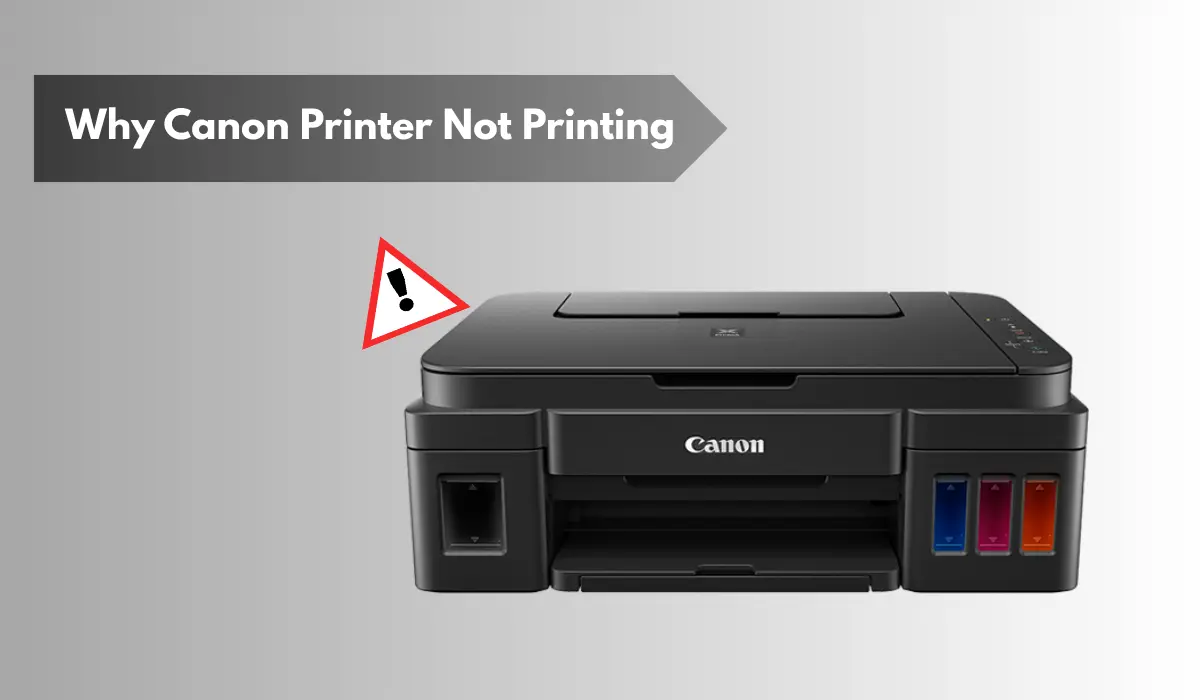
If you’re stuck wondering why your Canon printer is not printing, you’re not alone. One of the most prevalent reasons why this happens is that there are issues occurring in the computer’s operating system configuration, Canon’s printer drivers, the cable connected between the printer and the computer, and/or the physical hardware containing all of these components. If you have no printer access, you cannot complete your business or personal tasks without the use of a printer. Fortunately, most of these issues can typically be fixed fairly quickly as long as you have the right knowledge needed to do so, and we provide this type of information in this tutorial by explaining 5 typical causes of printing failure, including step-by-step procedures for correcting each printing failure.
Check Basic Connections and Power Issues First
Before diving into complex troubleshooting, always start with the basics. Many users overlook simple causes.
Power Supply Problems
Make sure your printer is properly plugged into a working power outlet. Check that the power cable is securely connected at both ends. If the printer display is off or flickering, try a different outlet.
USB or Network Connection Issues
If you’re using a USB connection, unplug and reconnect the cable. Try a different USB port if needed. For Wi-Fi printers, confirm that:
- The printer is connected to the correct Wi-Fi network.
- Your computer is on the same network.
- The router is working properly.
Sometimes restarting the printer, computer, and router solves connection glitches instantly.
Printer Showing Offline Status
One major reason people search for why their Canon printer is not printing is that their device shows “Printer Offline.” This usually happens due to communication issues between the printer and computer.
How to Fix Offline Status (Windows)
- Open Control Panel.
- Go to Devices and Printers.
- Right-click your Canon printer.
- Uncheck “Use Printer Offline.”
If that doesn’t work, try setting the printer as the default. Right-click and select “Set as Default Printer.”
For Mac users, remove the printer from System Settings and add it again. This refreshes the connection.
Low Ink or Empty Cartridge Issues
Canon printers are designed not to print if ink levels are critically low. Even if one cartridge is empty, printing may stop entirely.
Check Ink Levels
Open the printer software on your computer and check the ink status. If levels are low:
- Replace empty cartridges with genuine Canon ink.
- Ensure cartridges are installed properly.
- Remove protective tape from new cartridges before installation.
If you recently replaced ink and it still won’t print, run a nozzle check and printhead cleaning from the maintenance menu.
Paper Jams and Paper Loading Problems
Paper jams are another common cause of printing failure. Even a small torn piece inside the printer can stop the operation.
How to Fix Paper Jam Issues
- Turn off the printer.
- Open all access panels carefully.
- Remove jammed paper gently without tearing.
- Reload paper properly aligned in the tray.
Always use the correct paper size and type recommended for your Canon model. Overloaded trays can also cause feeding errors.
Outdated or Corrupted Printer Drivers
Drivers act as communication bridges between your computer and printer. If they are outdated or corrupted, your printer may not respond.
Update Canon Printer Drivers
- Visit Canon’s official website.
- Search for your printer model.
- Download the latest driver compatible with your operating system.
- Install and restart your computer.
Updating drivers often resolves mysterious issues where everything seems connected but nothing prints.
Print Queue Stuck or Frozen
Sometimes the printer isn’t the real problem. A stuck print job can block all new print commands.
Clear the Print Queue
- Open Devices and Printers.
- Double-click your printer.
- Cancel all pending documents.
- Restart the printer.
If documents refuse to cancel, restart the Print Spooler service through system settings. This refreshes the printing system completely.
Wireless Printing Configuration Errors
Modern Canon printers support wireless printing, but incorrect setup can cause failures. If you’re again asking yourself why Canon printer not printing, especially over Wi-Fi, configuration may be the issue.
Reconfigure Wi-Fi Setup
- Reset network settings on the printer.
- Reconnect it to your Wi-Fi network.
- Ensure firewall settings are not blocking printer communication.
You can also try printing from another device to check if the issue is device-specific.
Printhead Clogs and Maintenance Problems
If your printer is working but producing blank or faded pages, clogged printheads may be responsible. This is common if the printer hasn’t been used for a while.
Run Maintenance Tools
Canon printers offer built-in maintenance options such as:
- Nozzle Check
- Printhead Cleaning
- Deep Cleaning
Run these tools through the printer software menu. Avoid excessive deep cleaning as it consumes ink.
Firmware Issues and Software Conflicts
In rare cases, firmware bugs or operating system updates may interfere with printing. If none of the previous solutions work, check for firmware updates on Canon’s support page.
Also, ensure that:
- Your operating system is updated.
- No third-party print management software is conflicting.
- Antivirus software isn’t blocking printer communication.
When to Contact Canon Support
If you’ve tried everything and the printer still refuses to work, professional help may be required. Hardware components like internal sensors, logic boards, or motors may need servicing. Contact Canon customer support or an authorized service center for assistance.
Most Canon printers are reliable, and true hardware failures are relatively uncommon compared to configuration or maintenance problems.
Conclusion: Fixing Canon Printer Issues the Smart Way
Troubleshooting printing issues can be challenging, particularly when deadlines are looming. If you have been trying to troubleshoot why your Canon printer is not printing, remember that the majority of the time the problem is easily fixable. Basic troubleshooting steps, such as checking to make sure your connections are good and clearing any print jobs in your print queue, can often get your Canon printer working again. It is best to start with the simplest fixes before assuming that your Canon printer is broken.
Proper maintenance, setup, and software updates can help you to greatly limit your chances of having these types of problems occur in the future. By using the practical solutions outlined in this document, you will be able to restore the functionality of your Canon printer and eliminate unnecessary calls for repair service. If you take your time and systematically troubleshoot, your printer should be printing with good quality and will continue to do so.