How to Use Canon Printer for Scanning? Complete Step-by-Step Guide


Scanning documents has become an essential task in modern homes and offices. Instead of storing piles of paper documents, people now convert them into digital files that can be easily stored, shared, and organized. Canon printers are widely known for their reliable multifunction features, including printing, copying, and scanning. Learning how to use a Canon printer for scanning can help you digitize documents quickly and improve document management. Whether you need to scan contracts, receipts, reports, or photos, Canon printers provide simple tools to complete the process efficiently. With the right setup and basic understanding of the scanning process, users can save time, improve workflow, and ensure that important files are securely stored in digital form for future access.
Canon multifunction printers are designed with user convenience in mind. Once you understand how to use Canon printer for scanning, you can transform physical documents into digital files within seconds. This guide explains the entire process step by step, so even beginners can scan documents confidently.
Understanding the Scanning Feature in Canon Printers
Canon printers with scanning capabilities are commonly known as multifunction printers or all-in-one printers. These devices combine printing, copying, and scanning functions in a single machine.
The scanner captures an image of the document placed on the scanner glass and converts it into a digital format, such as PDF, JPEG, or PNG. The scanned file can then be saved to a computer, sent through email, or uploaded to cloud storage.
Canon scanners are commonly used for:
-
Office document scanning
-
Photo scanning
-
Archiving important files
-
Sharing documents electronically
This feature is especially helpful for businesses and individuals who want to reduce paper storage and improve document accessibility.
Preparing Your Canon Printer for Scanning
Before starting the scanning process, ensure your Canon printer is properly connected to your computer or wireless network. Proper setup ensures smooth scanning without technical issues.
First, install the official Canon printer drivers and scanning software. These drivers allow the computer to communicate with the printer and enable all scanning features.
To prepare the printer for scanning, follow these steps:
-
Turn on the Canon printer and connect it to your computer via USB or Wi-Fi.
-
Install the Canon driver and scanning software, such as Canon IJ Scan Utility.
-
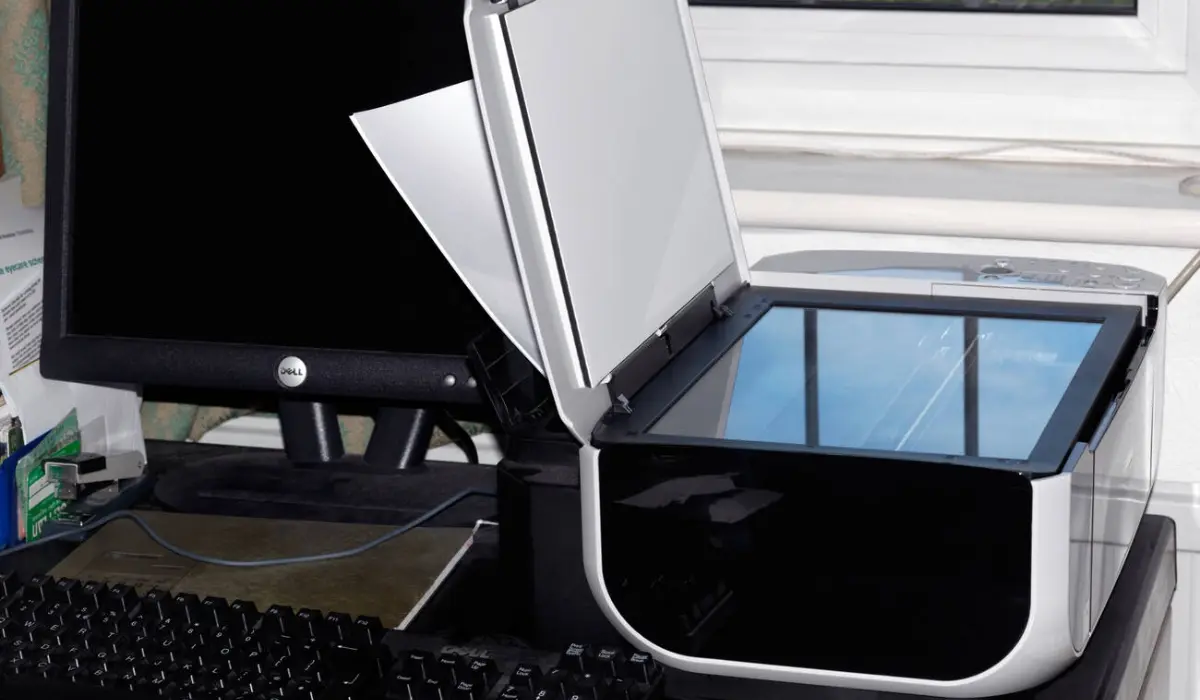
Place the document face down on the scanner glass.
-
Close the scanner lid carefully to prevent light interference.
Once these steps are completed, your Canon printer will be ready to scan documents.
Steps to Scan Documents Using a Canon Printer
Scanning documents with a Canon printer is straightforward when the device is properly installed.
Begin by opening the scanning software on your computer. Canon IJ Scan Utility is the most commonly used tool for scanning documents.
Next, place the document on the scanner glass or inside the automatic document feeder if your printer supports it. Make sure the document is aligned correctly to avoid cutting off edges.
Follow these steps to complete the scan:
-
Open the Canon scanning software on your computer.
-
Select the scan type, such as document or photo.
-
Choose the desired file format, like PDF or JPEG.
-
Adjust the resolution if needed.
-
Click the scan button and save the file.
These steps explain how to use Canon printer for scanning documents efficiently and with minimal effort.
Scanning Directly from the Printer Control Panel
Many modern Canon printers allow users to scan documents directly from the printer’s control panel. This feature is useful when you want to scan documents without opening scanning software on a computer.
To scan using the printer screen, place the document on the scanner glass and access the scan menu from the printer display. From there, choose where you want the scanned file to be saved.
Common scan destinations include:
-
Computer folder
-
Email address
-
USB drive
-
Cloud storage
Using the printer control panel makes scanning faster and more convenient for everyday tasks.
Scanning Photos Using Canon Printers
Canon printers are also popular for high-quality photo scanning. If you want to digitize printed photographs, the scanner can capture detailed images with accurate colors.
For best results, choose higher resolution settings when scanning photos. Higher resolution preserves details and ensures that the digital copy looks clear and professional.
When scanning photos, consider the following tips:
-
Clean the scanner glass before scanning.
-
Use 300–600 DPI resolution.
-
Select the photo scan option in the software.
-
Save the file as a JPEG or TIFF.
These steps help maintain the original quality of photographs during the scanning process.
Tips for Getting Better Scan Quality
Even though Canon scanners are designed for high-quality results, following a few best practices can further improve the quality of scanned documents.
First, always keep the scanner glass clean. Dust, fingerprints, or smudges can appear in scanned images and reduce clarity.
Second, select the correct resolution based on the document type. Text documents usually require lower-resolution settings, while photos require higher-resolution settings.
Helpful scanning tips include:
-
Use 300 DPI for text documents.
-
Use 600 DPI for detailed images.
-
Align documents properly on the scanner glass.
-
Use the preview option before final scanning.
These practices ensure that scanned files appear clear and professional.
Common Scanning Problems and Solutions
Sometimes users may face minor issues when scanning documents. Fortunately, most problems are easy to resolve.
One common issue is when the computer cannot detect the scanner. This usually happens if the printer driver is not installed correctly.
Another issue is poor scan quality. This may occur if the scanner glass is dirty or if the resolution settings are too low.
Basic troubleshooting steps include:
-
Restart the printer and computer.
-
Check the USB or Wi-Fi connection.
-
Update the Canon printer driver.
-
Reinstall the scanning software.
These solutions usually resolve most scanning problems quickly.
Advantages of Using Canon Printers for Scanning
Canon printers offer several benefits that make them a popular choice for document scanning.
Some key advantages include:
-
High resolution scanning capability
-
Easy-to-use scanning software
-
Wireless scanning support
-
Multiple file format options
These features allow users to scan documents efficiently and manage digital files more effectively.
Conclusion
Digital document management has become increasingly important in today’s workplaces and homes. Canon printers make the scanning process simple, efficient, and reliable for users who need to convert paper documents into digital files. By following the steps in this guide, anyone can quickly scan documents, photos, and important records without any technical difficulties. Understanding how to use Canon printer for scanning helps improve productivity and reduces the need for physical storage. Canon multifunction printers are designed to provide consistent scanning performance, making them suitable for offices, businesses, and home users. Once you become comfortable with how to use a Canon printer for scanning, organizing, and sharing documents, it becomes much easier and more efficient.
Frequently Asked Questions
1. How do I scan a document using a Canon printer?
Place the document on the scanner glass, open the Canon scanning software on your computer, select the scan option, and save the scanned file.
2. What software is used for Canon printer scanning?
Most Canon printers use Canon IJ Scan Utility or similar Canon scanning tools included with the printer driver.
3. Can Canon printers scan multiple pages at once?
Yes, printers with an automatic document feeder allow users to scan multiple pages and combine them into a single PDF file.
4. What is the best resolution for scanning documents?
For text documents, 300 DPI is recommended. For photos and detailed images, 600 DPI provides better quality.
5. Can I scan documents wirelessly using a Canon printer?
Yes, many Canon printers support wireless scanning through Wi-Fi and allow documents to be sent directly to computers or cloud storage.