


How to Check Epson Ink Level: A Complete Step-by-Step Guide for Every User

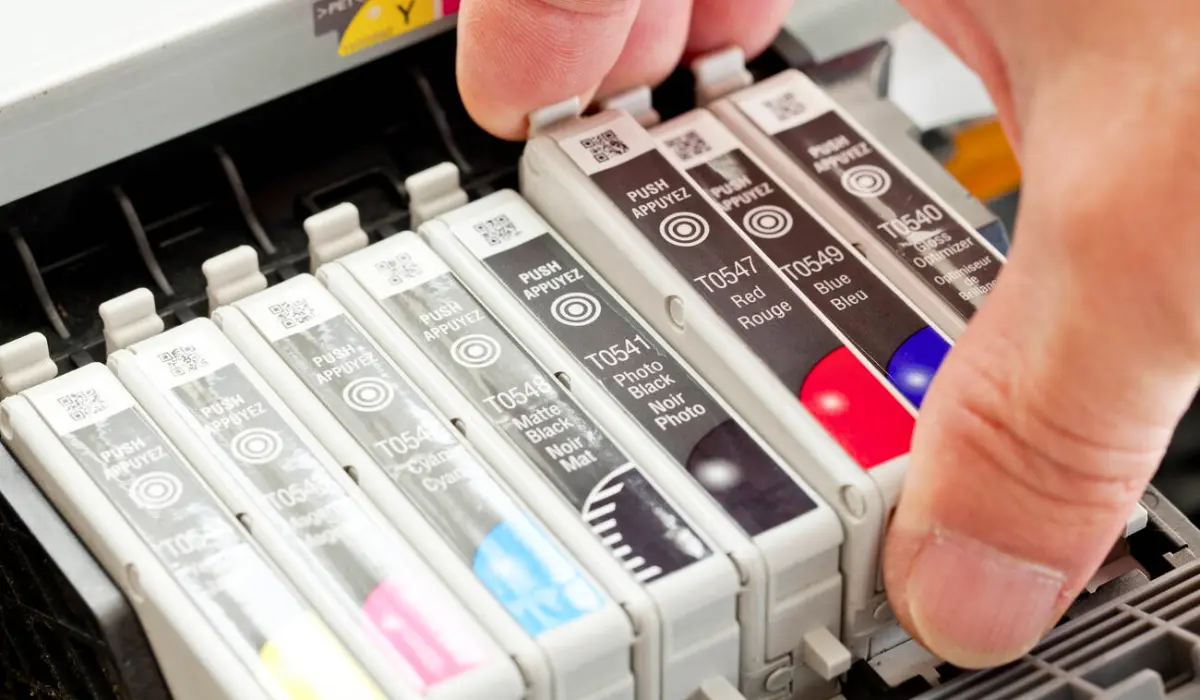
If you use an Epson printer at home or in the office, keeping track of your ink levels is essential for smooth and uninterrupted printing. Nothing is more frustrating than sending an important document to print only to realize the ink has run out halfway through the job. Understanding how to check Epson ink level properly helps you avoid print quality issues, faded pages, and unnecessary downtime.
Many Epson printers are designed with user-friendly tools that make monitoring ink levels simple and fast. Whether you are using a Windows PC, a Mac, the printer’s control panel, or a mobile device, there are several easy ways to stay informed. In this guide, you will learn how to check Epson ink level using different methods, along with practical tips to improve printer performance and extend cartridge life.
Why Monitoring Ink Levels Is Important?
Checking ink levels regularly helps maintain consistent print quality. When ink runs low, colors may appear faded, streaked, or incomplete. If one cartridge empties completely, many Epson printers will stop printing entirely to prevent damage to the printhead.
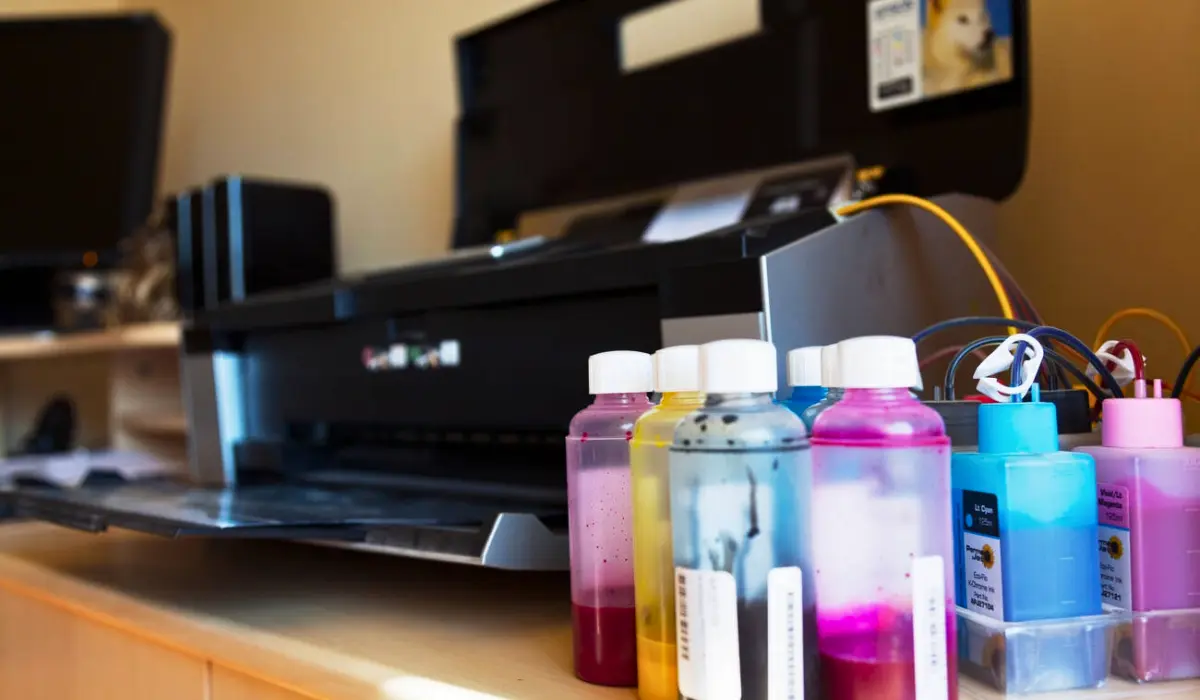
By keeping an eye on ink status, you can:
-
Avoid emergency cartridge replacements.
-
Prevent printheads from being damaged by dry firing.
-
Maintain professional-quality prints.
-
Plan cartridge purchases in advance.
This simple habit can save time, money, and frustration in the long run.
How to Check Epson Ink Level on Windows
If you are using a Windows computer connected to your Epson printer, checking ink levels is straightforward.
Method 1: Through Printer Settings
-
Open the Control Panel.
-
Click on “Devices and Printers.”
-
Right-click your Epson printer.
-
Select “Printing Preferences.”
-
Look for the “Maintenance” or “Utility” tab.
-
Click on “Epson Status Monitor.”
The Epson Status Monitor displays a visual representation of each ink cartridge and shows approximate ink levels.
Method 2: Using Epson Printer Software
When you install your Epson printer drivers, dedicated monitoring software is usually included. Open the Epson utility software from your desktop or start menu. Navigate to the maintenance section to view cartridge status. This method is one of the most accurate ways to check Epson ink level from your computer.
How to Check Epson Ink Level on Mac
Mac users can also monitor ink levels quickly using built-in system tools.
Steps for Mac Users
-
Click the Apple menu and open “System Settings” or “System Preferences.”
-
Select “Printers & Scanners.”
-
Choose your Epson printer.
-
Click “Options & Supplies.”
-
Open the “Supply Levels” tab.
You will see a graphical display showing remaining ink levels for each cartridge.
Checking Ink Levels from the Printer Control Panel
Many modern Epson printers come with an LCD screen or touchscreen interface. This allows you to check ink levels directly from the printer without using a computer.
Typically, you can:
-
Press the “Home” button.
-
Navigate to “Setup” or “Maintenance.”
-
Select “Ink Levels” or “Supply Status.”
The screen will display ink levels for each color cartridge. This method is especially useful if your printer is connected to multiple devices or operating wirelessly.
Using the Epson Smart Panel App
Epson also offers mobile apps that make printer management easier. The Epson Smart Panel app allows users to monitor printer status directly from their smartphone or tablet.
To use this method:
-
Download the Epson Smart Panel app from your device’s app store.
-
Connect the app to your printer via Wi-Fi.
-
Open the dashboard to view ink levels.
This is a convenient solution for home users and small offices that rely on mobile printing.
Understanding Ink Level Indicators
It is important to understand that most printers display estimated ink levels. These estimates are based on usage data rather than direct measurement inside the cartridge.
When ink levels appear low:
-
You may still be able to print several pages.
-
Print quality might begin to decline gradually.
-
The printer may display warning notifications.
Once ink levels fall critically low, the printer may stop functioning until the cartridge is replaced.
What to Do When Ink Is Low
If you notice that ink levels are dropping, consider taking proactive steps:
-
Purchase replacement cartridges in advance.
-
Print important documents before the cartridge fully empties.
-
Run a nozzle check if print quality declines.
Avoid removing cartridges too early, as doing so may waste usable ink. Instead, replace them only when the printer indicates they are empty or performance noticeably decreases.
Troubleshooting Ink Level Display Issues
Sometimes, ink levels may not display correctly. Here are a few troubleshooting tips:
-
Restart your printer and computer.
-
Update printer drivers.
-
Reinstall the Epson printer software.
-
Ensure cartridges are properly installed.
If the issue continues, check the official support section of Epson for your specific printer model.
Tips to Extend Epson Ink Life
While learning how to check Epson ink level is important, maximizing ink usage is equally valuable.
Here are practical tips:
-
Use “Draft Mode” for everyday documents.
-
Print in grayscale when color is unnecessary.
-
Avoid frequent deep cleaning cycles.
-
Turn off the printer properly instead of unplugging it.
Proper maintenance ensures that you get the most value from each cartridge.
Common Mistakes to Avoid
Many users make simple mistakes that waste ink unnecessarily. Avoid these common errors:
-
Ignoring low-ink warnings for too long.
-
Removing cartridges repeatedly.
-
Using incompatible cartridges may not display accurate levels.
-
Running multiple cleaning cycles without checking the nozzles first.
Being mindful of these practices can help you maintain consistent printer performance.
Conclusion
Keeping track of your printer’s ink supply is a small task that delivers big benefits. When you understand how to check Epson ink level using your computer, printer screen, or mobile app, you can prevent unexpected interruptions and maintain high-quality printing results. Regular monitoring protects your printer, preserves printhead performance, and ensures your documents always look professional.
Whether you are printing school assignments, business reports, or creative projects, staying proactive about ink management is essential. Now that you know how to check Epson ink level through multiple methods, you can confidently manage your printer and avoid last-minute surprises. Make it a habit to review ink levels regularly, and your Epson printer will continue delivering reliable performance for years to come.
Frequently Asked Questions
1. How often should I check my Epson ink levels?
It is recommended to check ink levels at least once a week if you print regularly, or before printing large jobs.
2. Can I print when the ink level shows low?
Yes, but print quality may decline. It is best to replace cartridges soon after receiving a low-ink warning.
3. Why does my printer show ink remaining after replacement?
If the display does not reset, remove and reinstall the cartridge properly or restart the printer.
4. Are ink level readings 100% accurate?
Ink levels are estimated based on usage. They are generally reliable but not exact measurements.
5. Can third-party cartridges affect ink level monitoring?
Yes, some non-original cartridges may not communicate accurately with the printer, leading to incorrect level readings.
